How to default your phone to grayscale
Then switch to color automatically when needed.
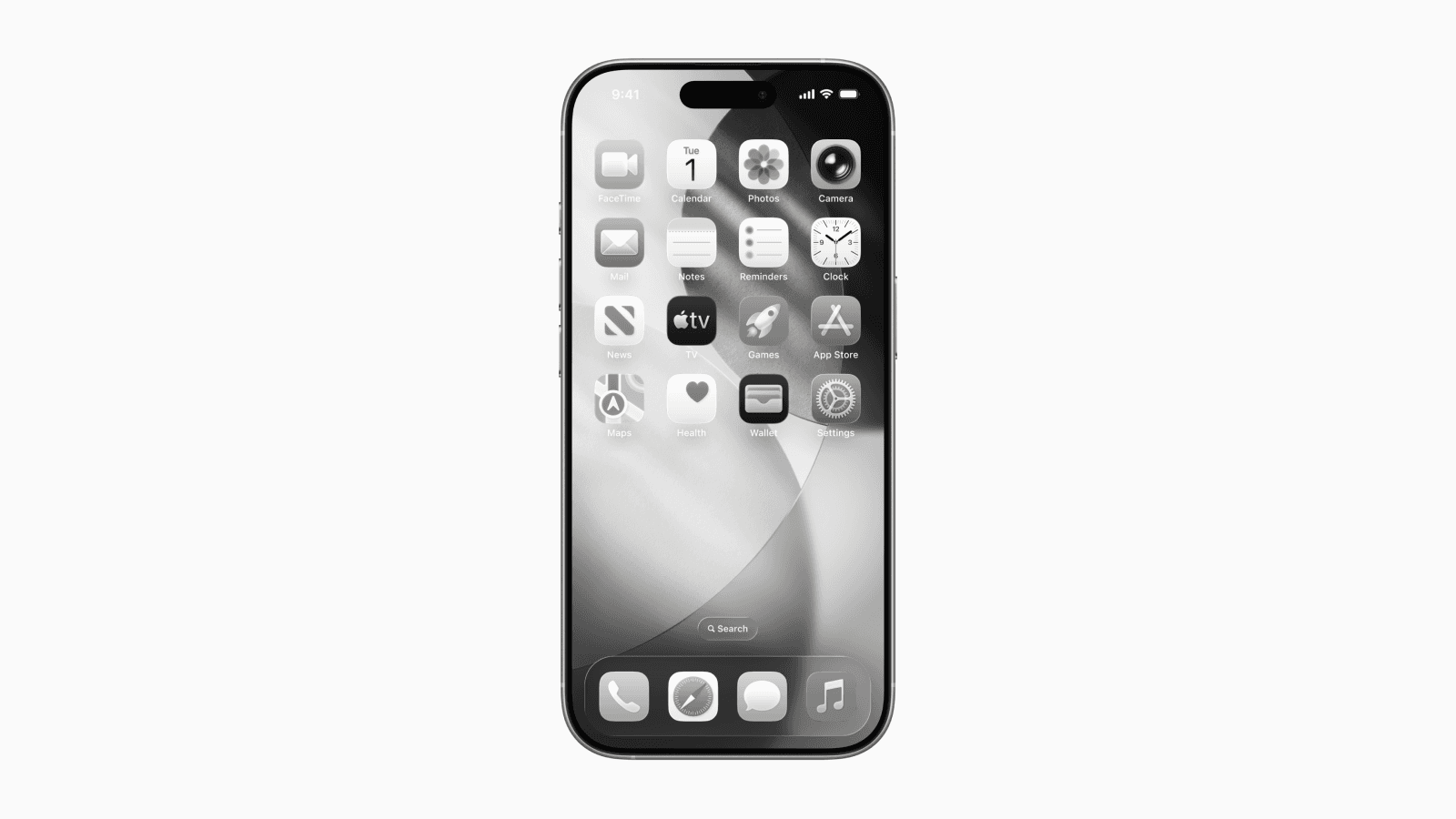
Many people are now turning to putting their phones in grayscale as a way to reduce phone use.
It's easy to see why.
Bright, stimulating colors in apps and content create a rewarding experience for the brain.
Making everything black and white reduces its appeal and disrupts the addictive cycle that keeps you engaged.
One step ahead
A recent post by Vaibhav (VB) Srivastav highlights a clever use of Apple Shortcuts to promote using the phone in "grayscale by default."
He set up automations to turn off grayscale only when necessary, such as when opening the Camera or Photos app, and then automatically re-enable it after closing the app.
Setting it up
First, enable grayscale in the settings. Then, set up two automations to turn it off and on automatically for selected apps.
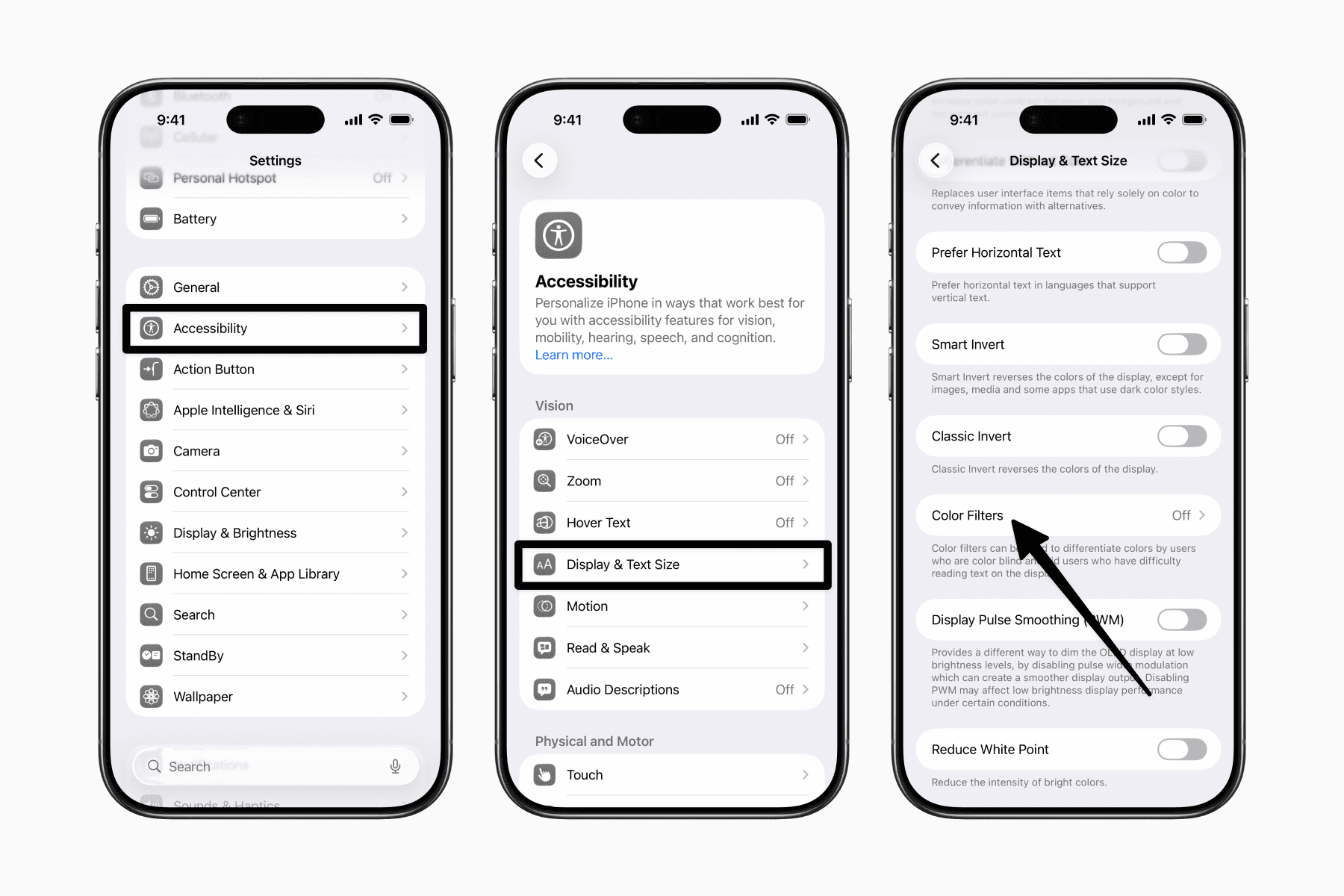
Go to Accessibility > Display & Text Size > Color Filters.
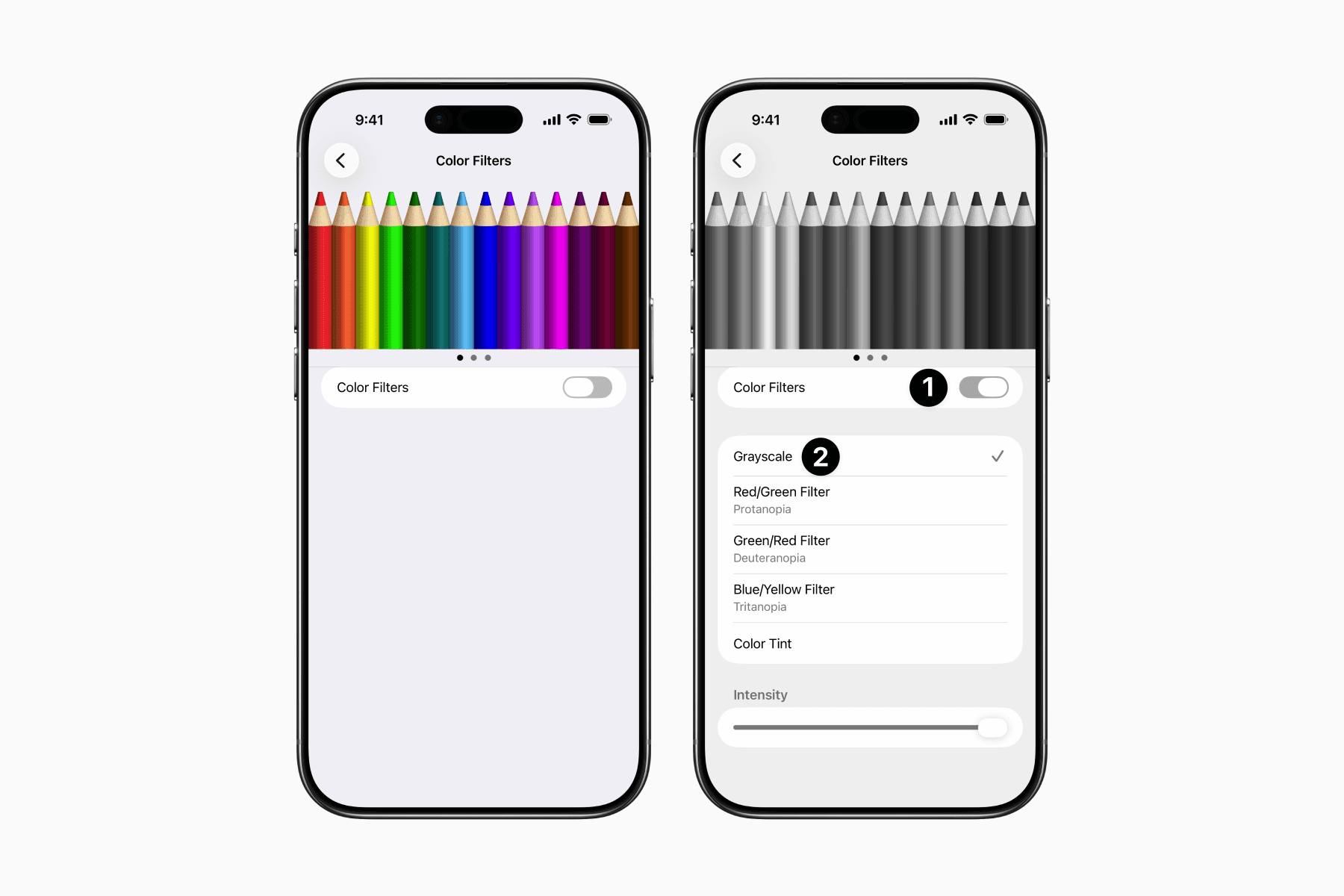
Toggle on Color Filters and ensure Grayscale is selected.
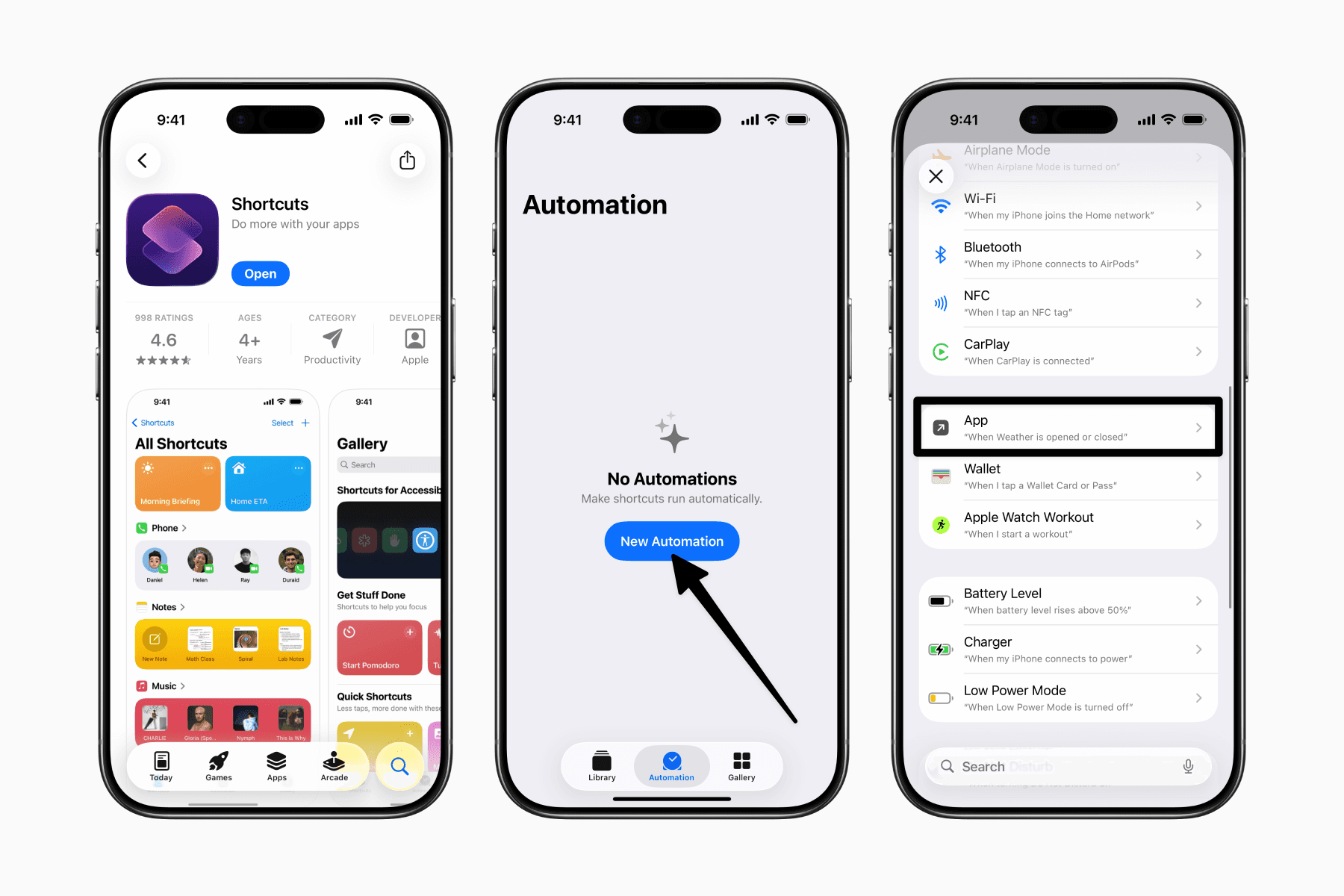
Open the Shortcuts app and go to the Automations tab.
Create an automation and choose App.
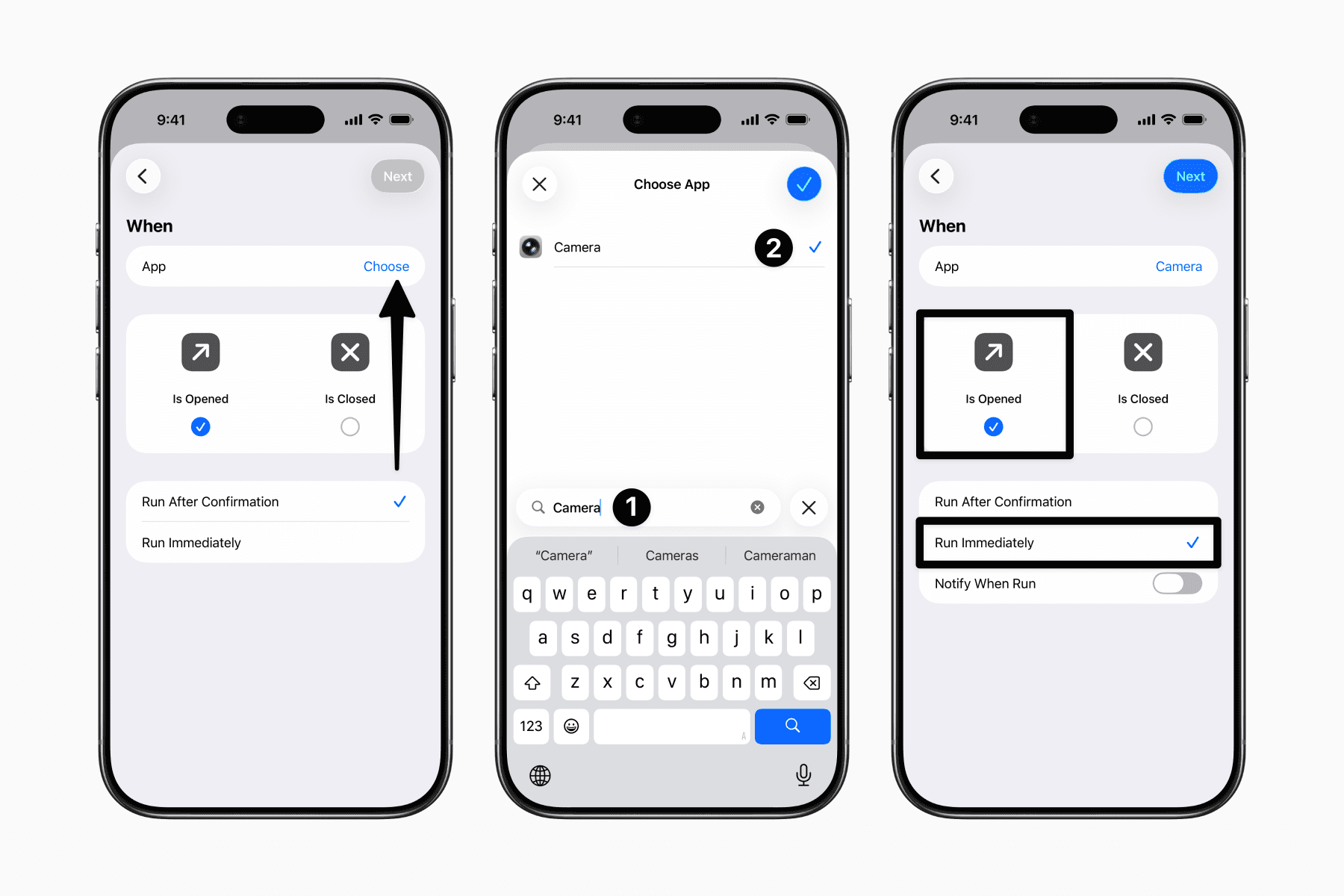
Select only the apps where you need to turn off grayscale, such as Photos, Camera, and so on.
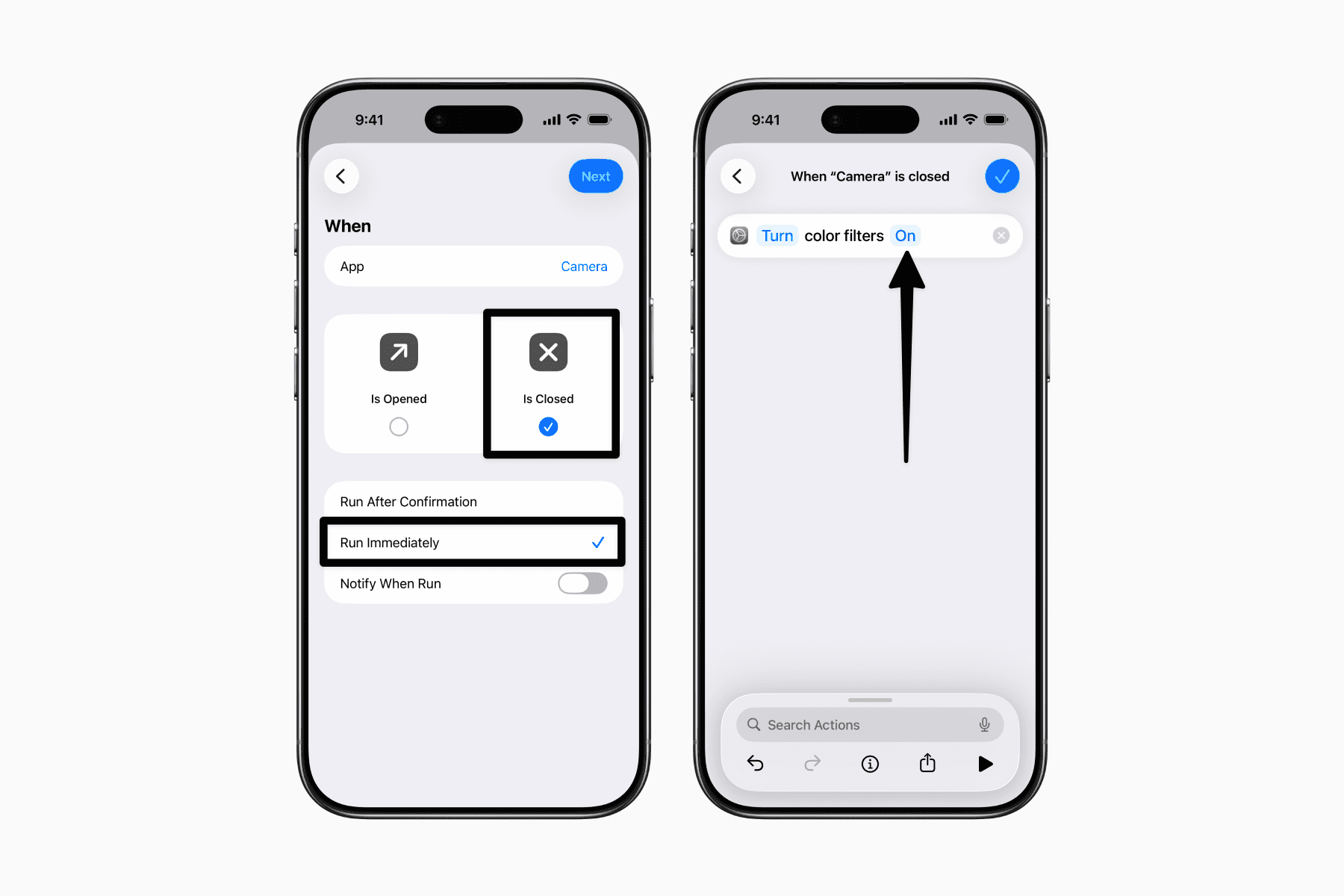
Ensure that only "Is Opened" is checked and select "Run Immediately" to skip the confirmation step.
Choose “Create New Shortcut” and search for the action “Set Color Filters.” Make sure it’s set to off.
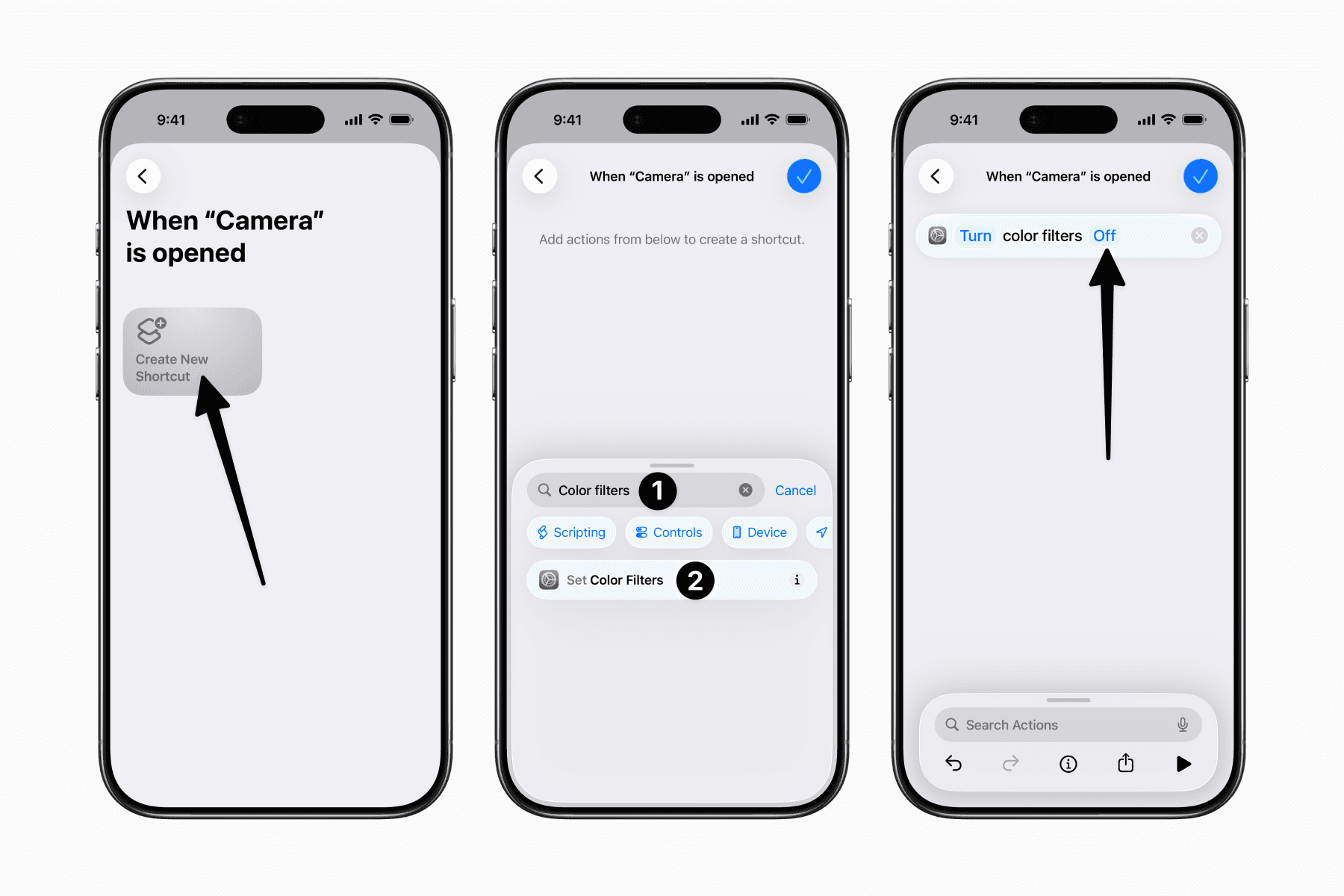
Create another automation for when the previously selected apps are closed. This time, check "Is Closed" and ensure the color filter is set to turn on.
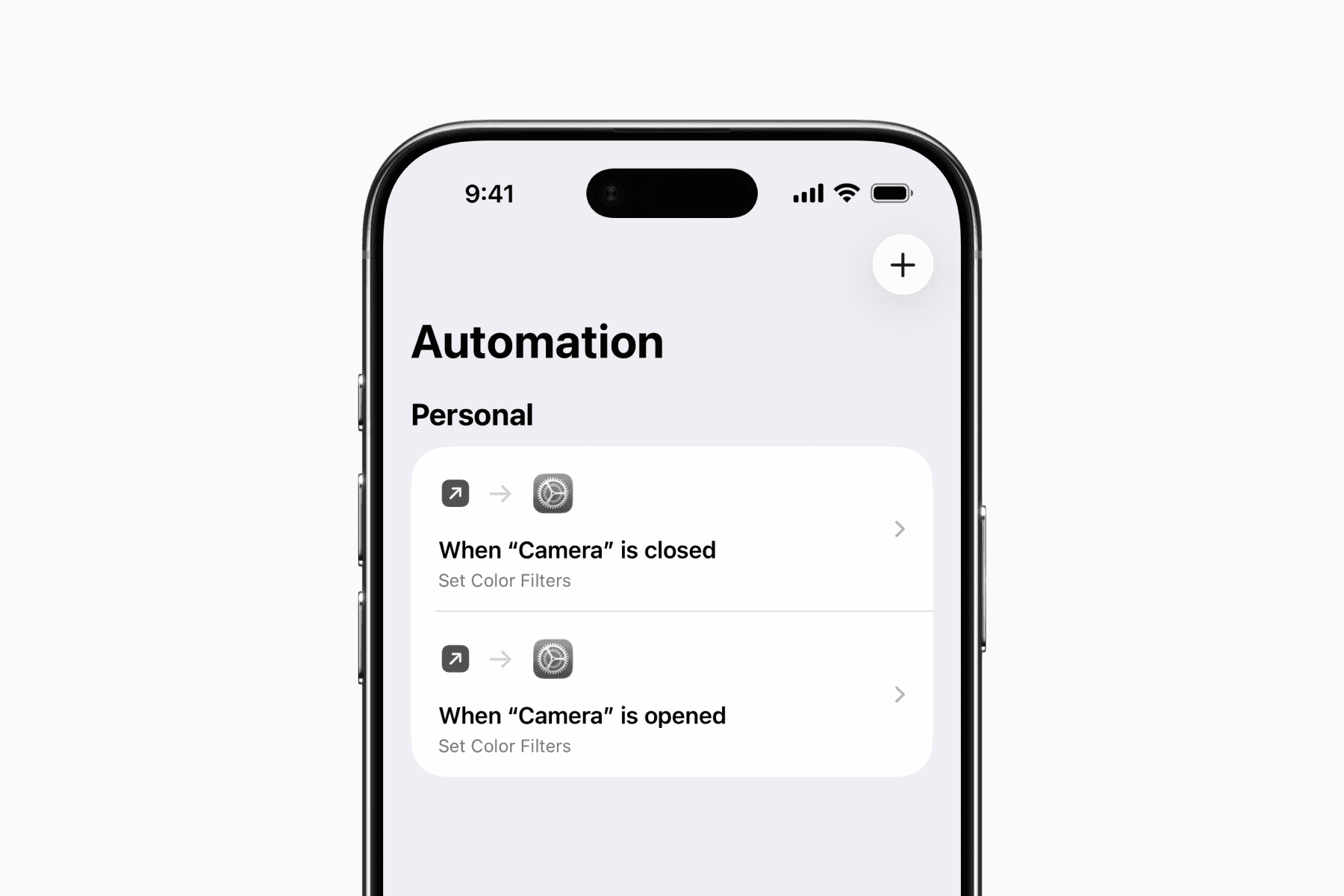
After setting it up, you should have two automations, as shown in the image below.
You are now ready to use grayscale by default on your phone.
If you prefer to switch to grayscale only when you want to stay focused, read our guide on setting up a "dumb mode."