Automatically switch your iPhone wallpaper for day and night
No more manually switching your wallpaper.
Do you have a separate wallpaper for daytime and nighttime?
Follow this setup guide to automate switching your wallpaper at sunrise, sunset, or a specific time.
Prepare Your Lock Screens
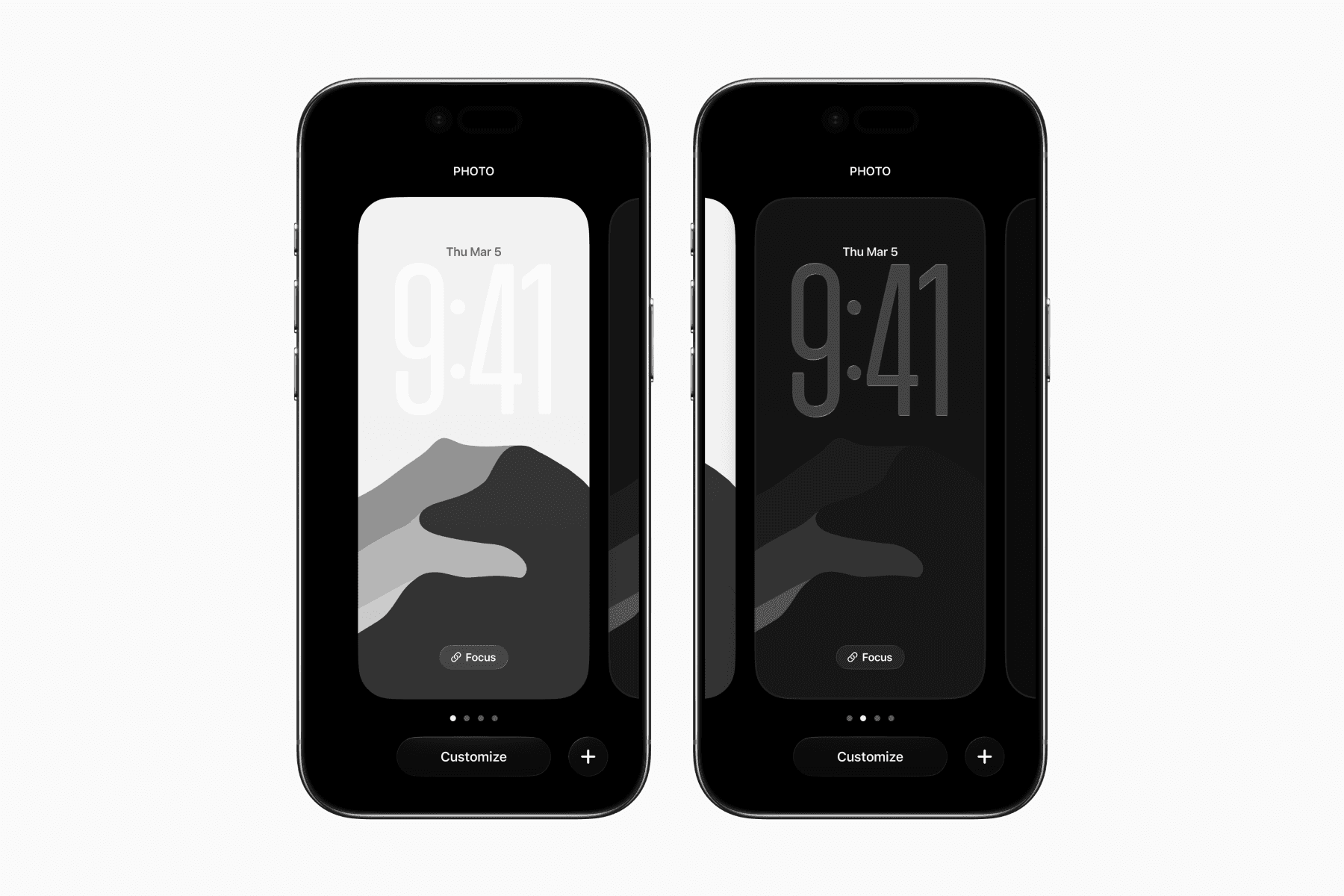
Before setting up the automation, first set up a lock screen with a day wallpaper and another for a night wallpaper.
To add a new lock screen, hold the current lock screen until you enter editing mode, then hit the plus icon on the bottom right corner.
Set Up the Automations
You will need two automations. One to set the day wallpaper and the other to set the night wallpaper.
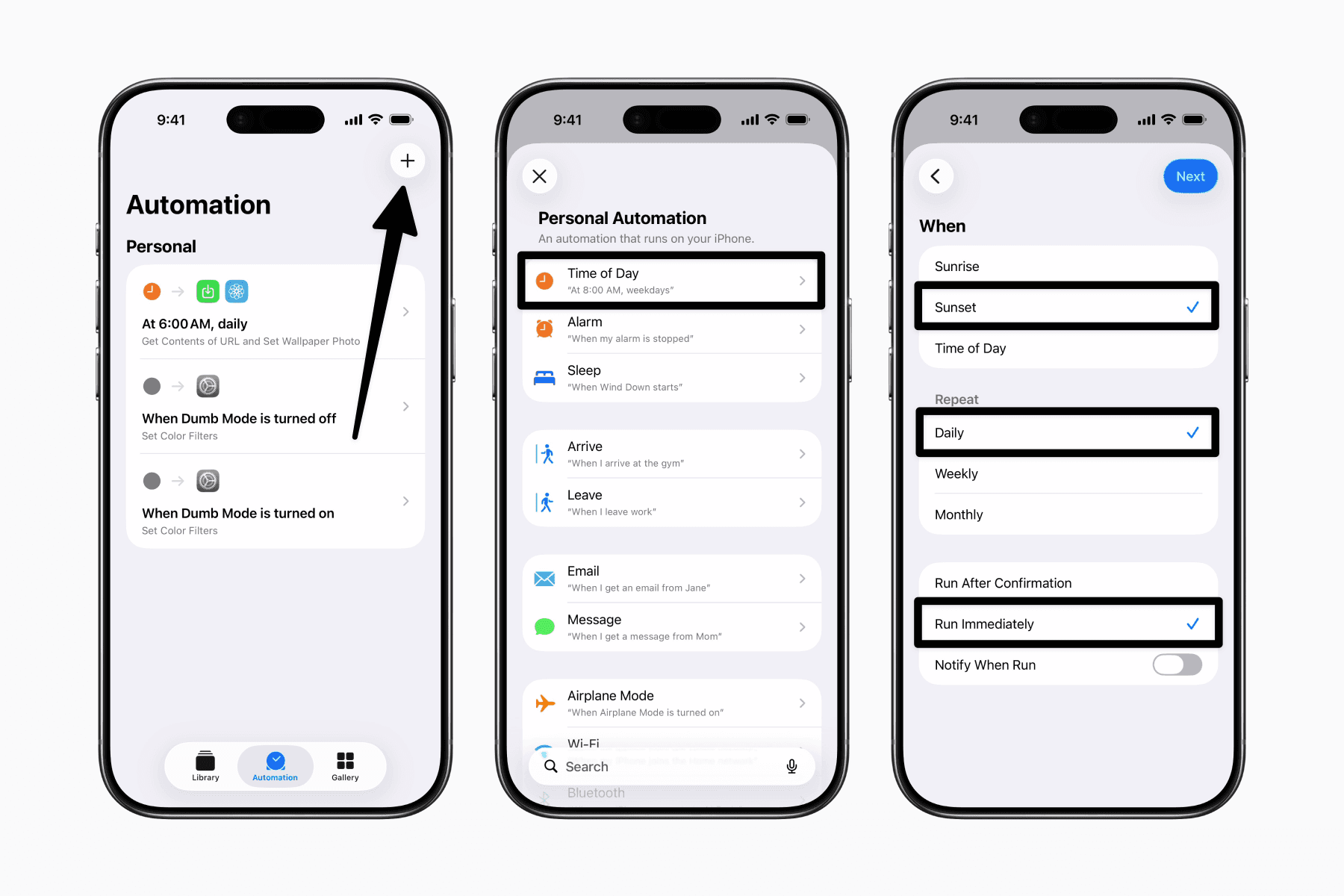
First, open the Shortcuts app and go to the Automations tab.
Create an automation and choose the Time of Day trigger.
On the next page, select Sunrise, Sunset, or an exact time of day.
We’ll set up the night wallpaper to switch to at sunset.
Ensure you selected “Daily” under Repeat and that the automation is set to “Run Immediately.”
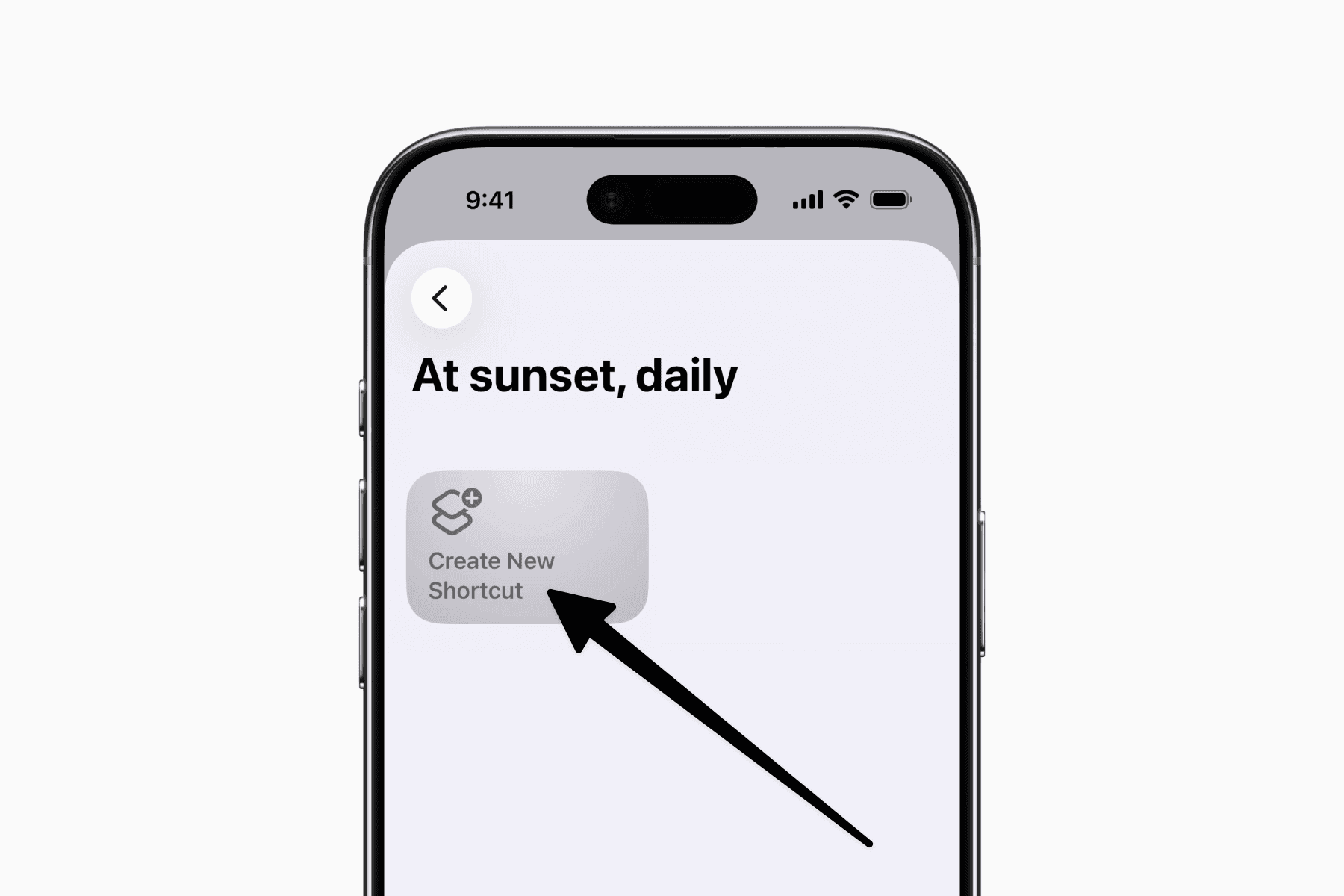
On the next page, choose “Create New Shortcut.”
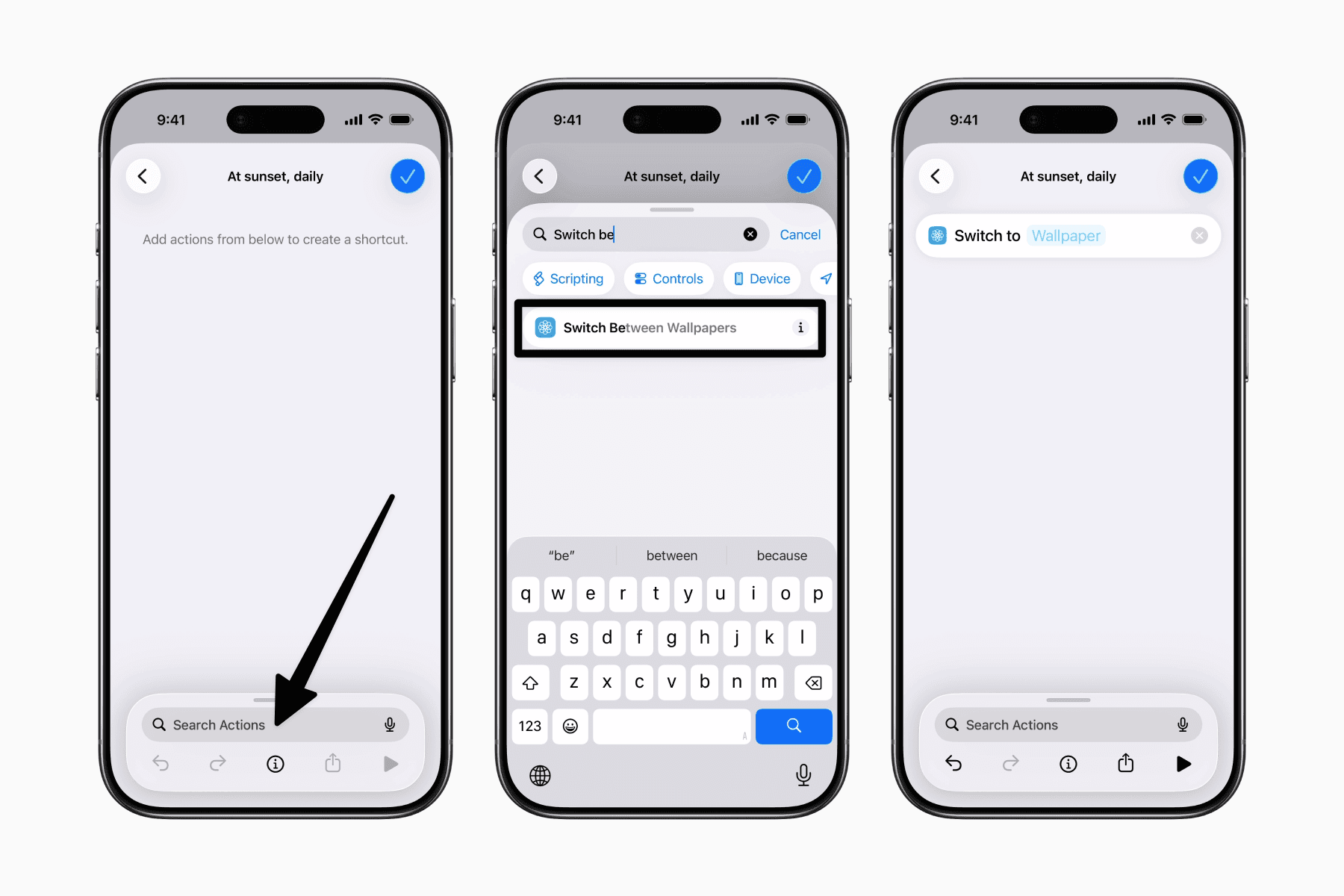
Search for the action “Switch Between Wallpapers” and choose the respective wallpaper you’ve already set up.
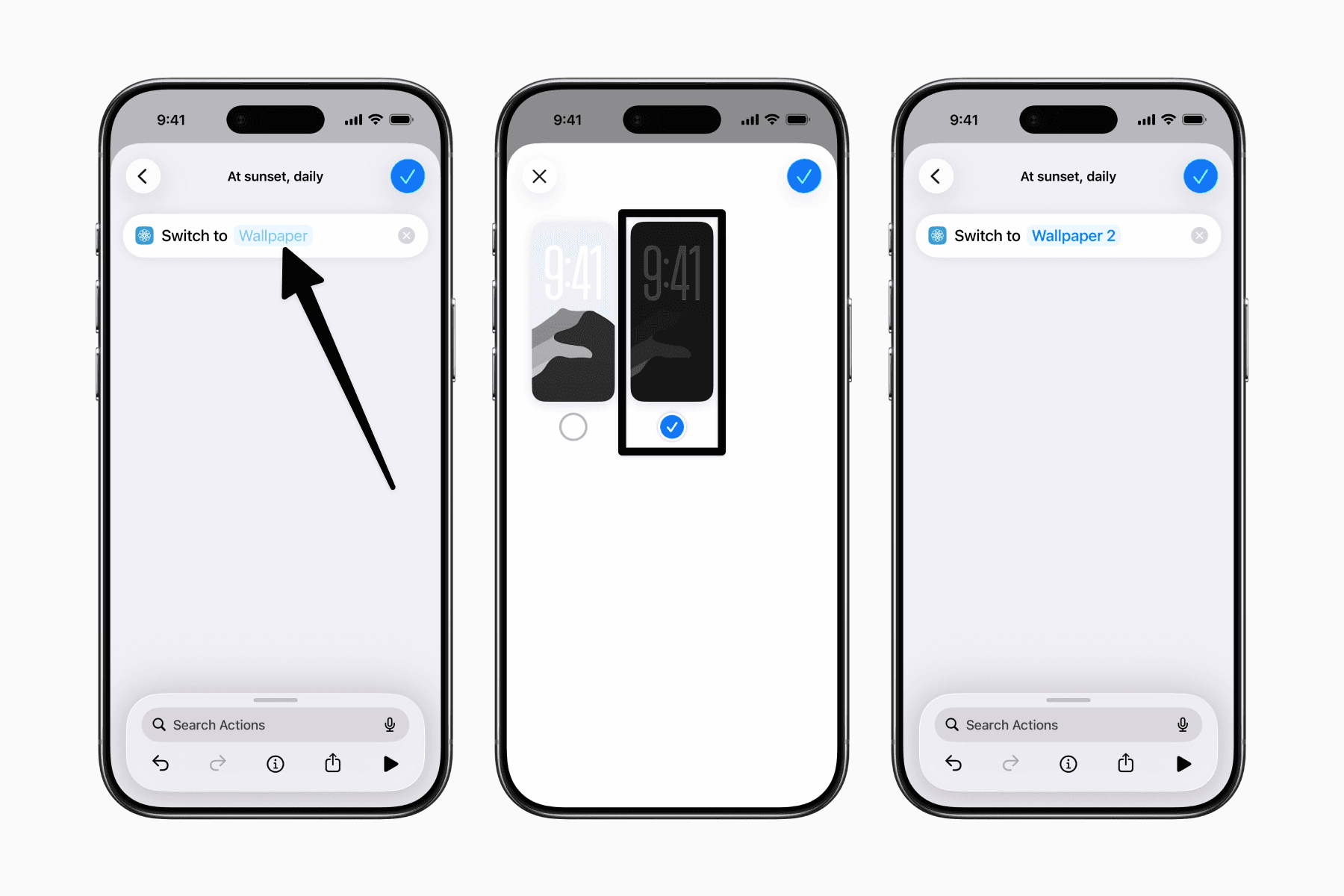
Repeat these steps to create a new automation to switch to your day wallpaper at sunrise or a specific time.