This Life Calendar wallpaper updates automatically
Use Apple Shortcuts to update your lock screen to display your remaining weeks.
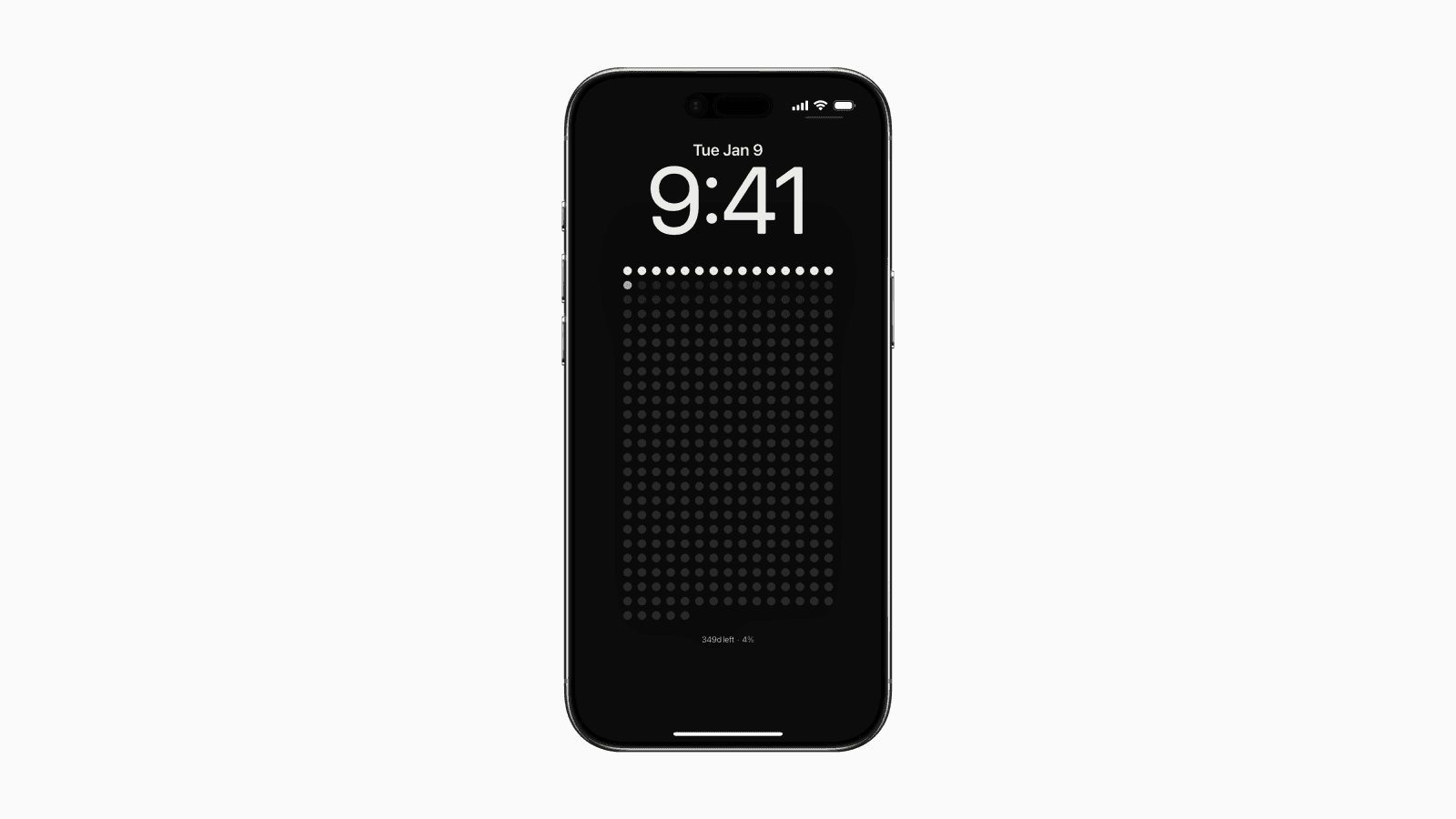
A recent post on X showcased a clever use of the Shortcuts app to automatically fetch an image and update your iPhone lock screen.
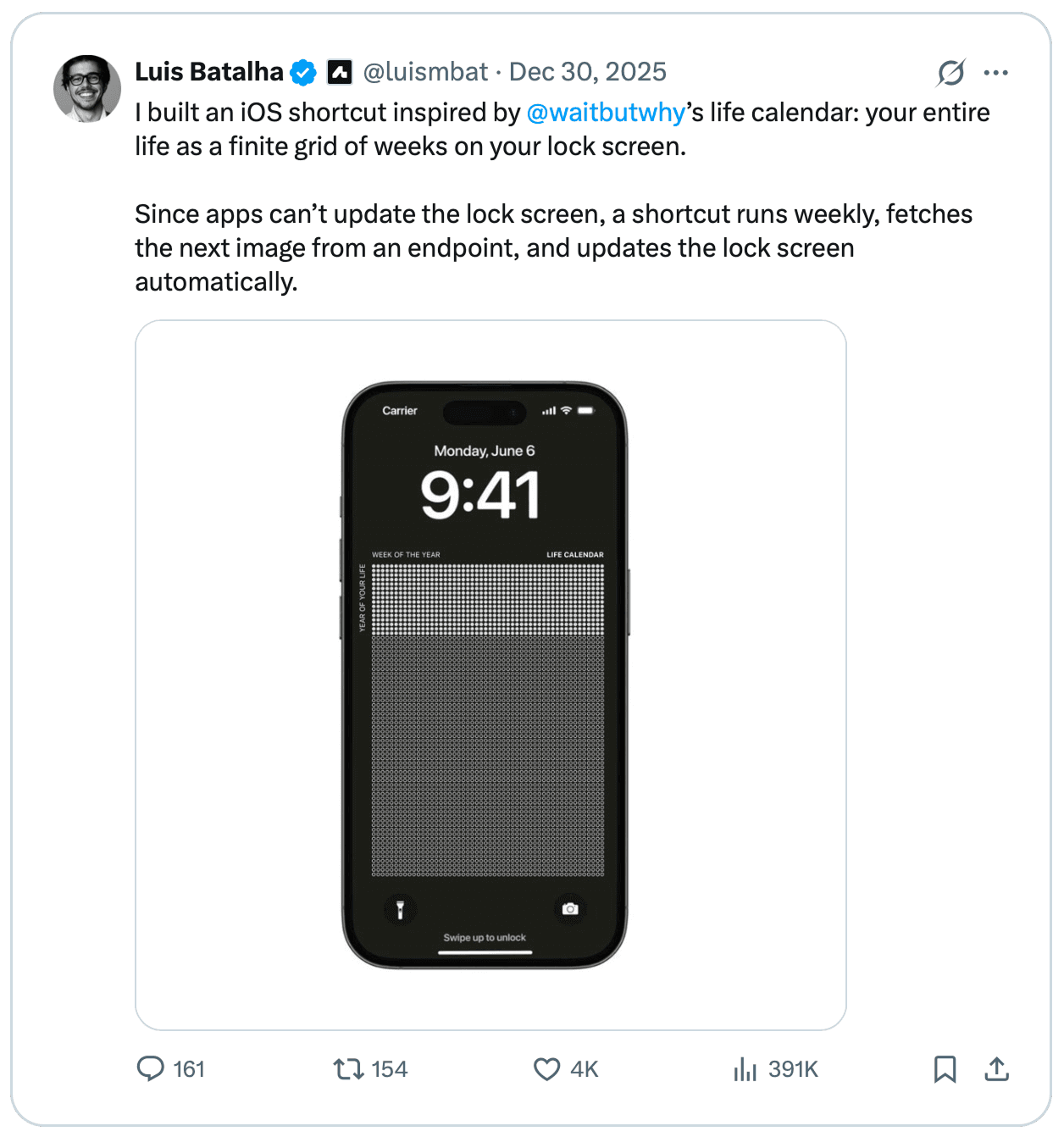
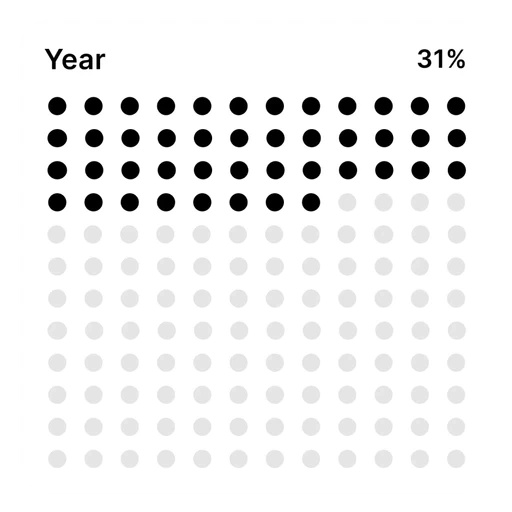
The primary use case for this feature is to display a life calendar or visualize the progress of the current year.
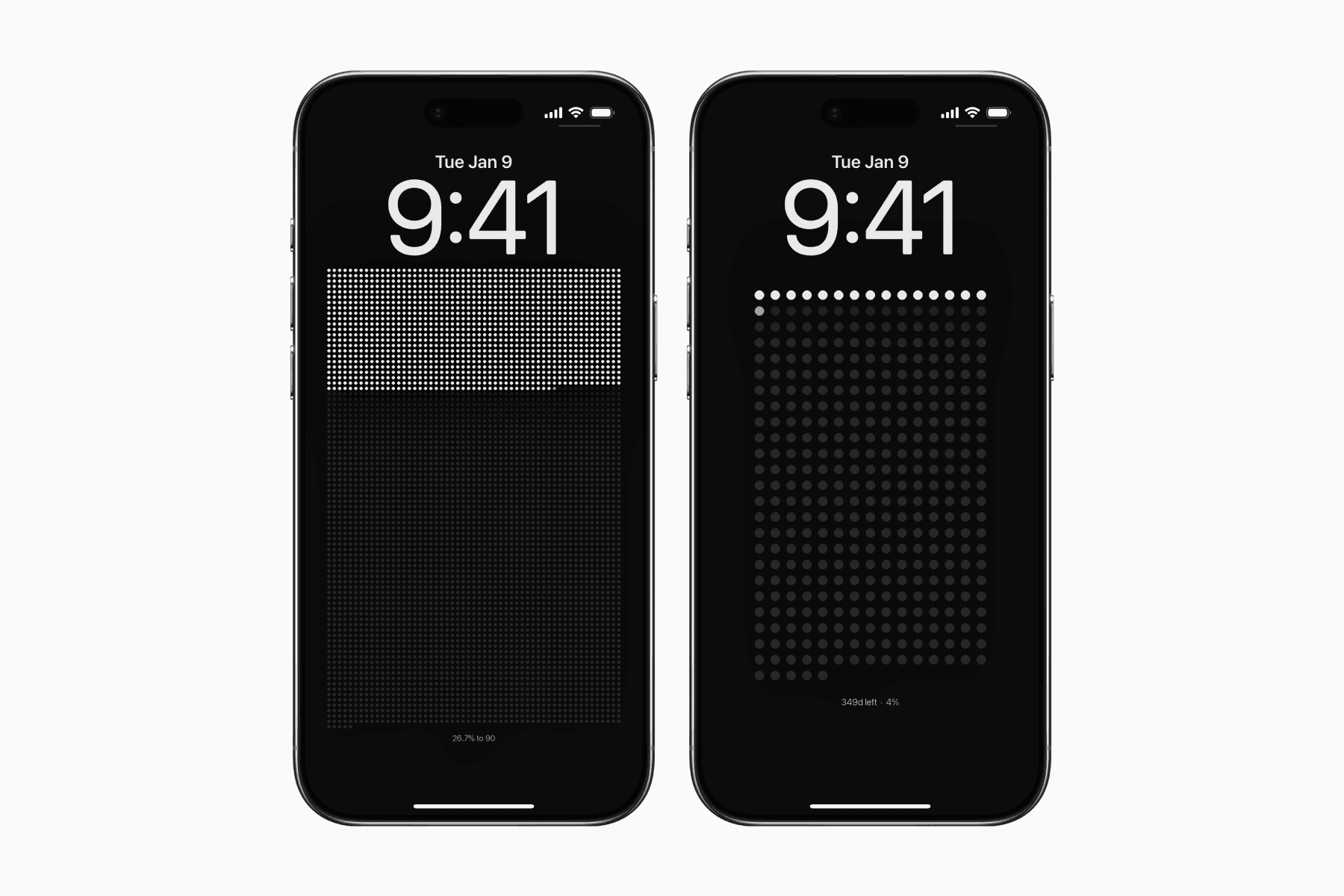
If you want a similar setup, follow the step-by-step guide below.
Step 1: Create an automation
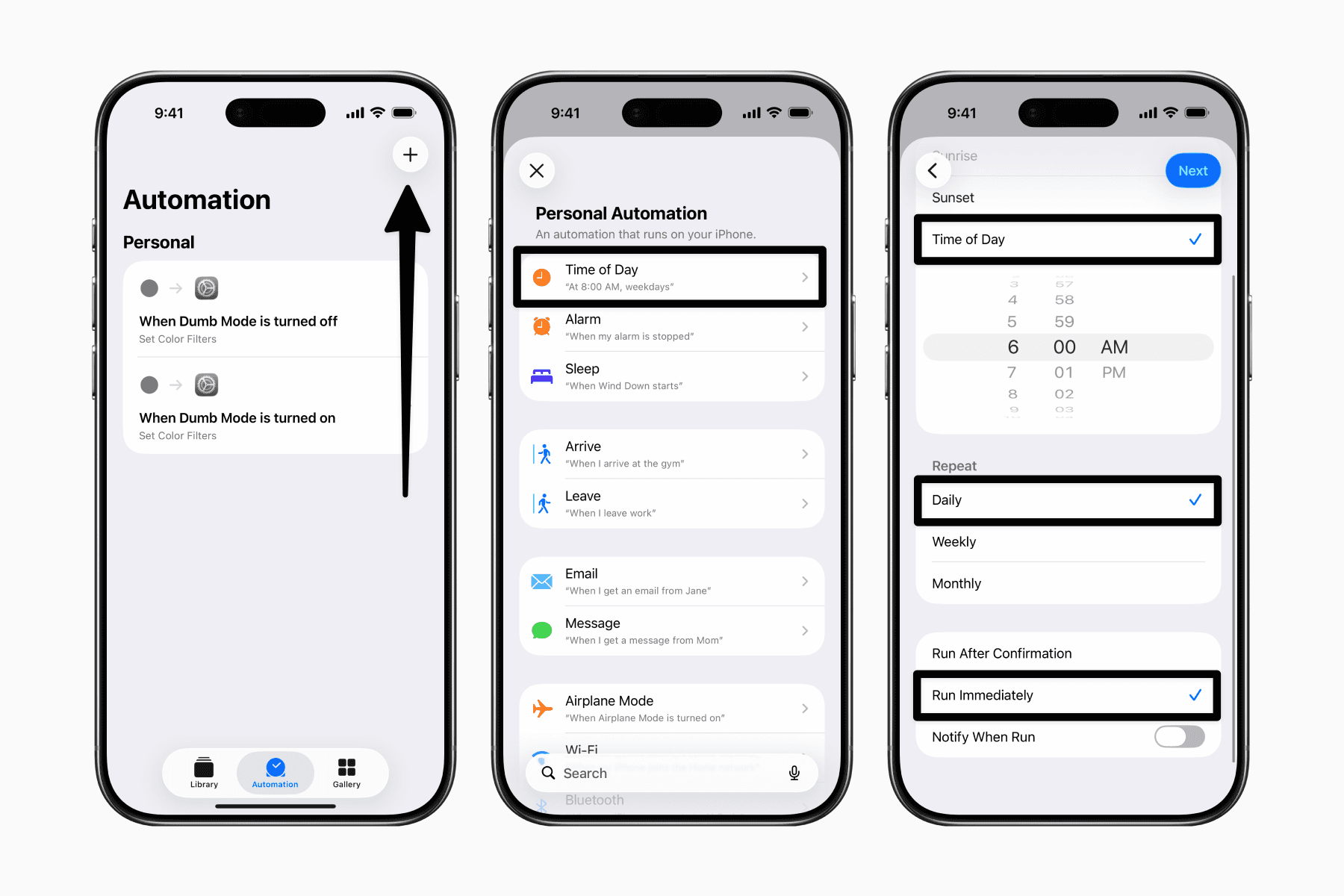
Open the Shortcuts app and go to the Automations tab.
Create a new automation and select the “Time of Day” option.
Set the time for 6:00 AM and repeat daily.
Most importantly, select “Run Immediately” so the automation can run in the background without your confirmation.
On the next page, select the “Create New Shortcut” option.
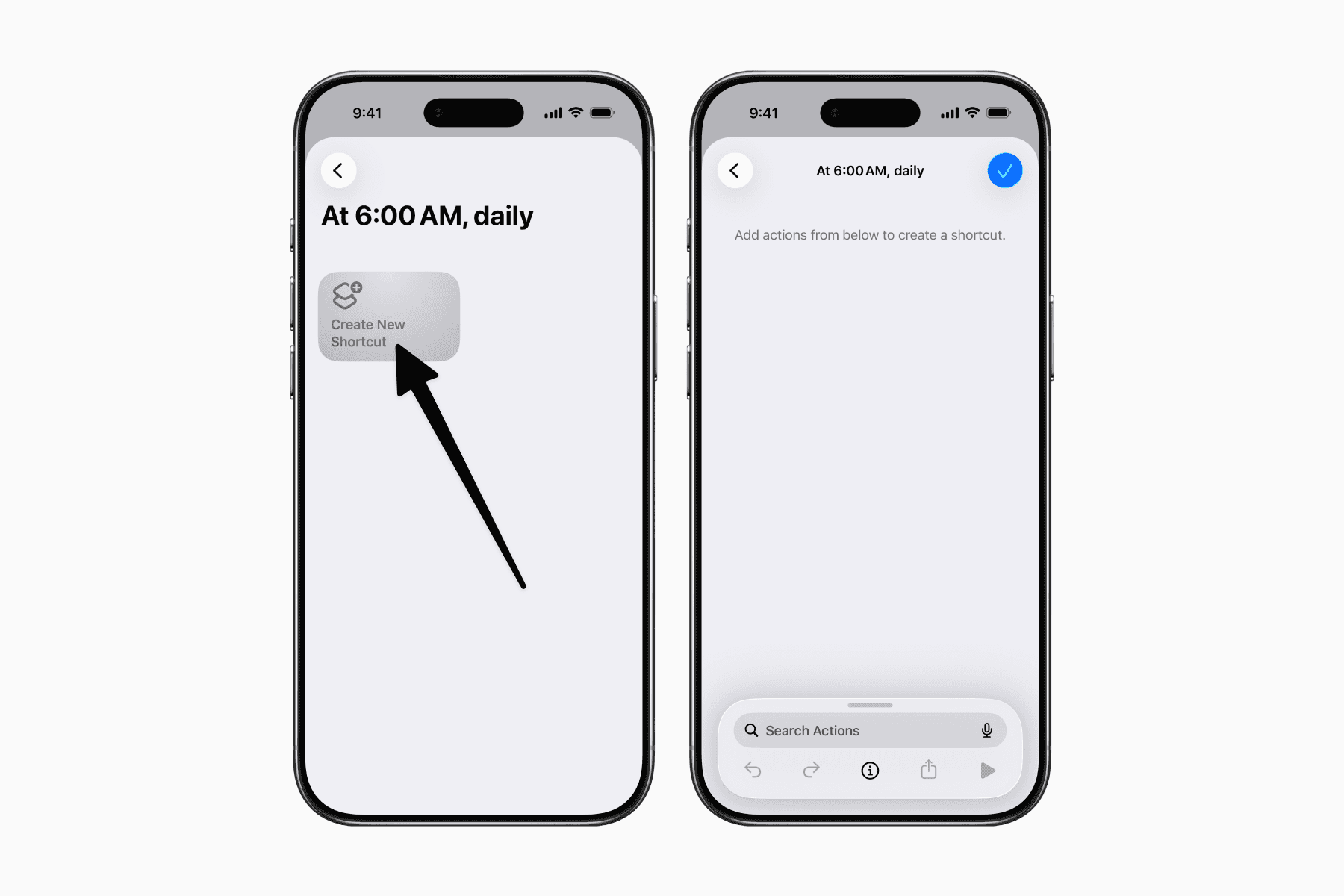
Step 2: Get the wallpaper link
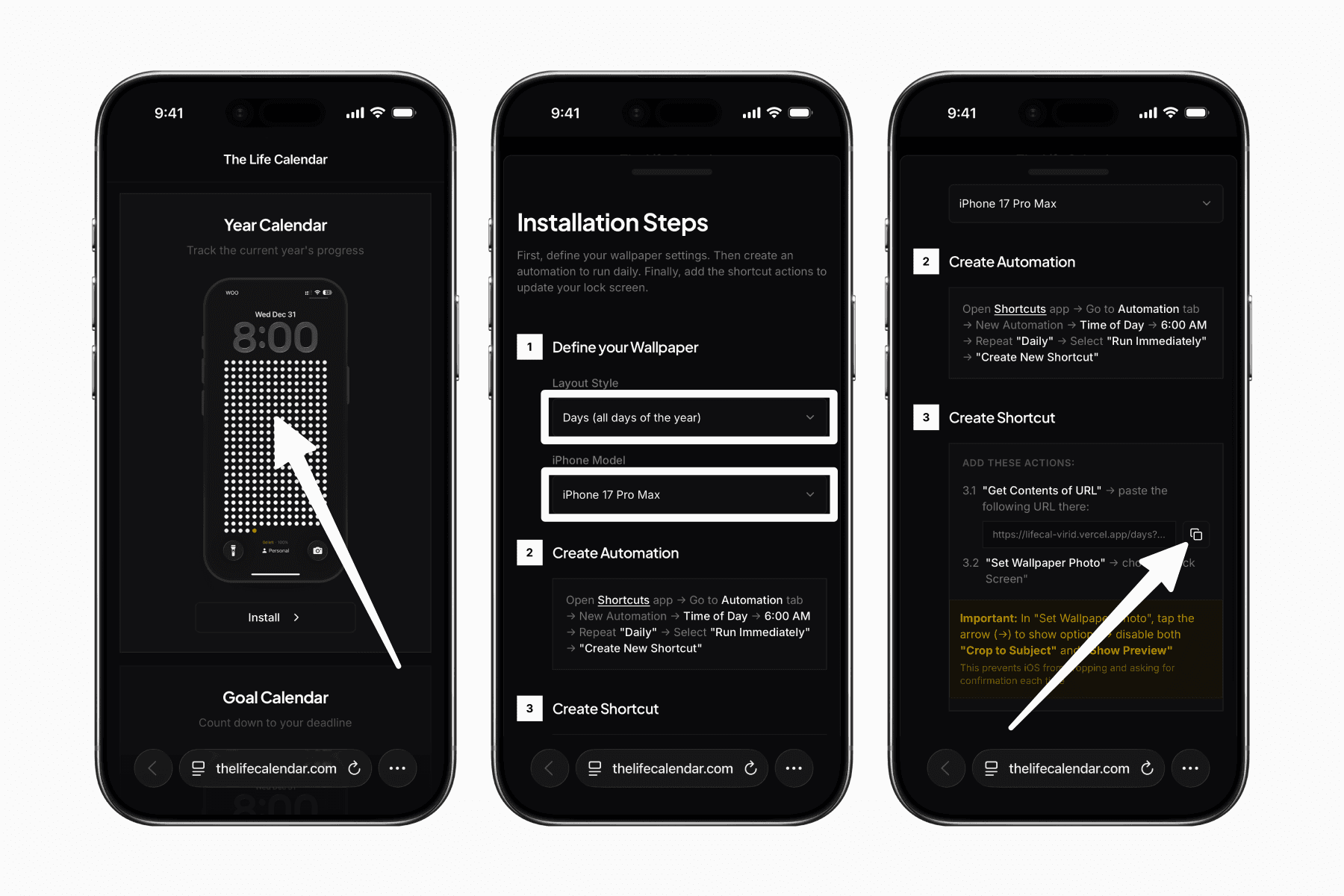
Open your browser and go to thelifecalendar.com.
First, click on the wallpaper you want to install.
You’ll then have the option to choose the layout style and iPhone model.
We recommend using the default “Days” layout and selecting a larger iPhone model than your actual phone to achieve a clean and uncluttered look.
Finally, copy the URL provided near the end of the website installation steps.
Step 3: Add Shortcut actions
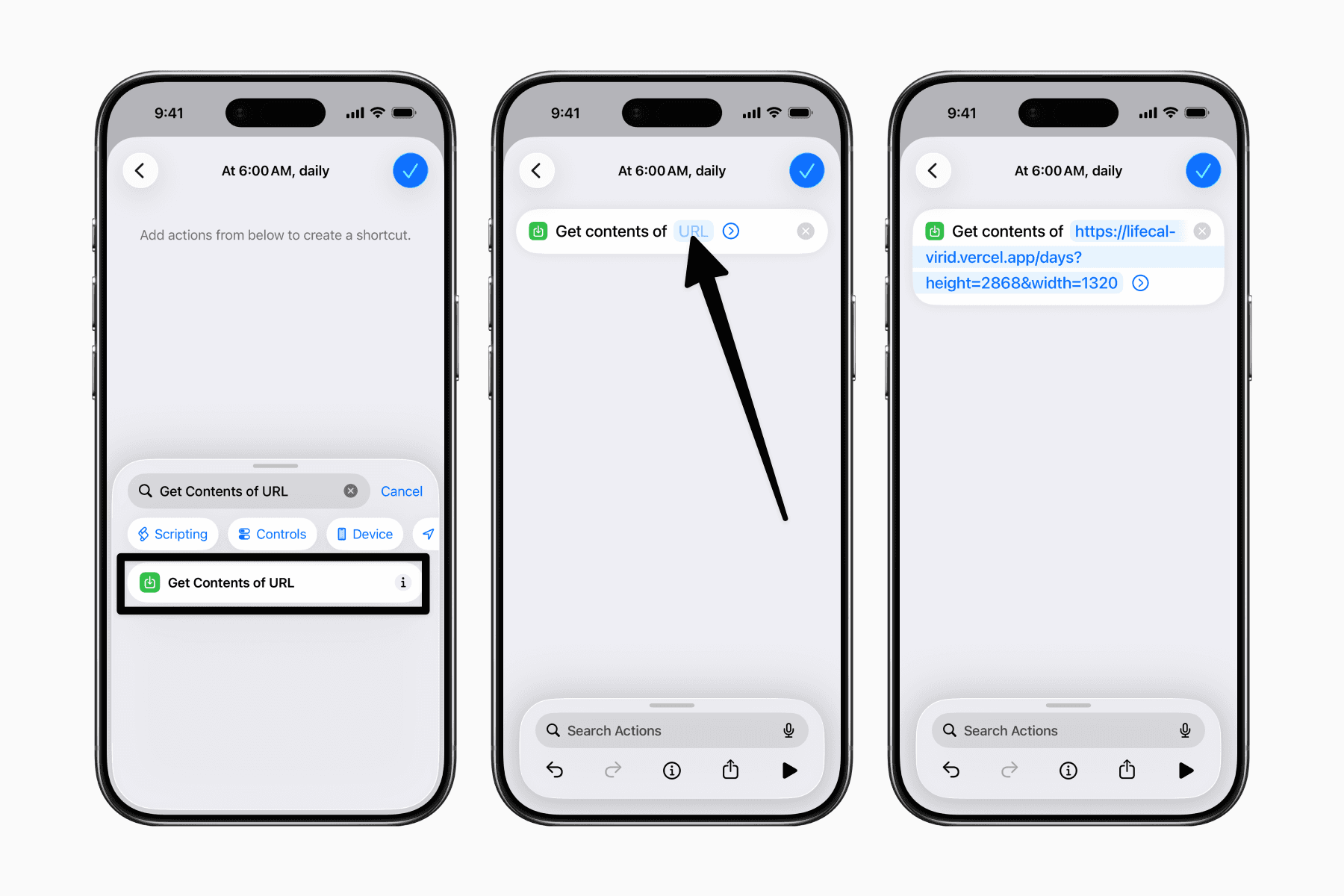
First, search for the action “Get Contents of URL” and paste the link you copied.
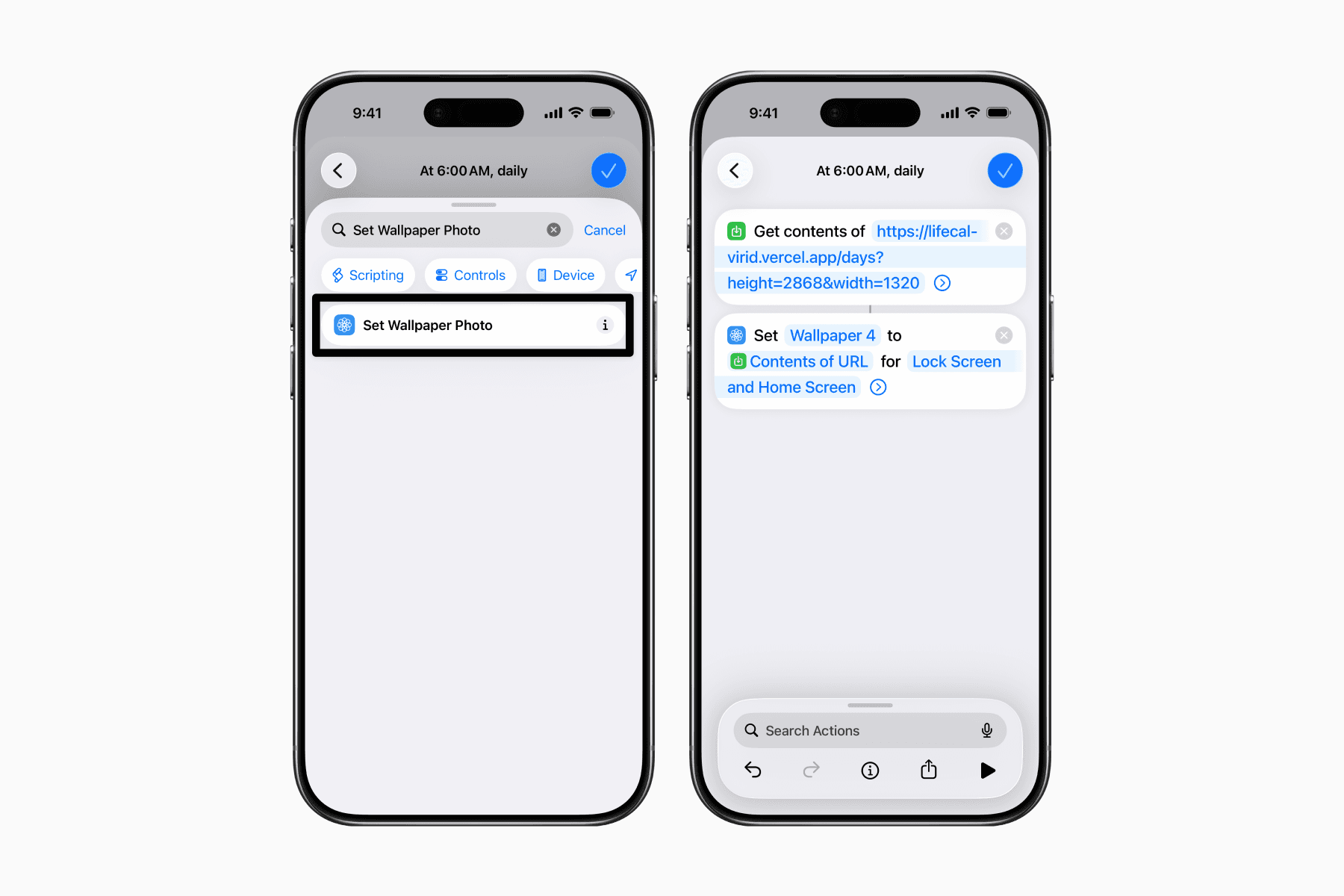
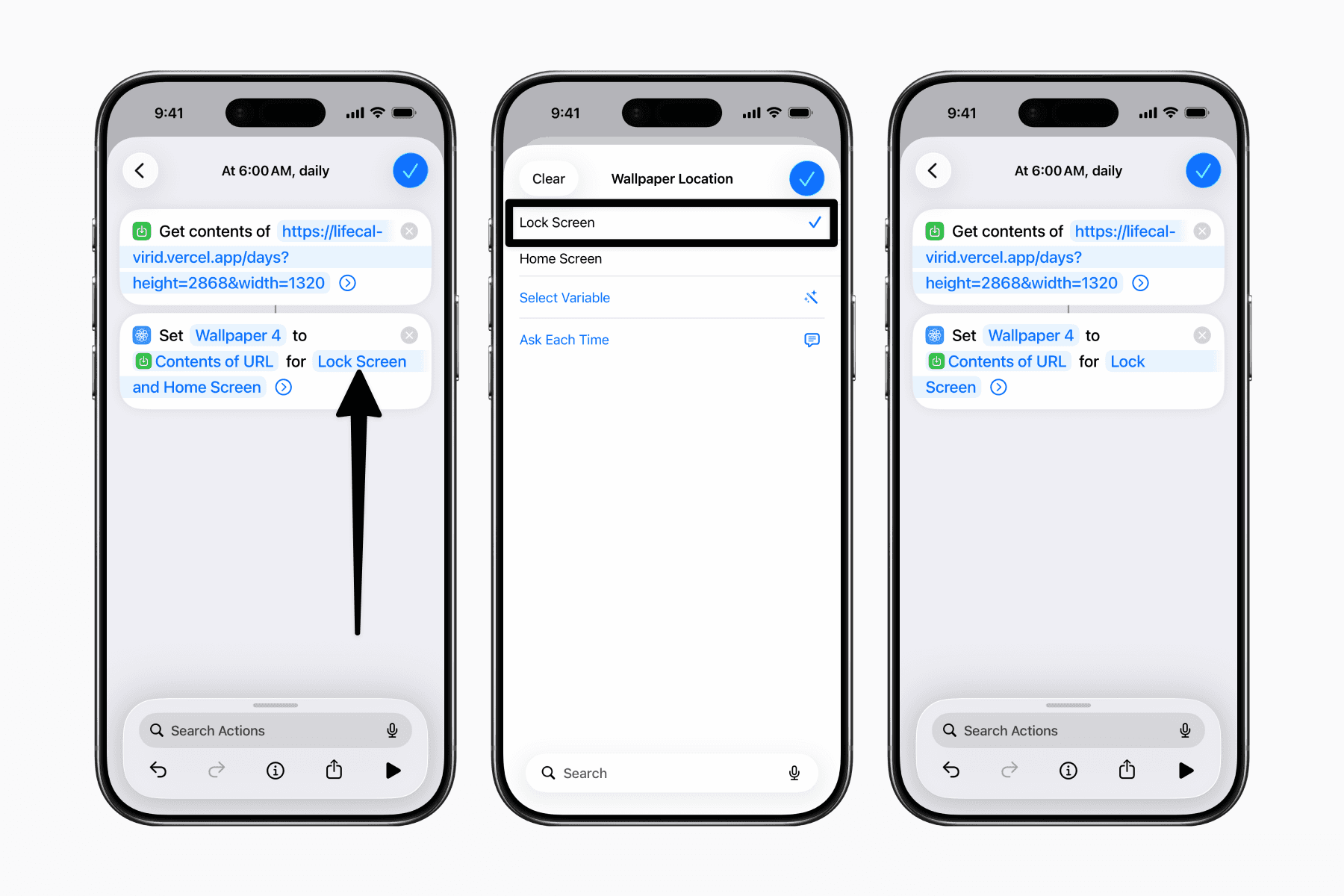
Next, add another action "Set Wallpaper Photo" and ensure the fields are filled out correctly.
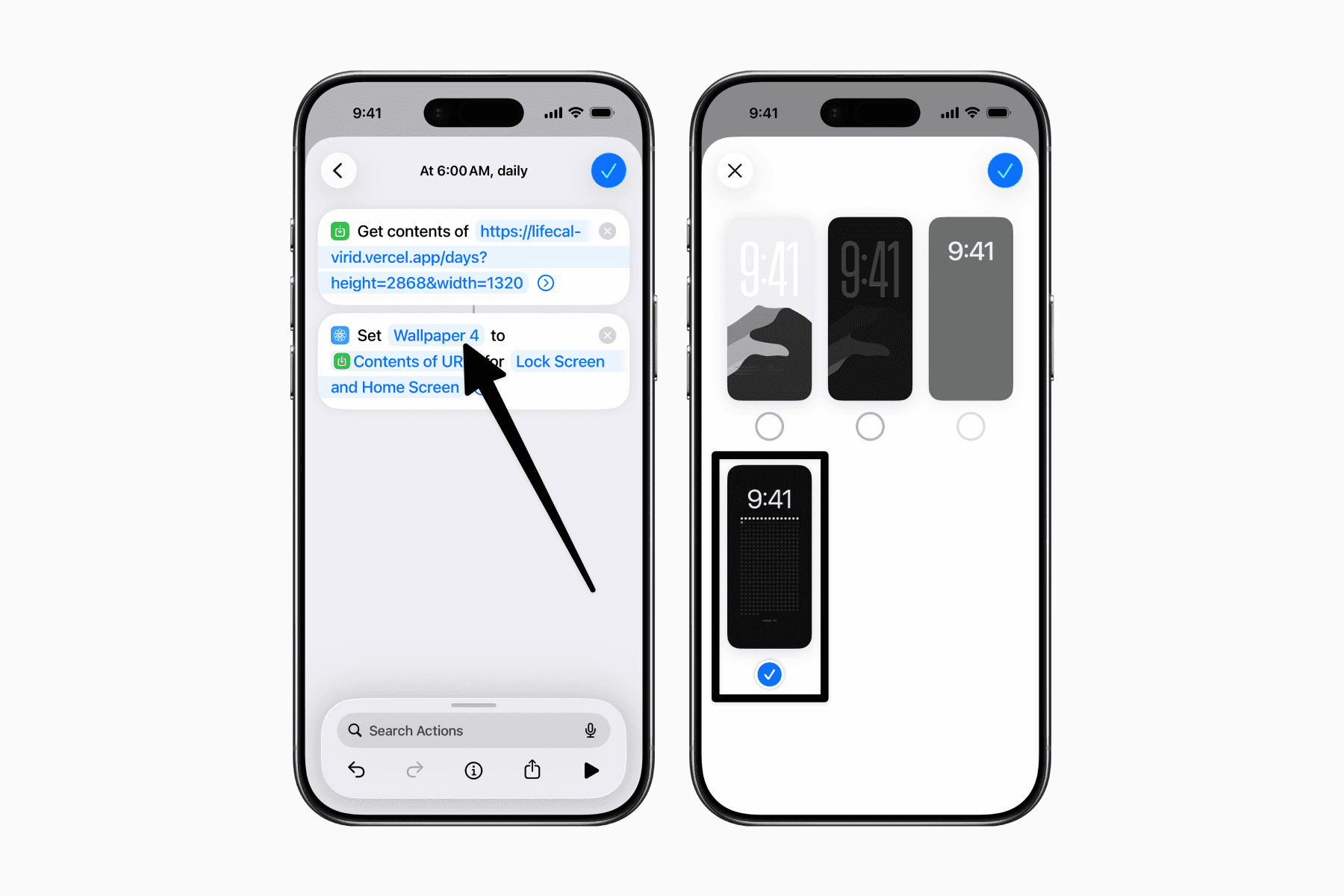
Tap on the first field to select an existing lock screen to replace with the calendar wallpaper.
The second field should be set to "Contents of URL" which is the output from the previous action.
The third field is Wallpaper Location, where you can uncheck “Home Screen” so that the automation only changes your lock screen wallpaper.
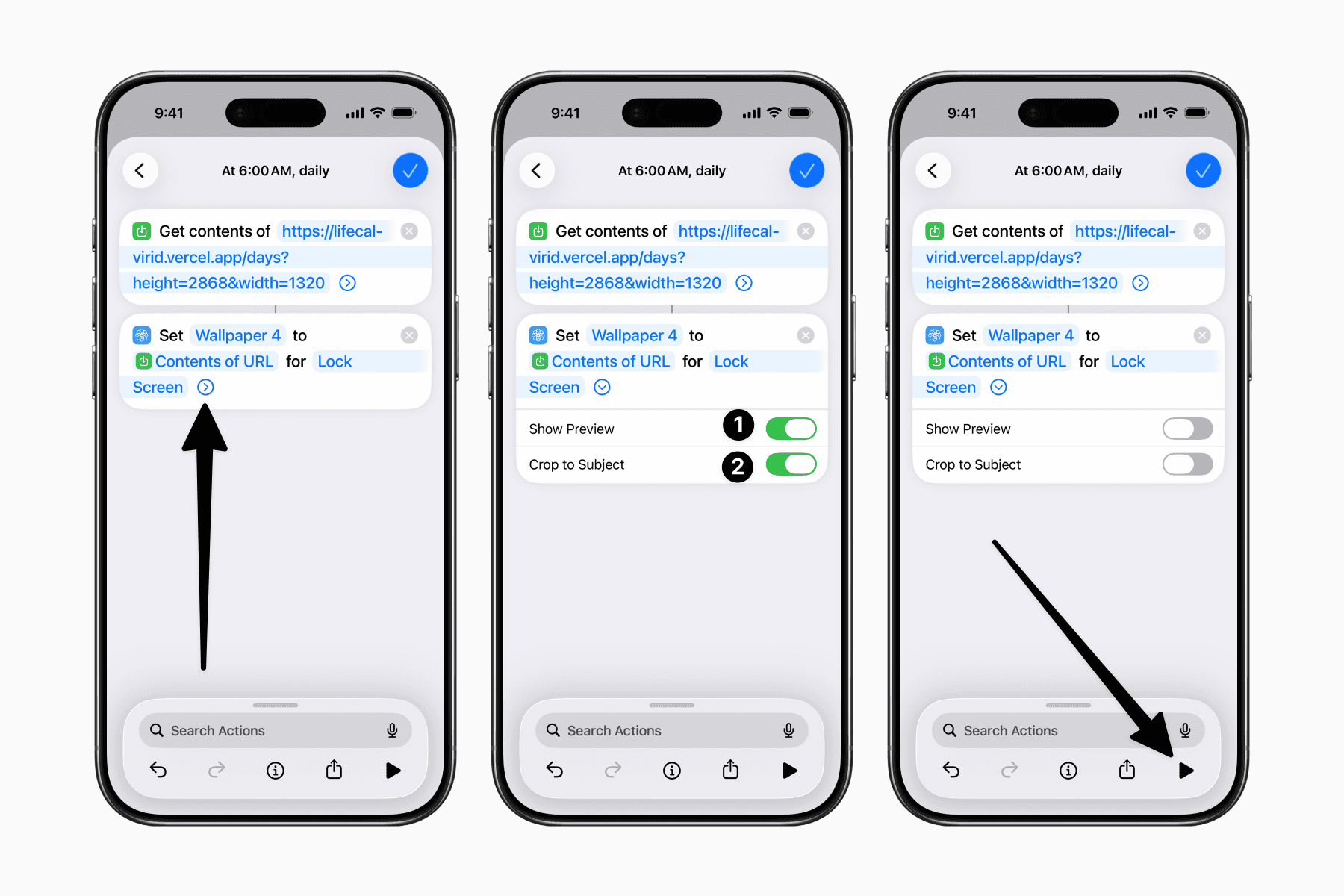
Finally, tap on the chevron of the “Set Wallpaper Photo” action to reveal the options to toggle off both “Show Preview” and “Crop to Subject”.
To set the wallpaper for the first time, click the play button on the bottom sheet.
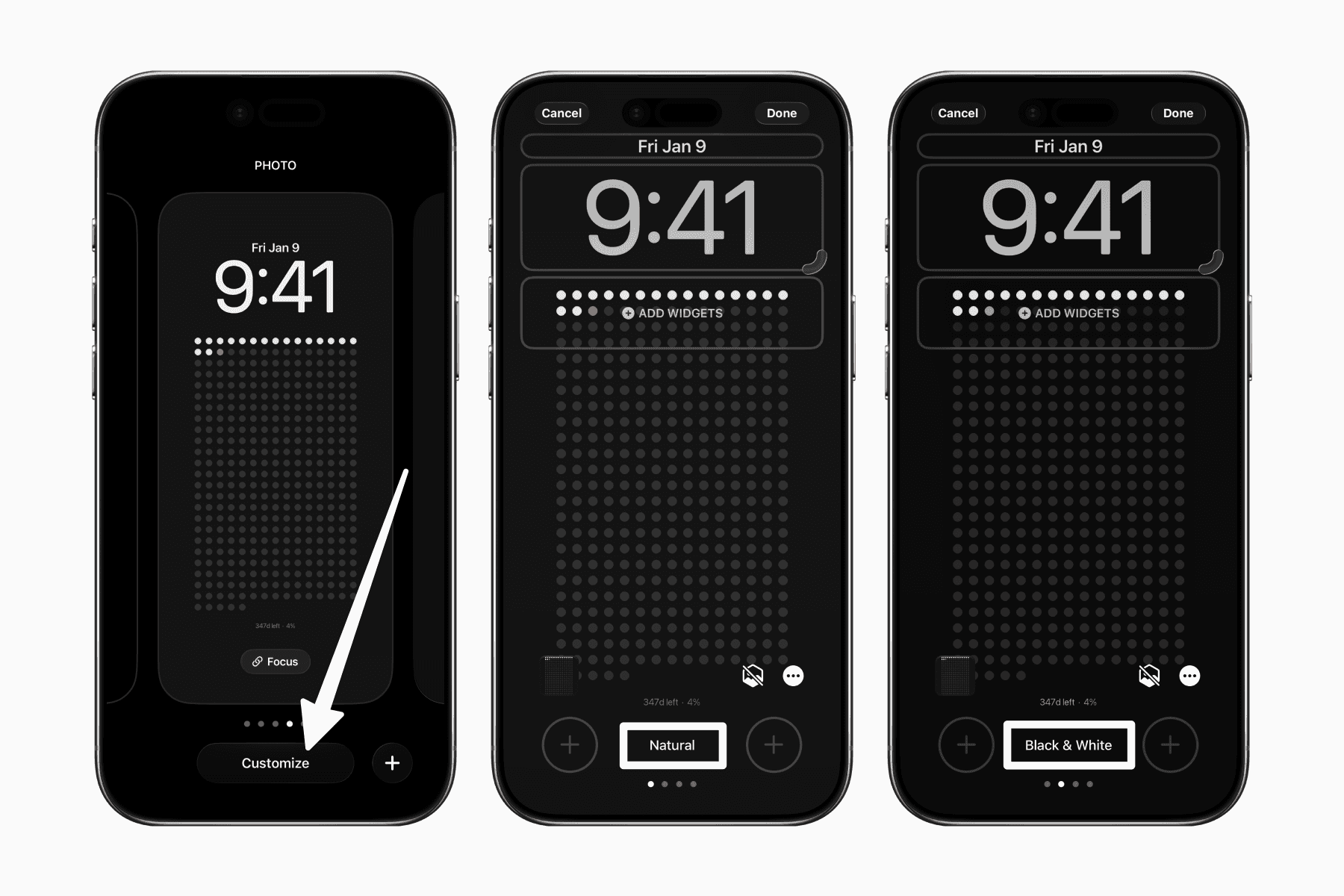
To give it a more minimal look, you can also use the built in "Black & White" style in lock screen customization.
Simply press and hold your lock screen, then click "Customize" when it appears. Next, swipe until the default "Natural" is set to "Black & White."
Conclusion
Now you have an automation running daily to update your lock screen to show you where you are at in your life calendar or your year calendar.
This setup is made possible by thelifecalendar.com, created by @luismbat and @joao_batalha.