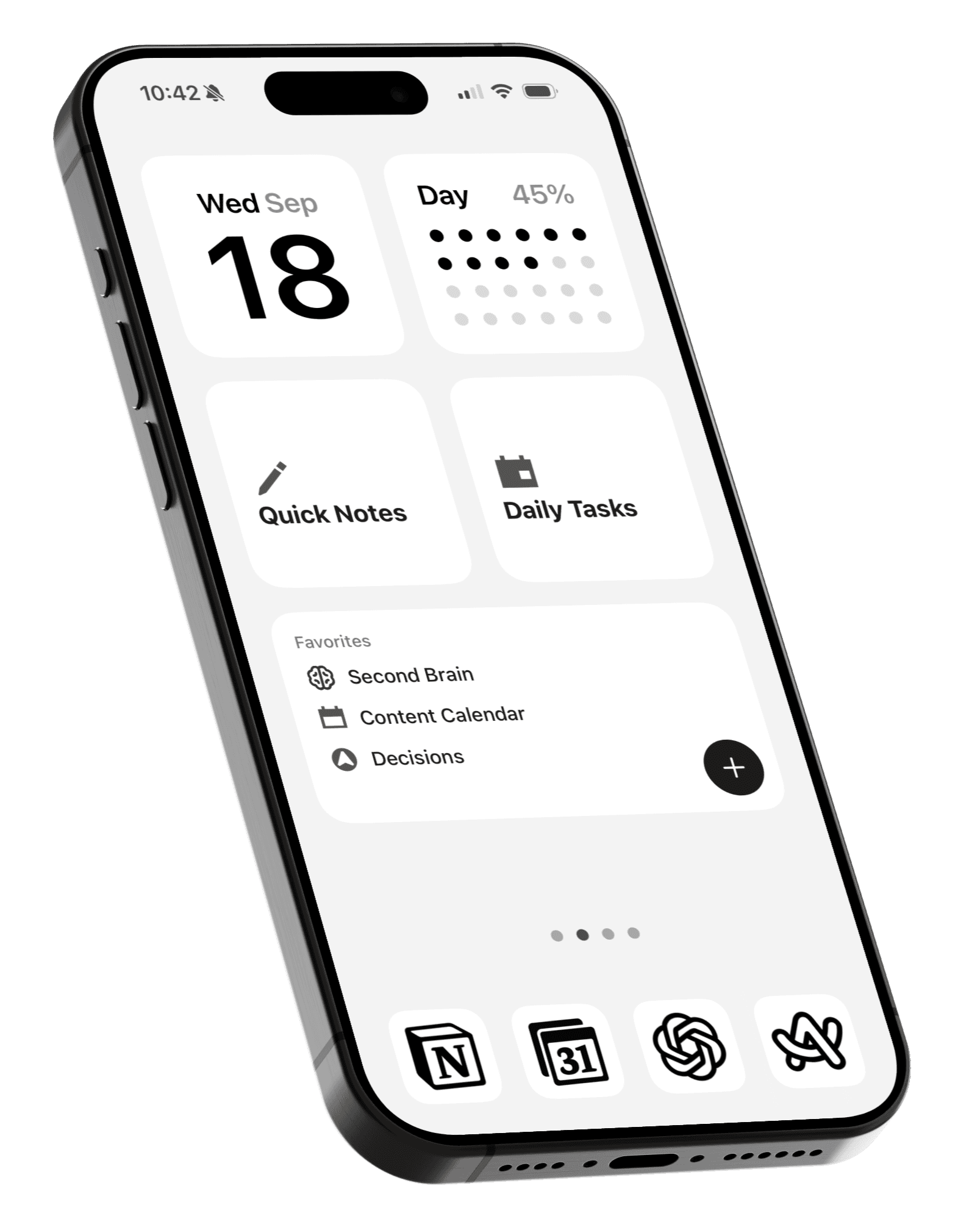
Turn your iPhone home screen into a weekly planner
Manage your week with the Apple Reminders widget.
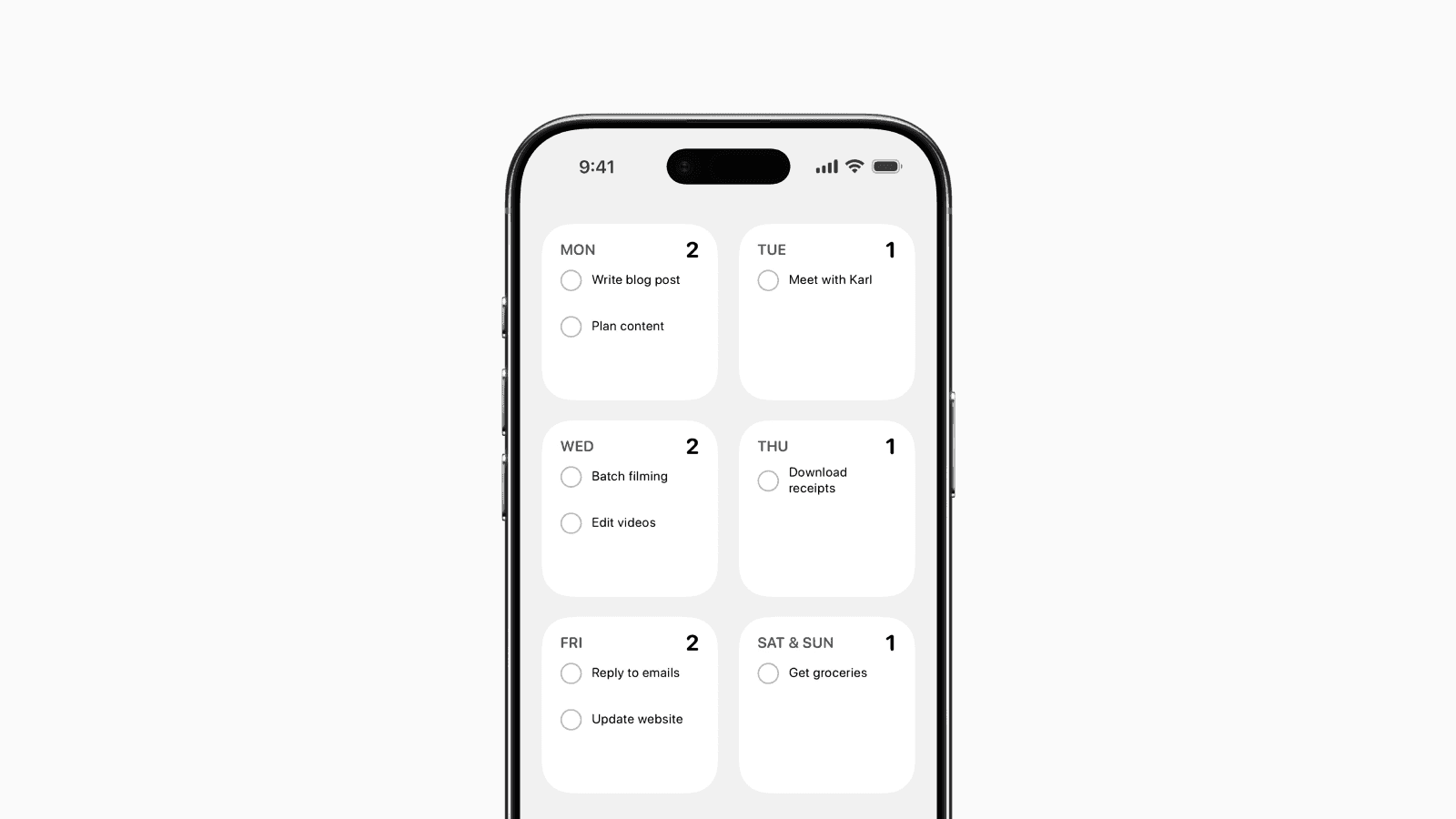
You might have seen the viral Reminders home screen setup where your entire week is laid out directly on the iPhone home screen using widgets.
The setup uses 6 small widgets, each showing a different Reminders list for a specific day of the week.
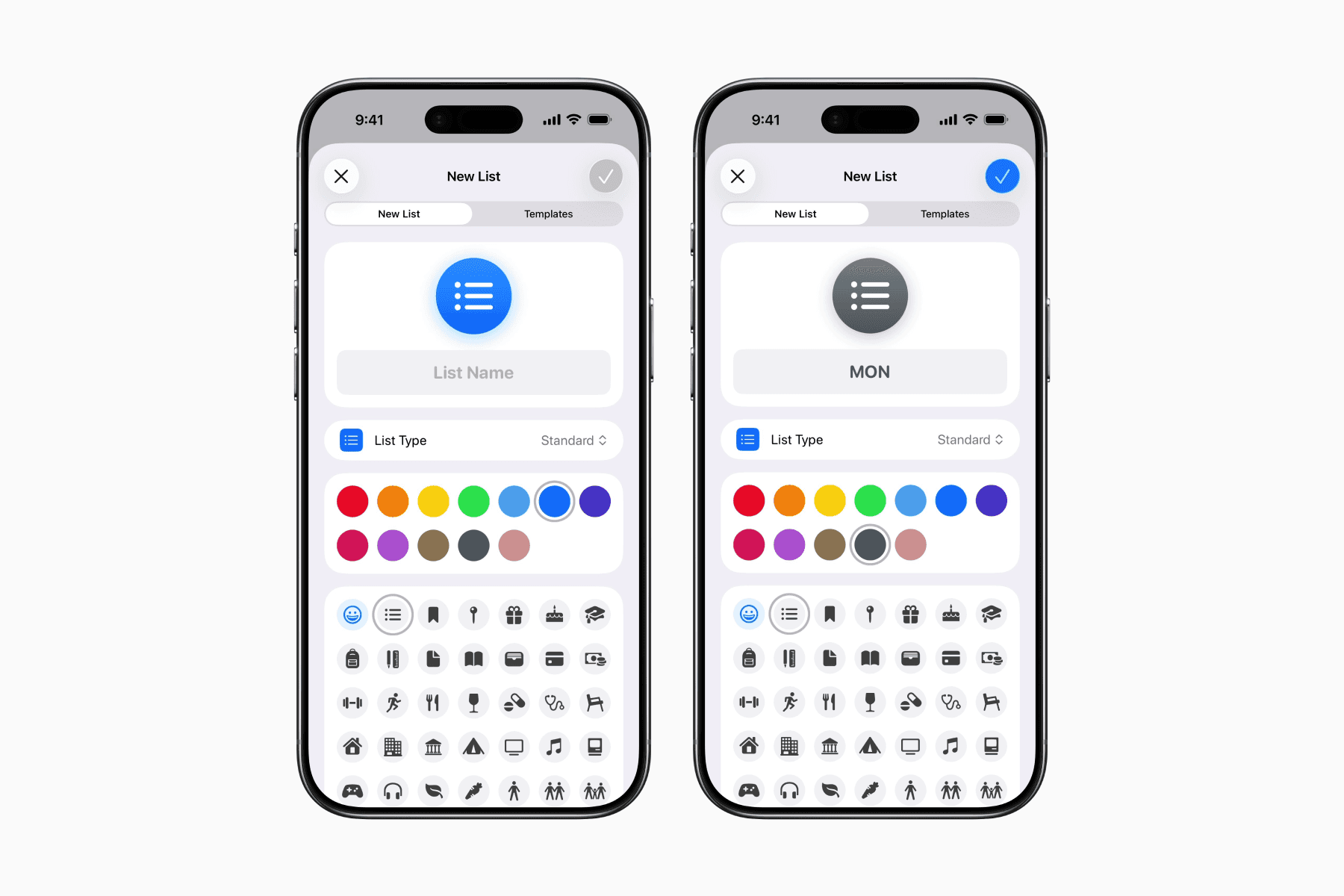
Therefore, the first step is to create these 6 lists in the Reminders app:
MON
TUE
WED
THU
FRI
SAT & SUN
Saturday and Sunday are combined since a single home screen page only fits 6 small widgets. It also works nicely as a weekend list.
Once the lists are created, you can start setting up the home screen.
Setting Up the Home Screen
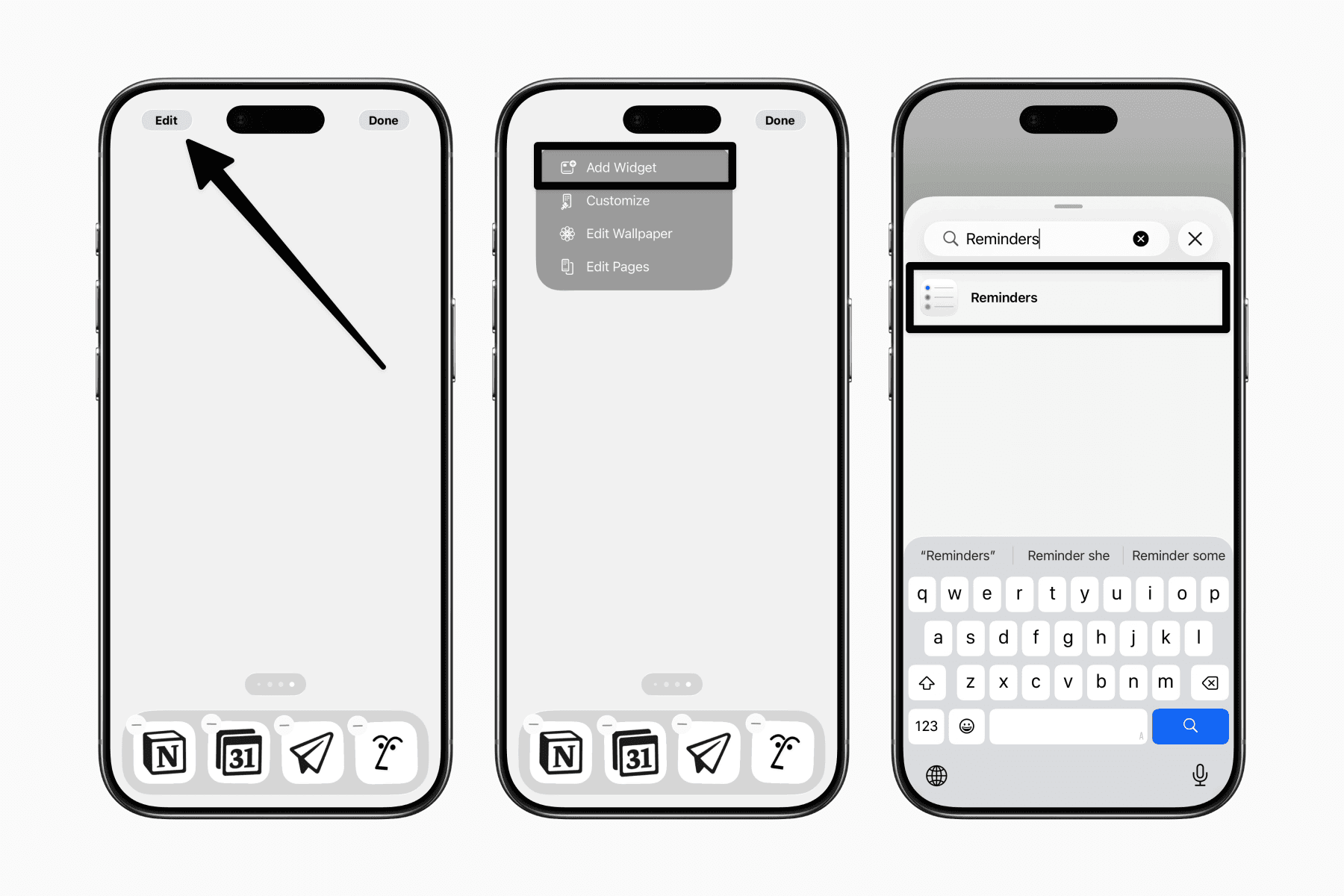
Hold down anywhere on the home screen until the apps start jiggling
Swipe to a new empty home screen page
Tap “Edit” on the top left corner
Search for the Reminders widget
Add the small widget size
Tap the widget and choose the corresponding list
Repeat the process for the remaining days until all 6 widgets are added.
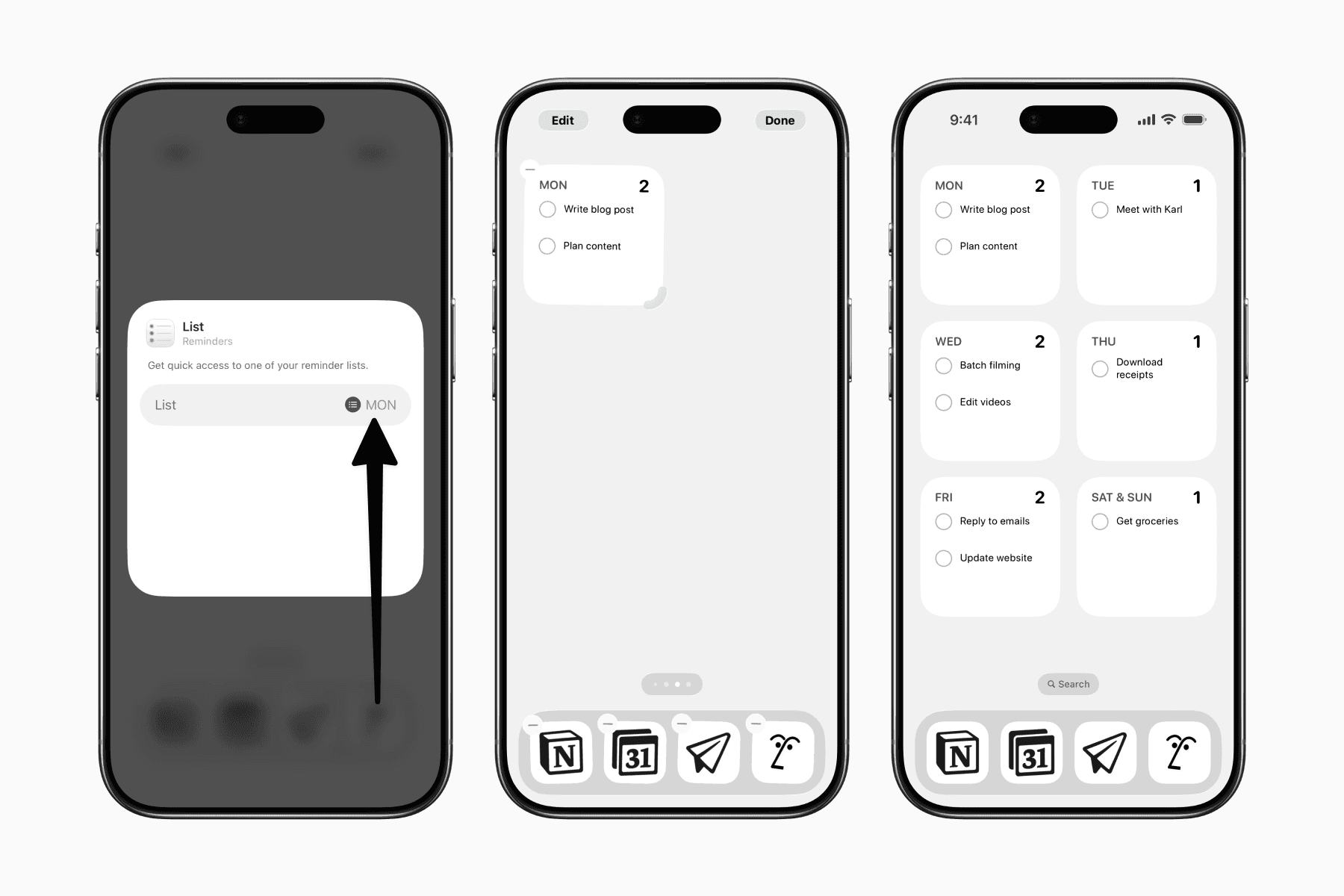
Once set up, you can quickly tap any widget to open that specific day’s list and add tasks directly from the Reminders app.
Since each day uses a separate list, you can reschedule a task by moving it to another list. Inside the Reminders app, simply hold down a task and drag it to another day’s list.
Now you can quickly glance at your home screen to see your plans for the week.