How to Add Notes to Your Lock Screen With Shortcuts
Use Mononote's new shortcut to write a note and display it on your Lock Screen as a Live Activity.

We all know it's better to write things down rather than risk forgetting them.
These days, we don't always have a pen and paper nearby, but we almost always have our phones.
Even so, having to open a notes or to-do app can sometimes be enough friction to put off writing something down, only to forget about it altogether.
This is where Mononote comes in. It's a minimalist notes app that lets you put notes on your Lock Screen and Dynamic Island using Live Activities.

With its new Create & Go Live shortcut, you can now type a note and have it appear on your Lock Screen without opening the app.

Here's how to set it up.
1. Download Mononote
First, download Mononote from the App Store.
You'll also need Apple's Shortcuts app, which comes preinstalled on most iPhones.

2. Create the shortcut
Open the Shortcuts app and tap the + button to create a new shortcut.
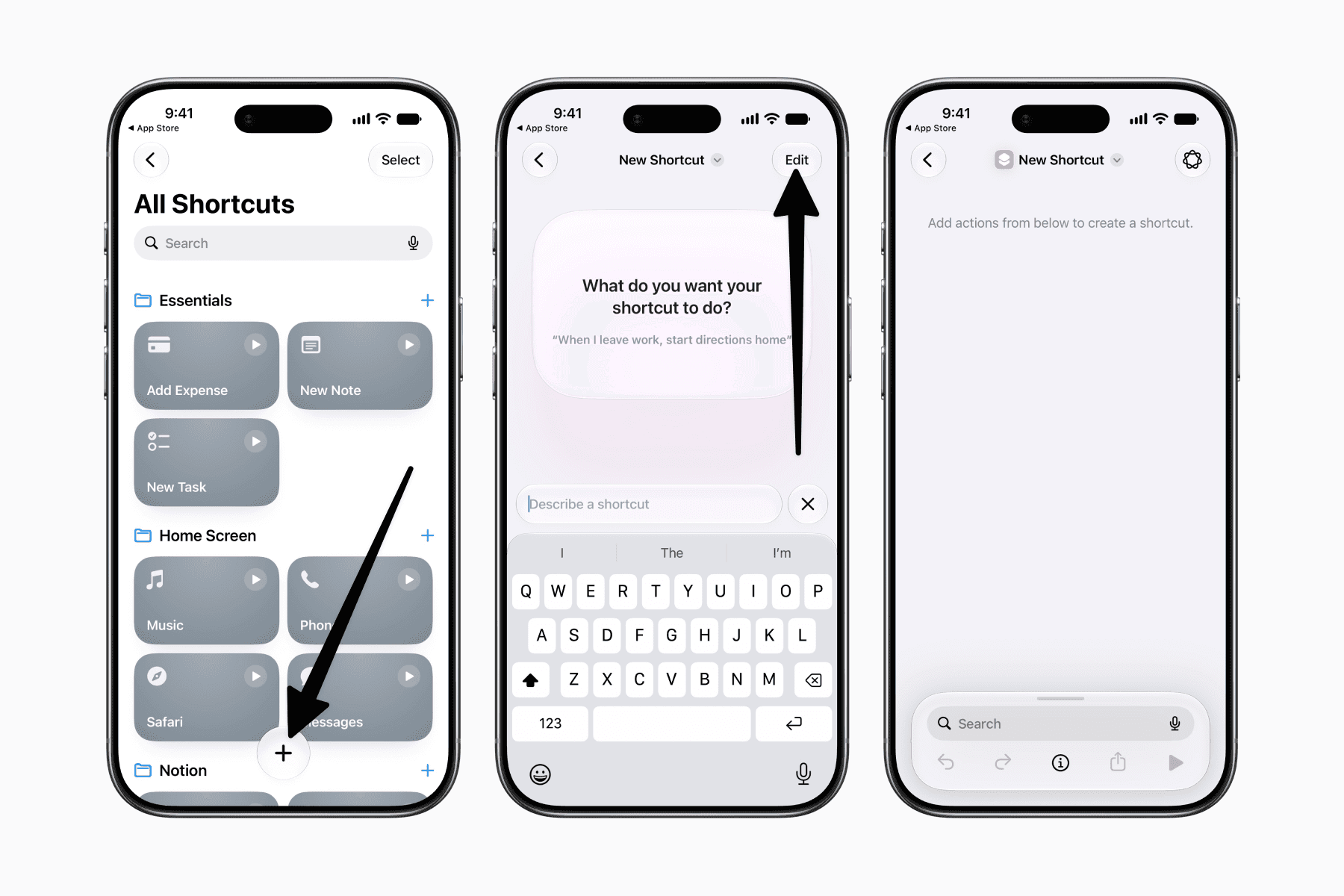
Search for Mononote in the actions list, then select Create & Go Live.

Leave the Text field empty so the shortcut asks what you like to write each time you run it.
If you use multiple Profiles in Mononote, you can choose a specific profile or leave the Profile field empty to be asked each time. If you only have one profile, you can leave it empty.

For a cleaner experience, tap the arrow beside the action to expand its options and turn off Show When Run. This prevents an additional notification from appearing when the shortcut finishes.

If you like, you can also rename the shortcut and customize its icon and color.
3. Assign the shortcut
Next, choose how you like to trigger the shortcut.
You can assign it to a Lock Screen control, Control Center, Back Tap, or the Action Button if your iPhone has one.
Depending on where you choose, look for the Shortcuts option or Run Shortcut control, then select the shortcut you just created.

Final thoughts
Now you can trigger the shortcut however you've assigned it. Simply type your note to have it appear on your Lock Screen and Dynamic Island.
This makes it easier to capture ideas, tasks, or reminders the moment they come to mind, without having to open an app.