Put the Date next to the Time on iPhone
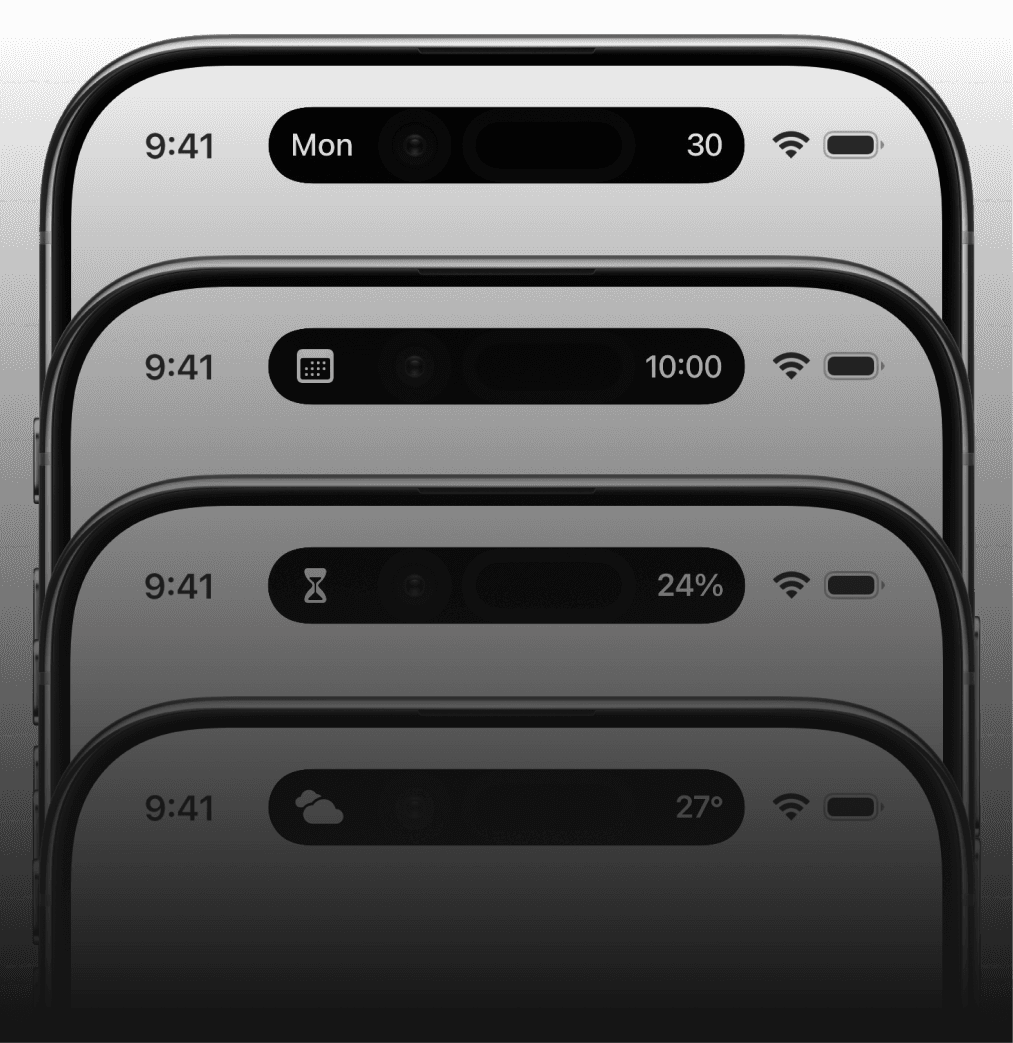
Check the date today on your Dynamic Island.
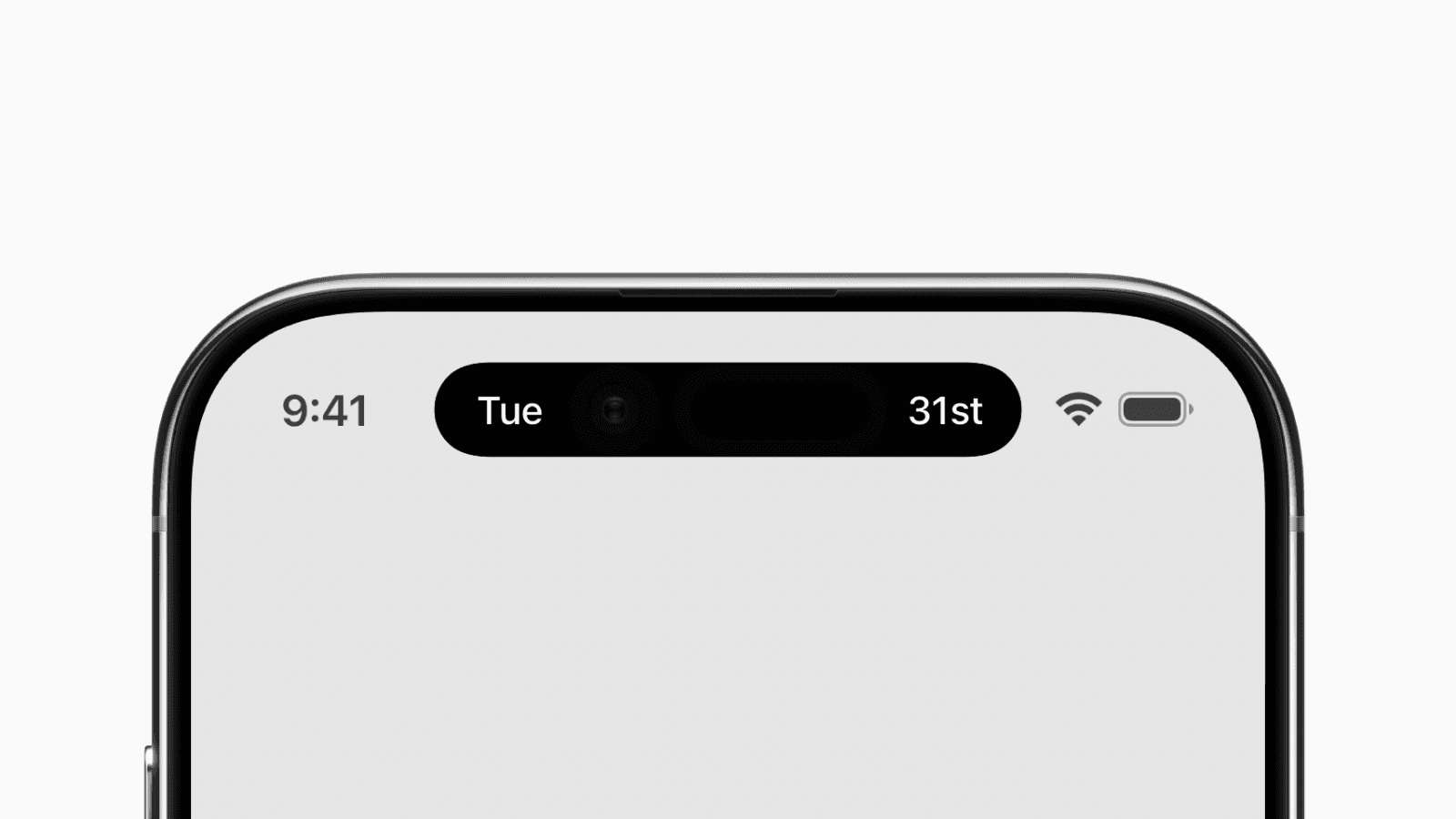
What if you could see today’s date next to the time on your iPhone status bar?
You can if you have a newer iPhone with a Dynamic Island.
This setup requires a third-party app called Widgy, which lets you create custom widgets. Although an in-app purchase is required to use the widgets on your Dynamic Island.
Below, you’ll learn how to create a widget from scratch. Alternatively, you can import our pre-created widget.
Option 1: Create the widgets from scratch
First, download and open Widgy.
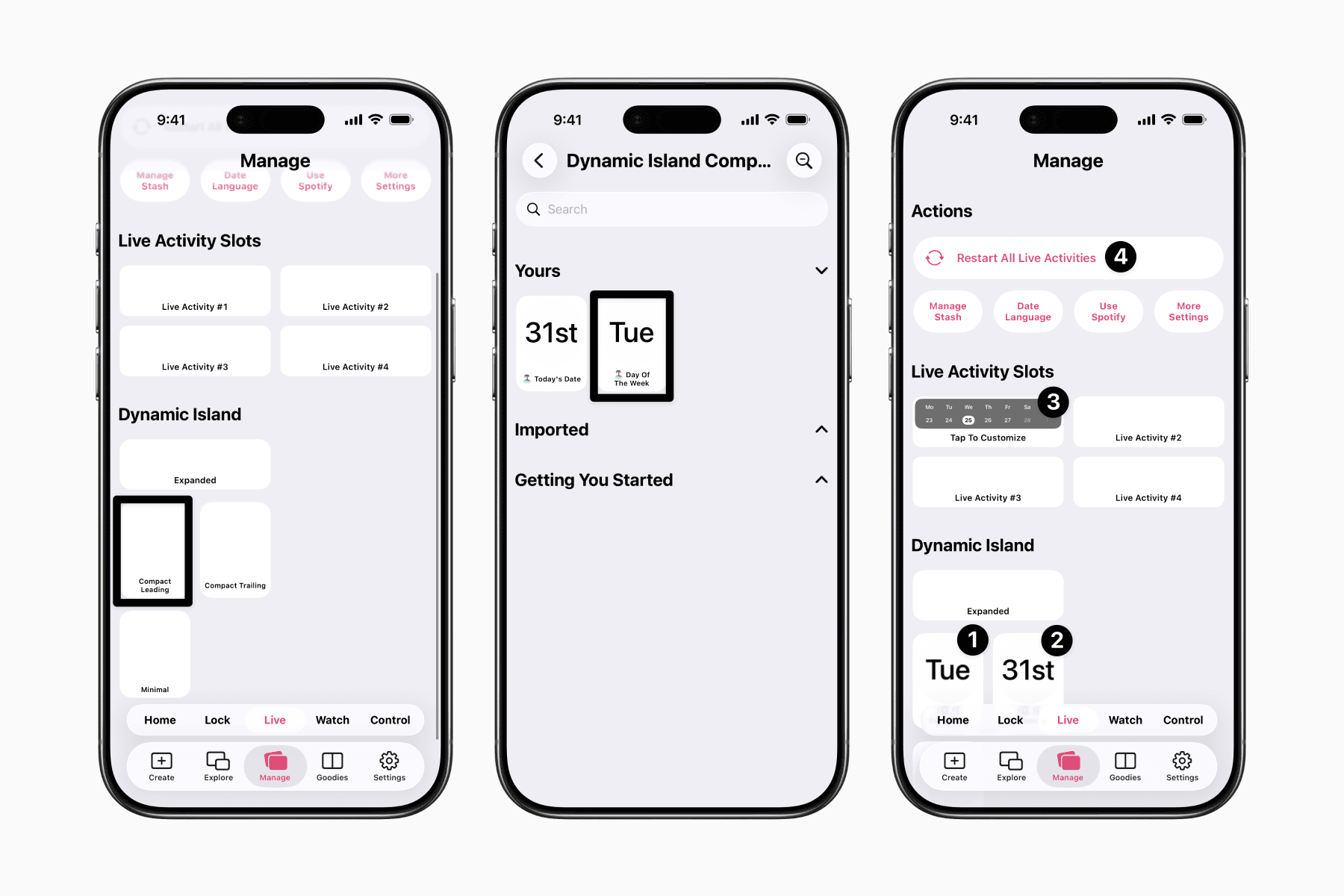
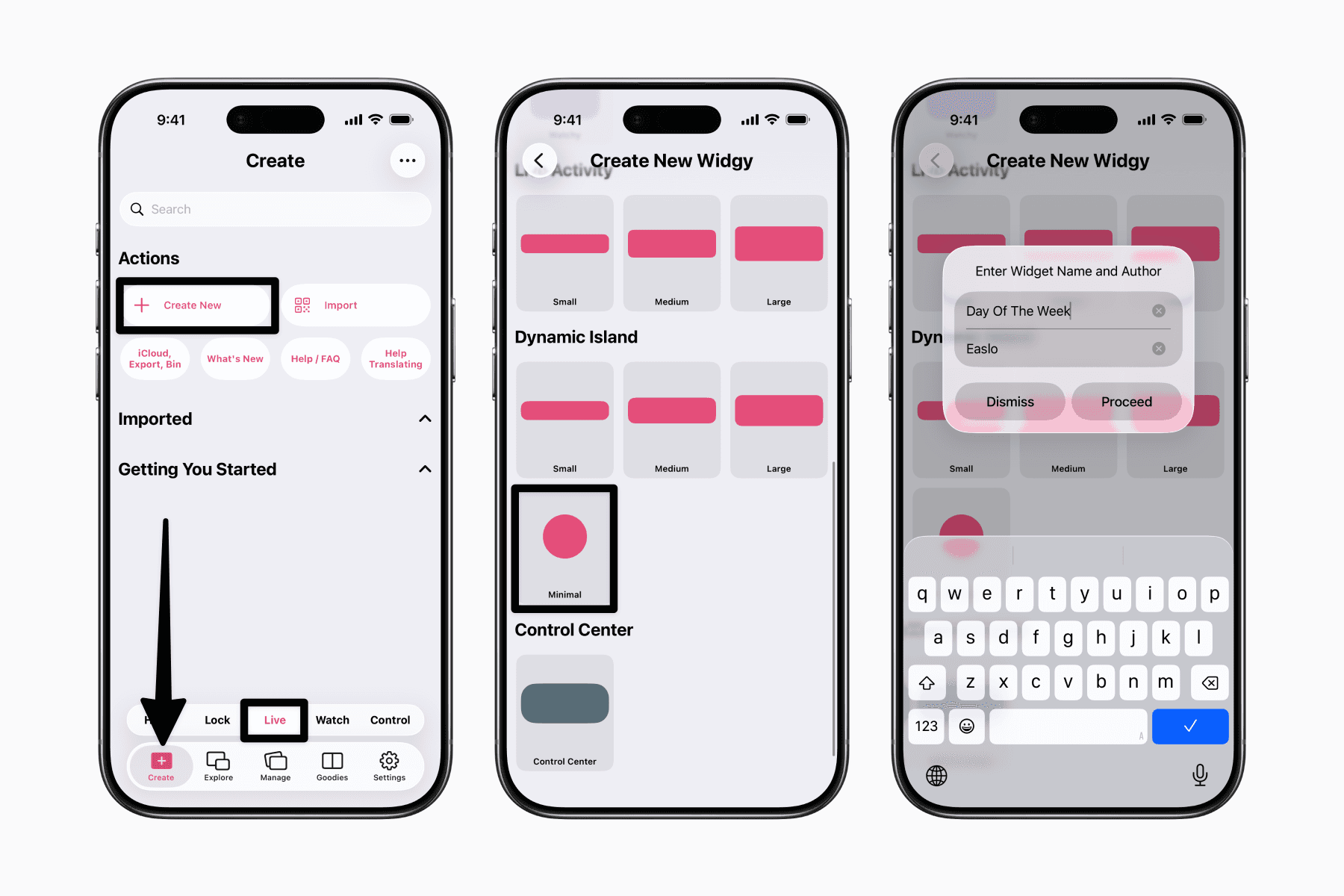
Go to the Create tab, then on the floating tab bar, choose Live.
Tap “Create New”, then on the next page, scroll to the Dynamic Island section and choose the “Minimal” size.
Name the first widget something like “Day Of The Week”.
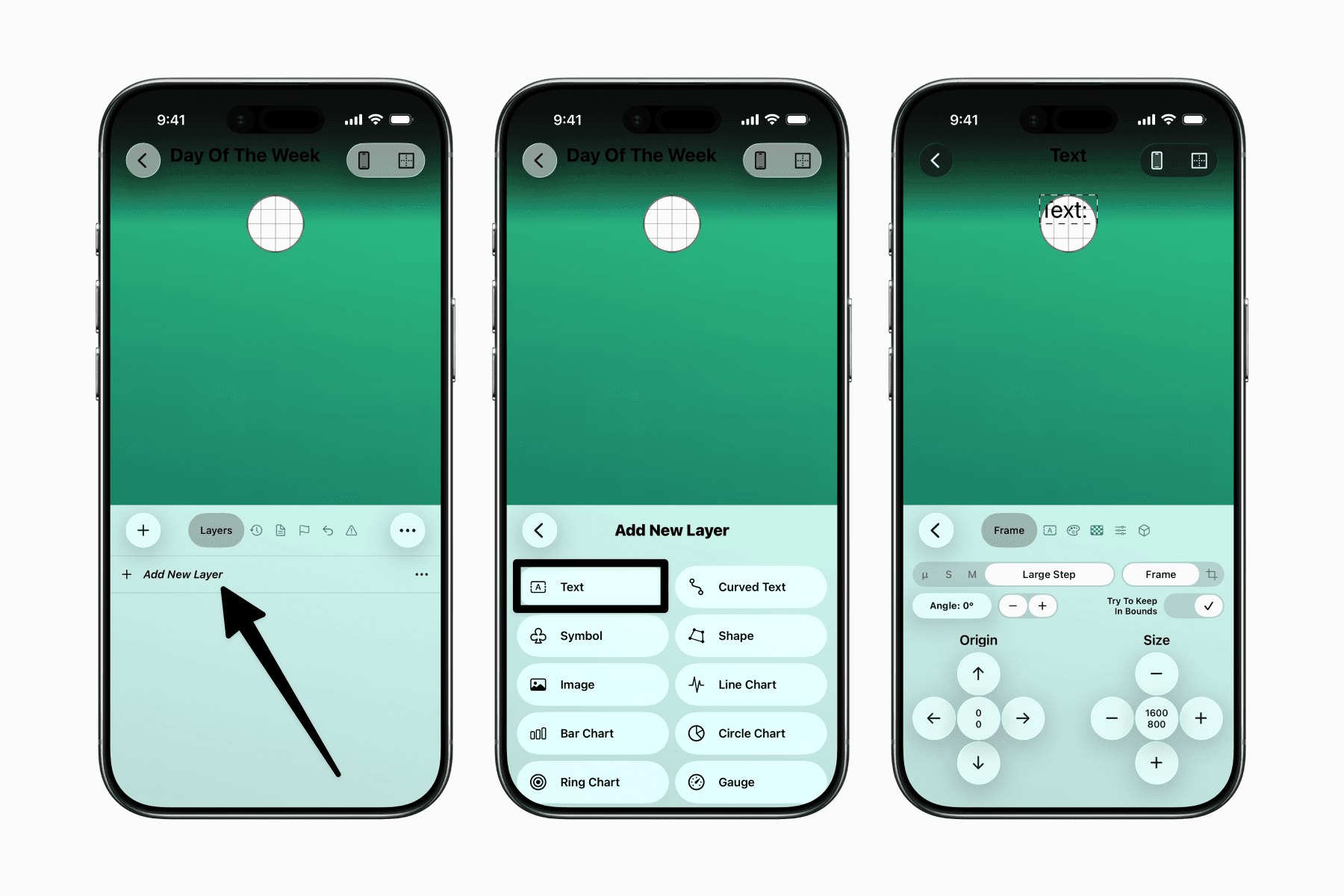
Tap "Add New Layer" and choose Text.
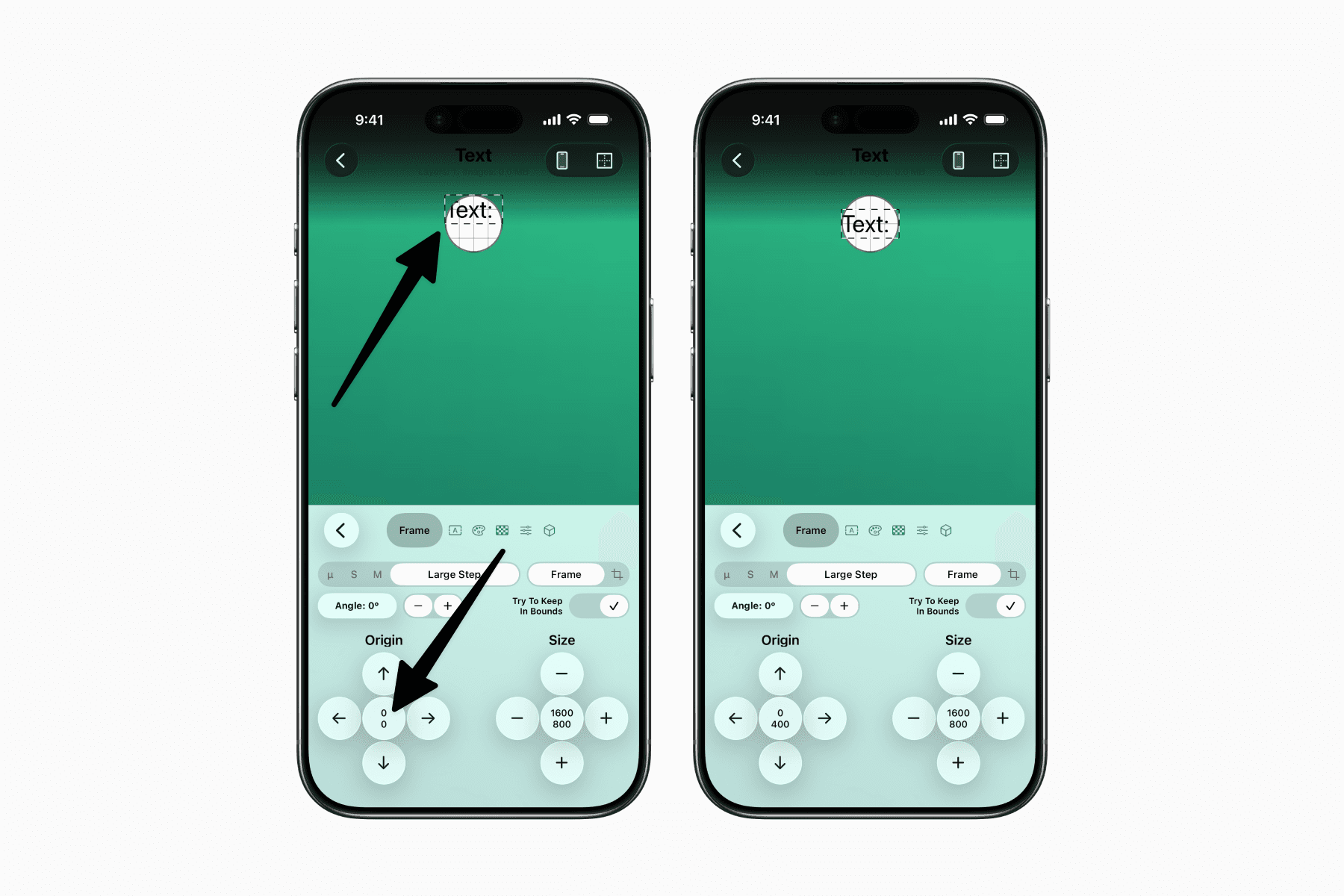
In this text layer, center the text by dragging it to the center or setting the origin to 0, 400.
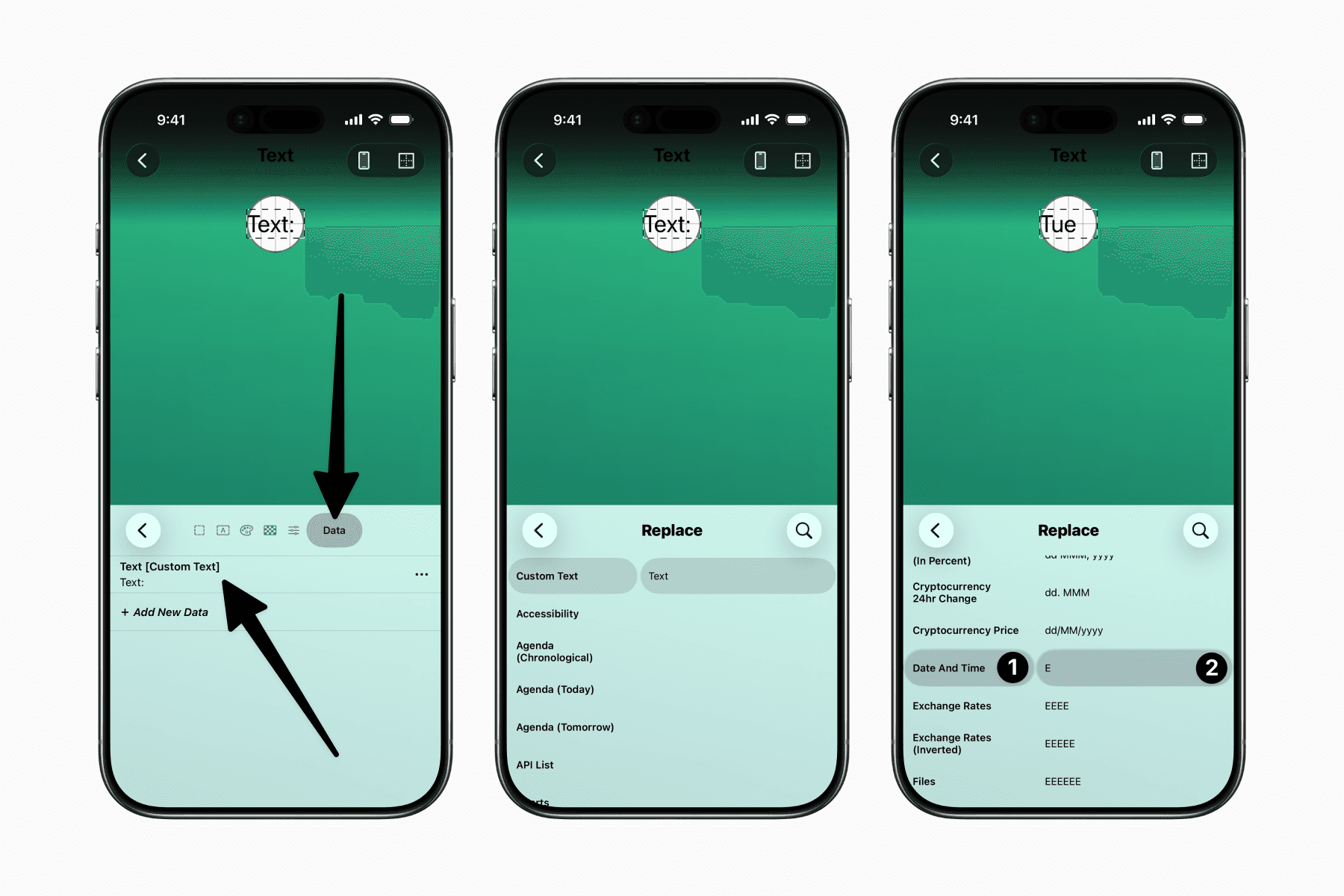
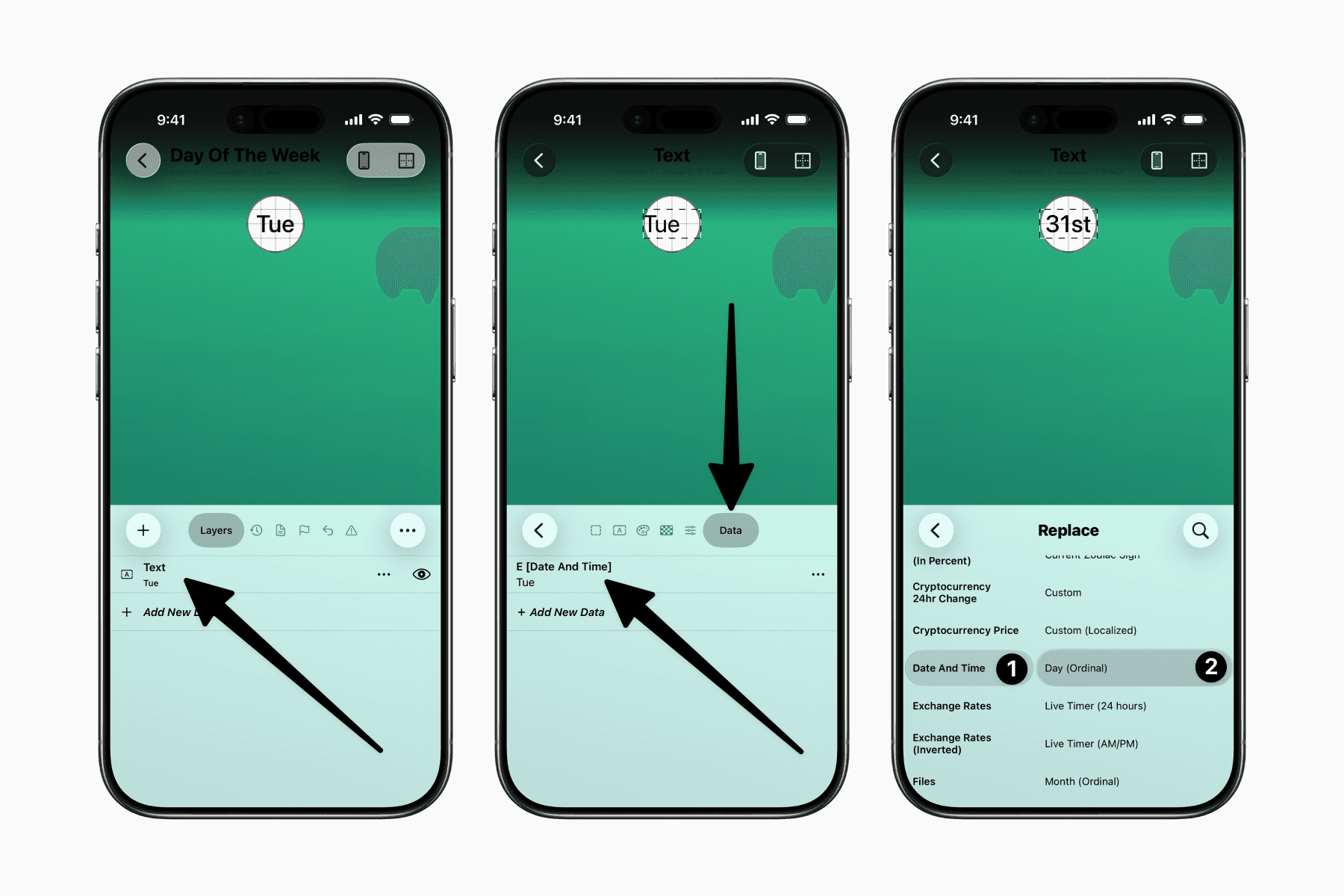
Tap the last icon on the top bar (the cube), which represents Data.
Then, tap on the existing text in the Data page to replace it with the actual data.
On the Replace page, select “Date And Time”, then from the formatting list, choose “E”.
You should now see the actual day of the week.
Next, we want to customize the style of this text.
First, tap the second icon on the top bar.
For "Horizontal Alignment," tap the plus icon and set it to "Center."
Then, update the Font to "System Medium" to make it look more consistent with the rest of the status bar.
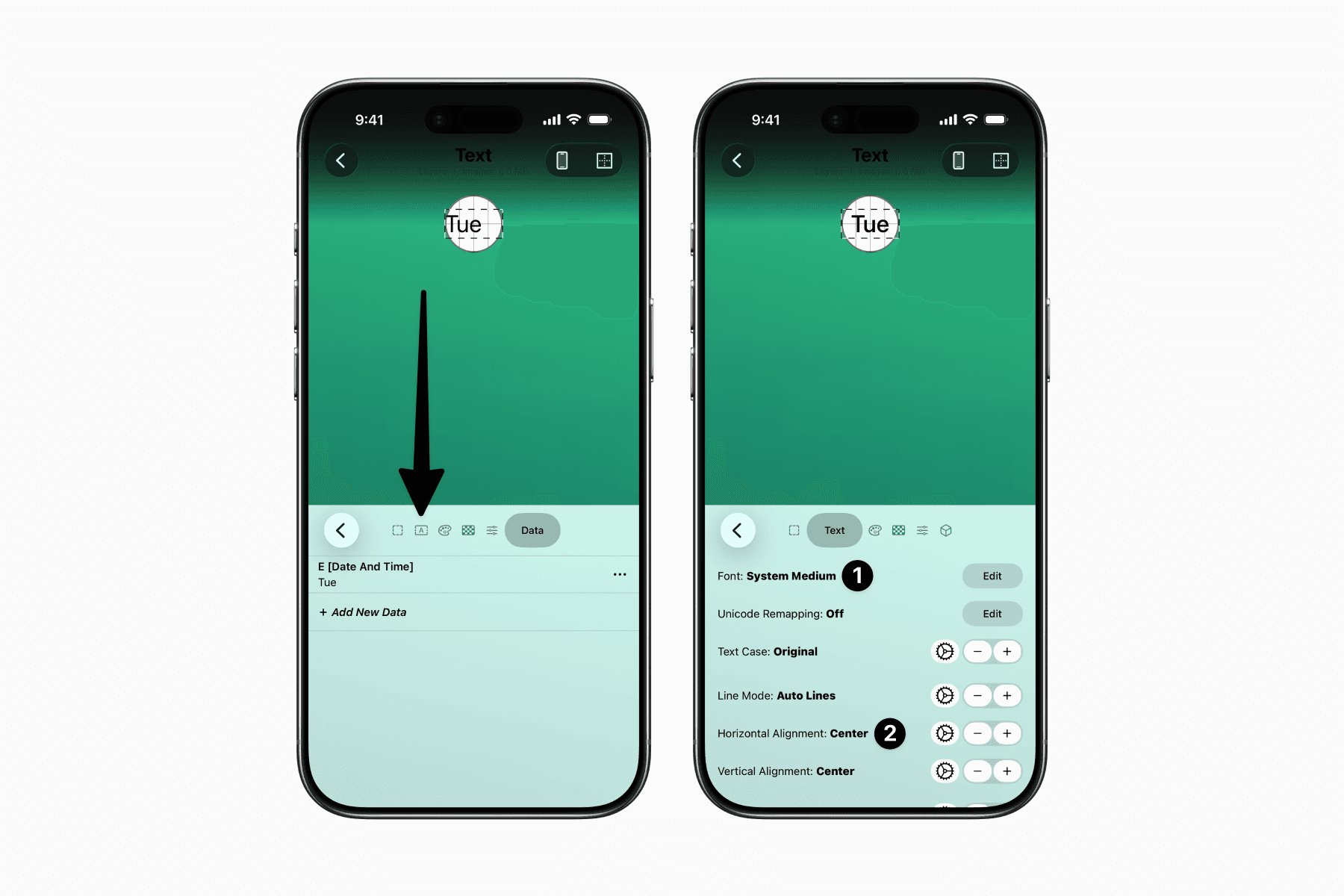
You can then duplicate or repeat the same steps for another widget to display today’s date.
The only difference is replacing the data with “Day (Ordinal)” under “Date And Time”.
Option 2: Import the pre-made widgets
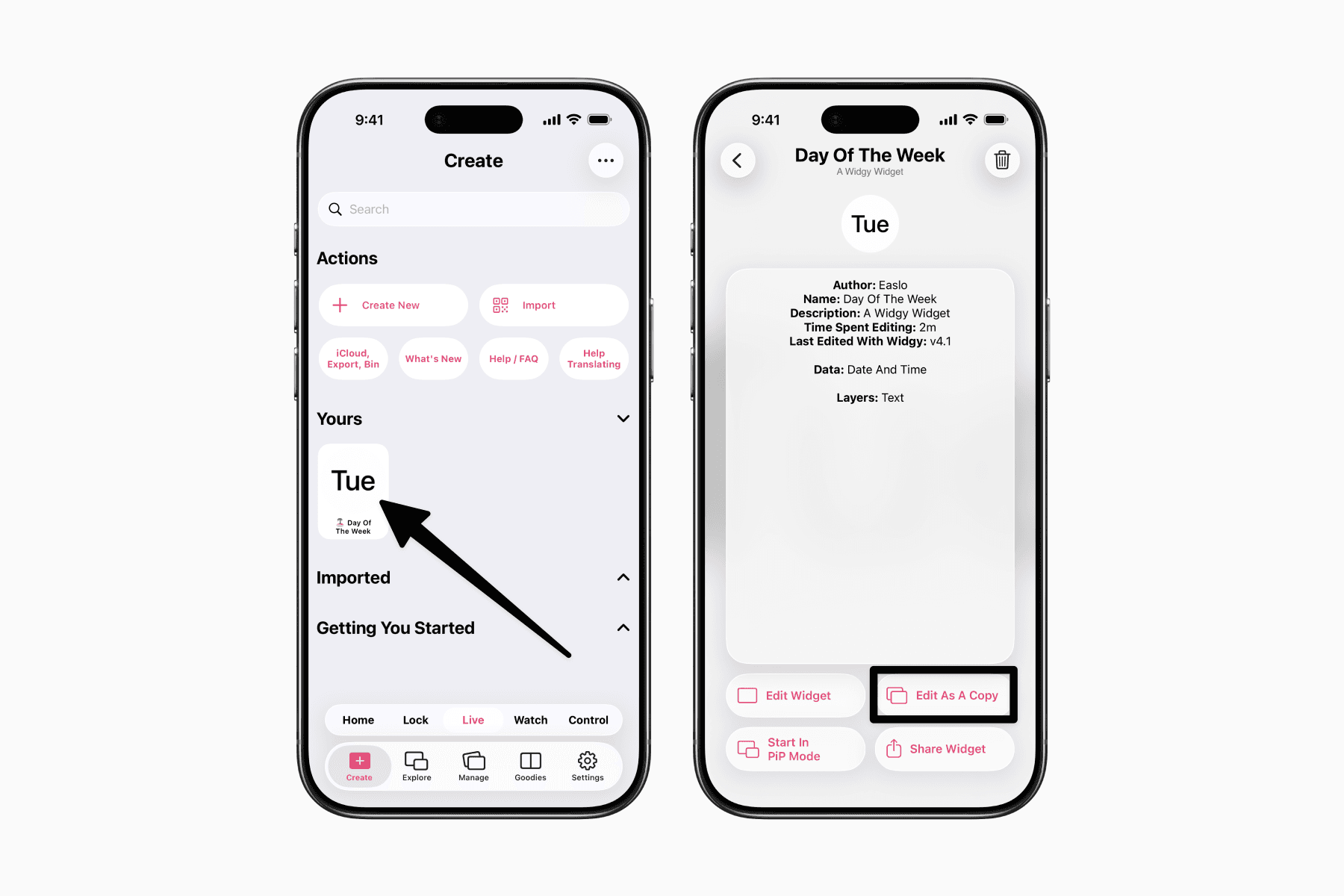
Alternatively, to achieve this setup, you can import the Date and Day Of The Week widgets we have pre-created.
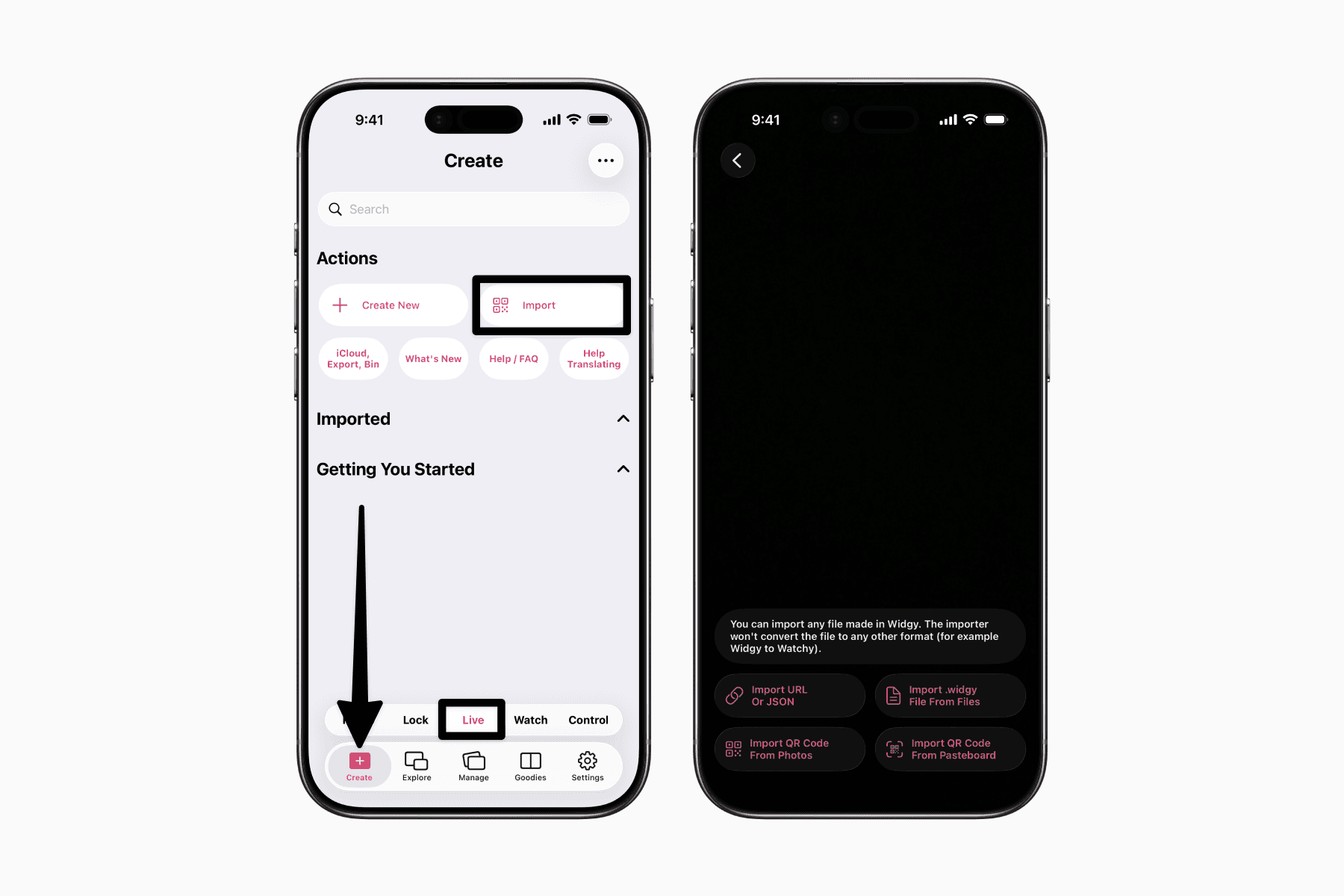
Open the Widgy app and go to the Create tab. Then, on the floating tab bar, choose Live.
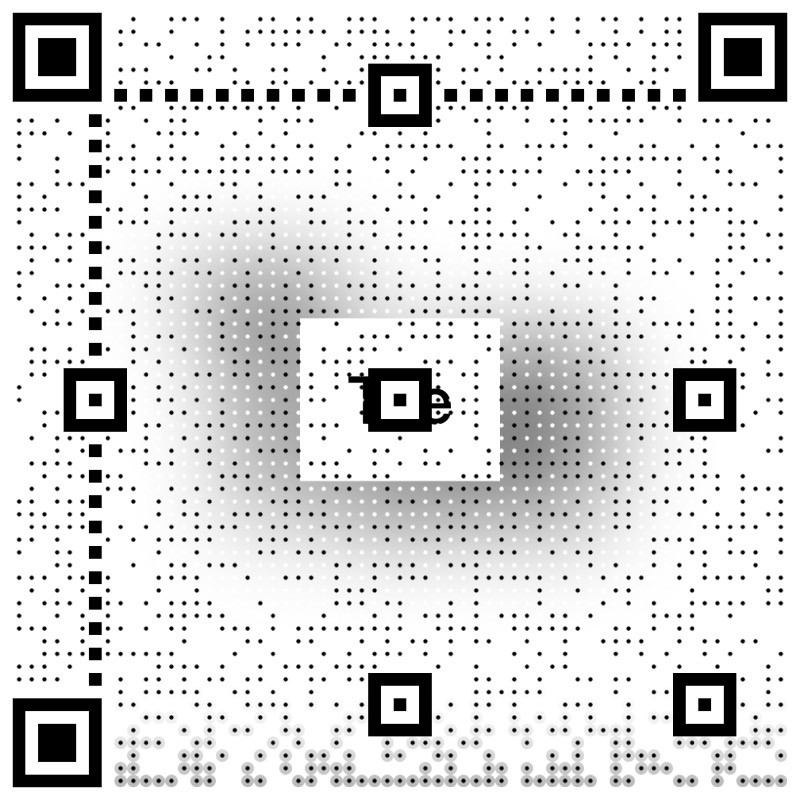
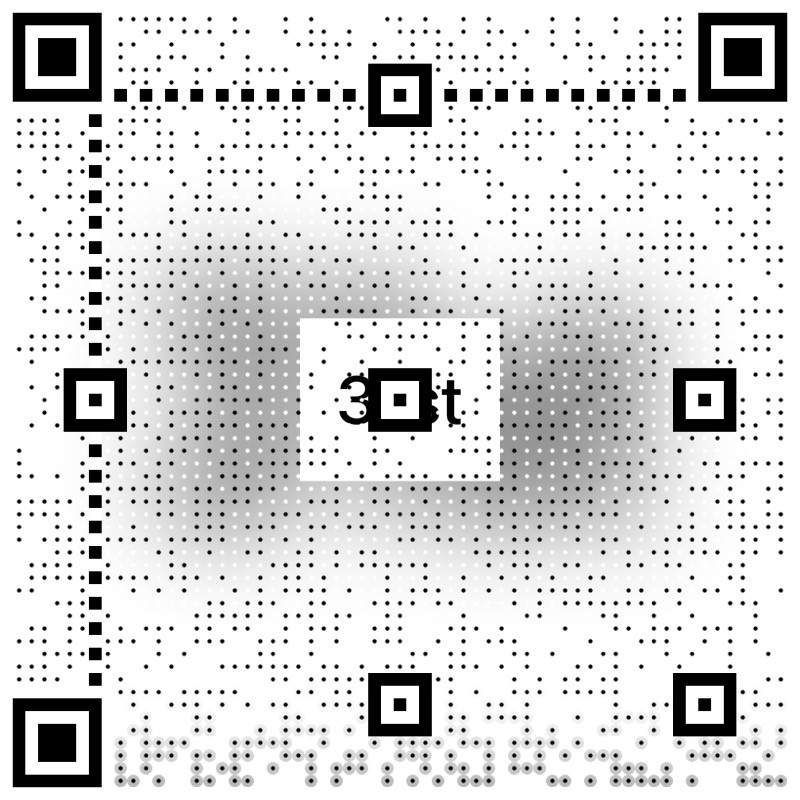
Tap Import, which should open a camera view to scan the QR code below.
Day Of The Week:
Today's Date:
You can also use the Import URL option if that is more convenient.
Day Of The Week: widgyURL://widgy.icu/api/v1/widgy/a16de7b6-9593-4223-af5b-fc60a8334b08
Today's Date: widgyURL://widgy.icu/api/v1/widgy/a16de7b6-9593-4223-af5b-fc60a8334b08
Assign the widgets to Dynamic Island
Once you have created or imported the widgets, go to the Manage tab.
Make sure you’re still on Live widgets, then under the Dynamic Island section, tap the “Compact Leading” and “Compact Trailing” slots to assign your widgets.
Lastly, for this to work, you must fill one of the Live Activity slots. This can be anything, including a default one, or one you have created.
This Live Activity will show on your lock screen to keep your date widgets active on Dynamic Island.