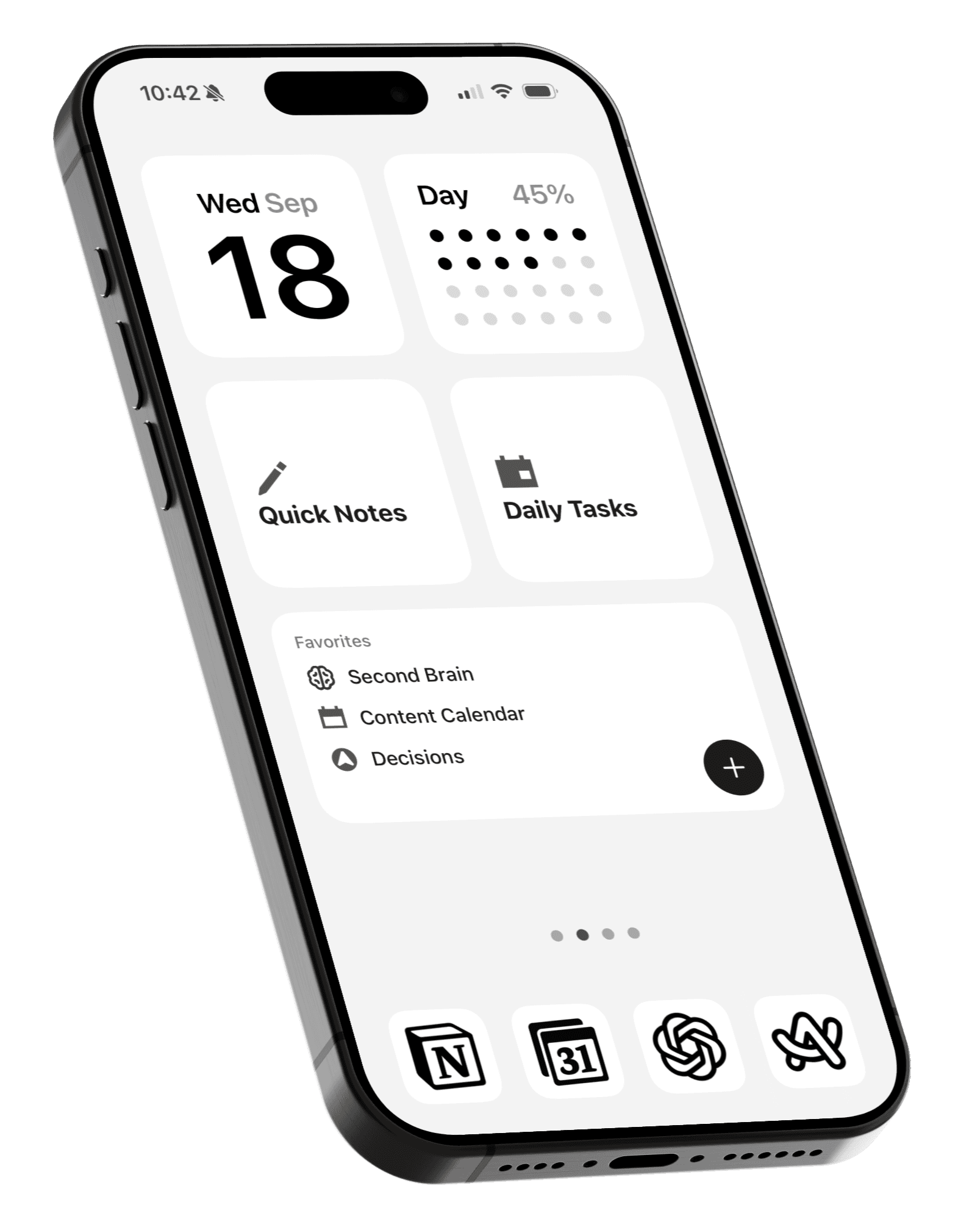
How to achieve a minimalist iOS 27 Lock Screen
Use iOS 27’s new compact clock for a simpler Lock Screen.

Your iPhone Lock Screen can be more minimal than ever with the new compact clock in iOS 27.
Combined with existing features like Apple’s built-in Color wallpaper and the ability to remove Lock Screen controls, you can create a completely distraction-free Lock Screen.
This makes it less tempting to unlock your phone, especially when you only want to check the date and time.
1. Add the Color wallpaper
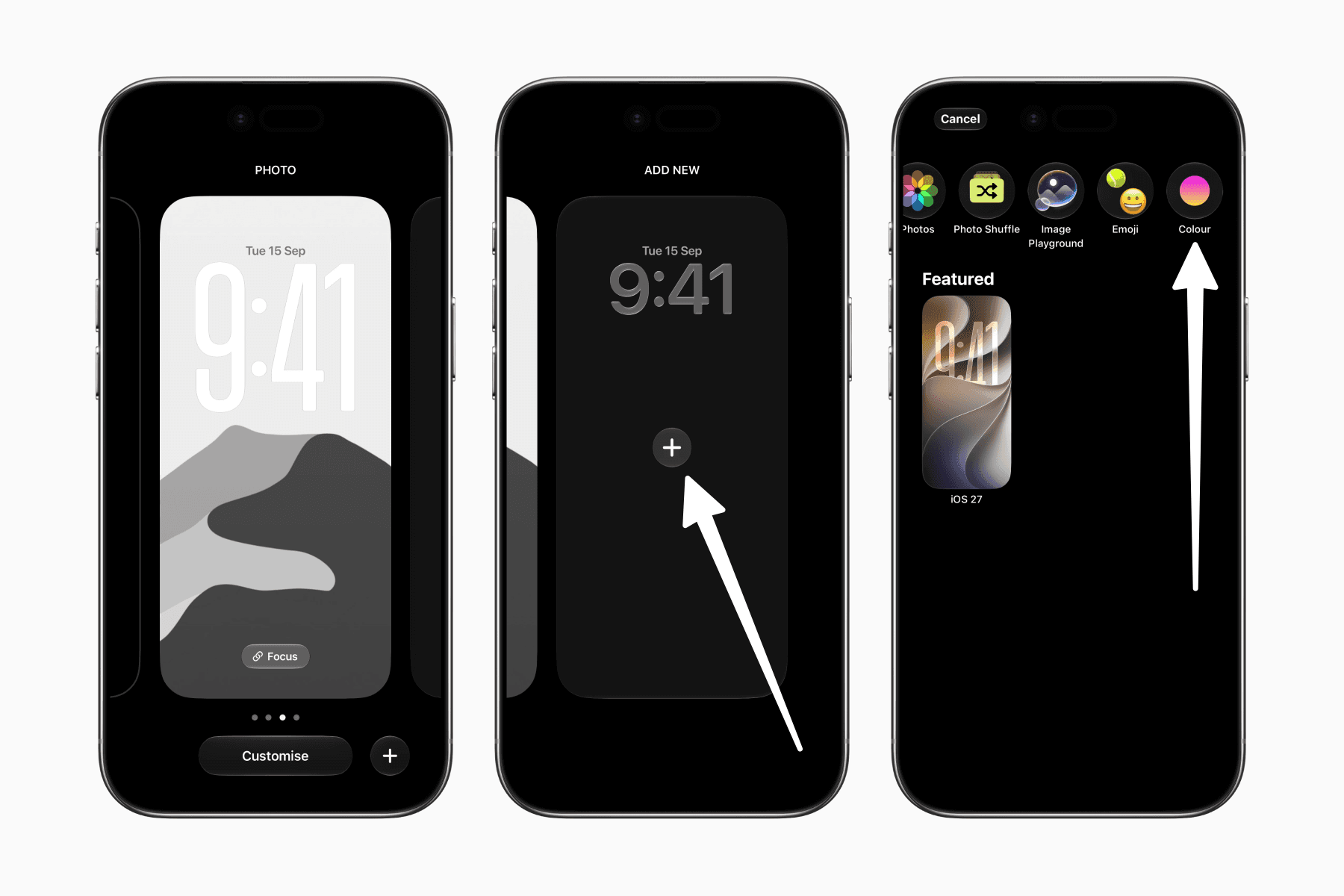
Go to your Lock Screen and hold down on an empty space to enter editing mode.
Swipe all the way to the right, tap the plus button to add a new wallpaper, then choose the Color wallpaper.
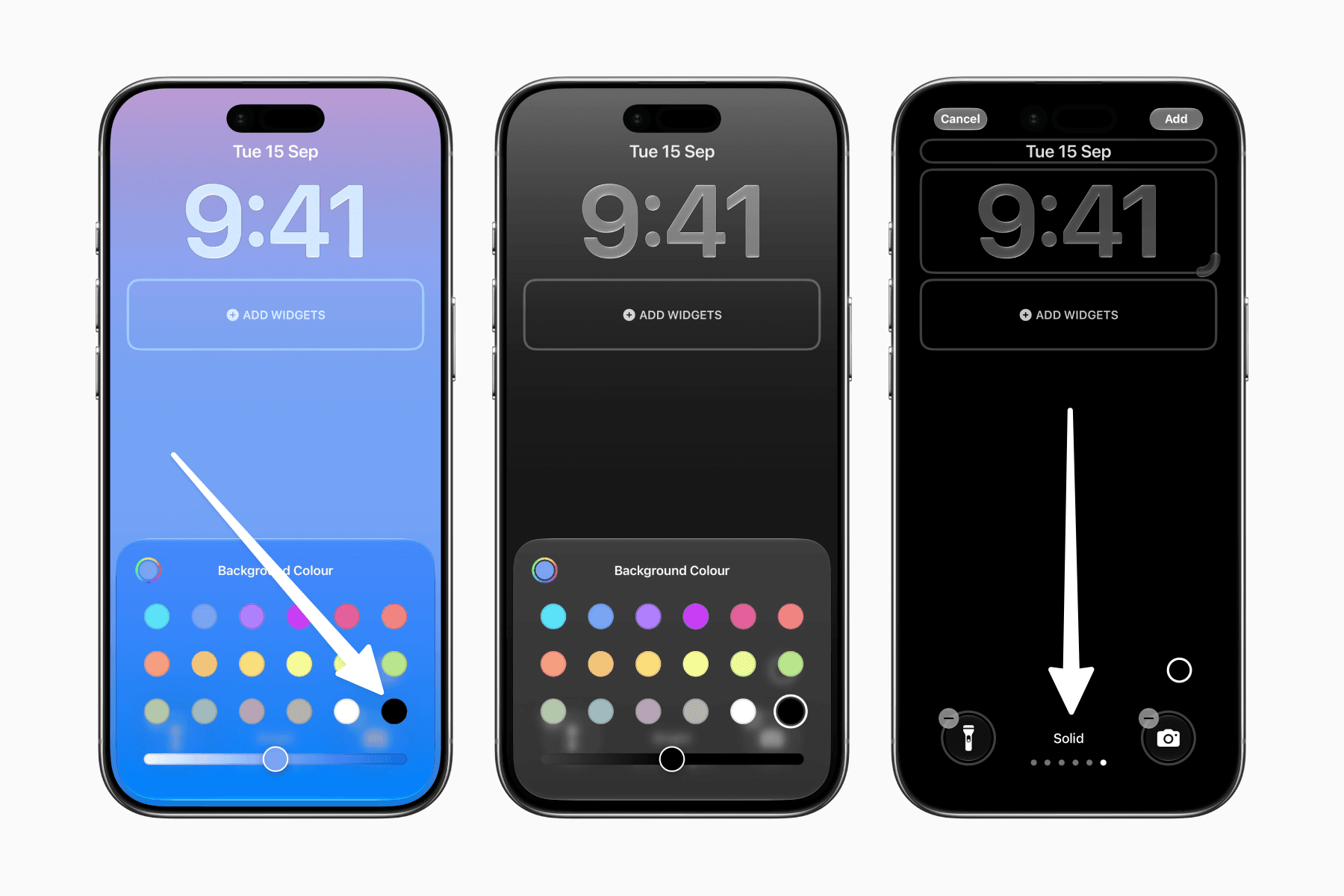
Set up this wallpaper by first setting the background color to black. Then, swipe to the Solid style for a solid-color background instead of a gradient.
2. Enable compact clock
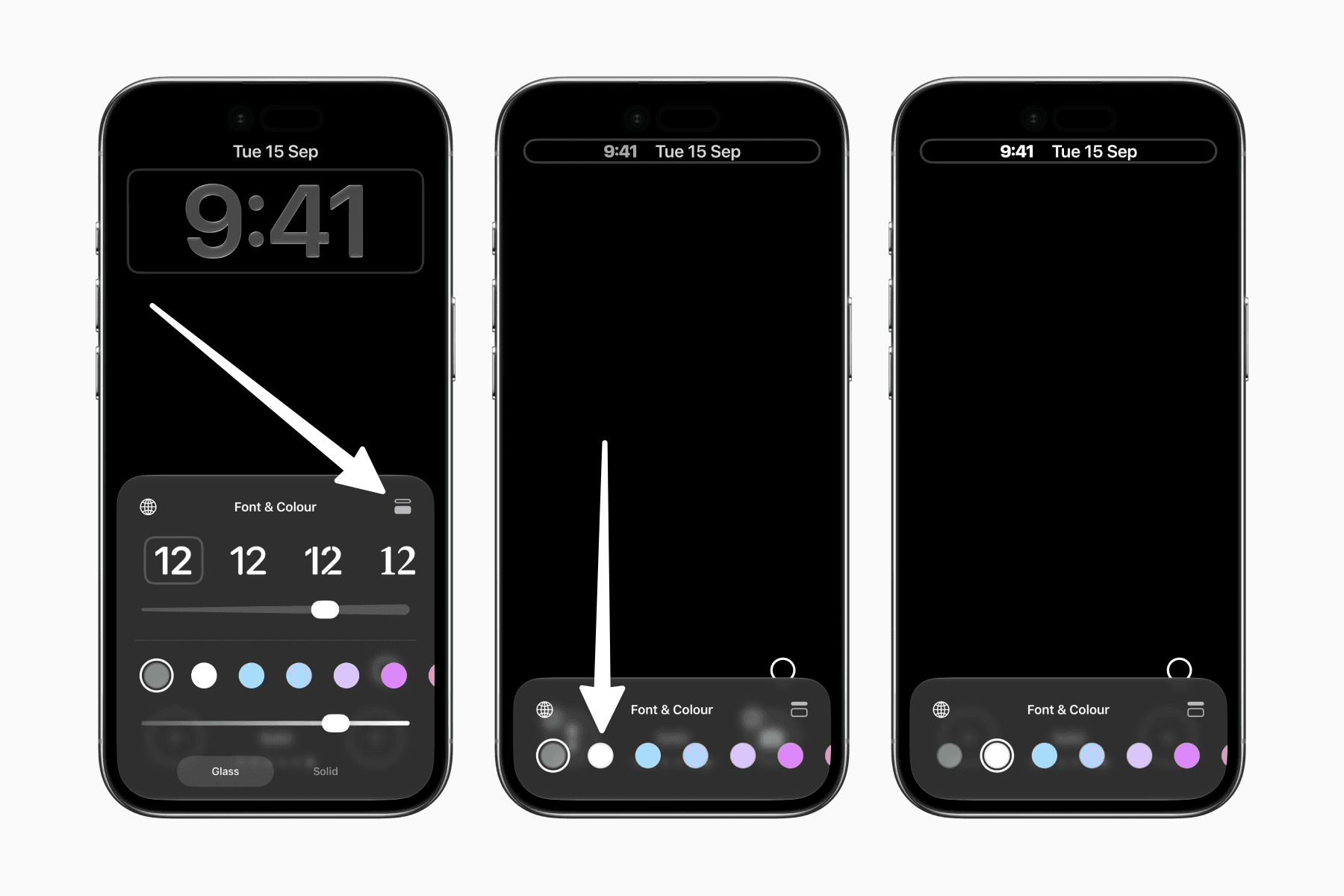
While in editing mode, tap the clock to open the customization sheet.
Tap the icon in the sheet’s top-right corner to change the clock from its default size to the new compact mode.
Then select white to match the color of the time and date.
3. Remove Lock Screen controls
Lastly, while still in editing mode, tap the minus icon on each Lock Screen control to remove it.
Feel free to skip this step if you still want quick access to your controls like the flashlight or camera.
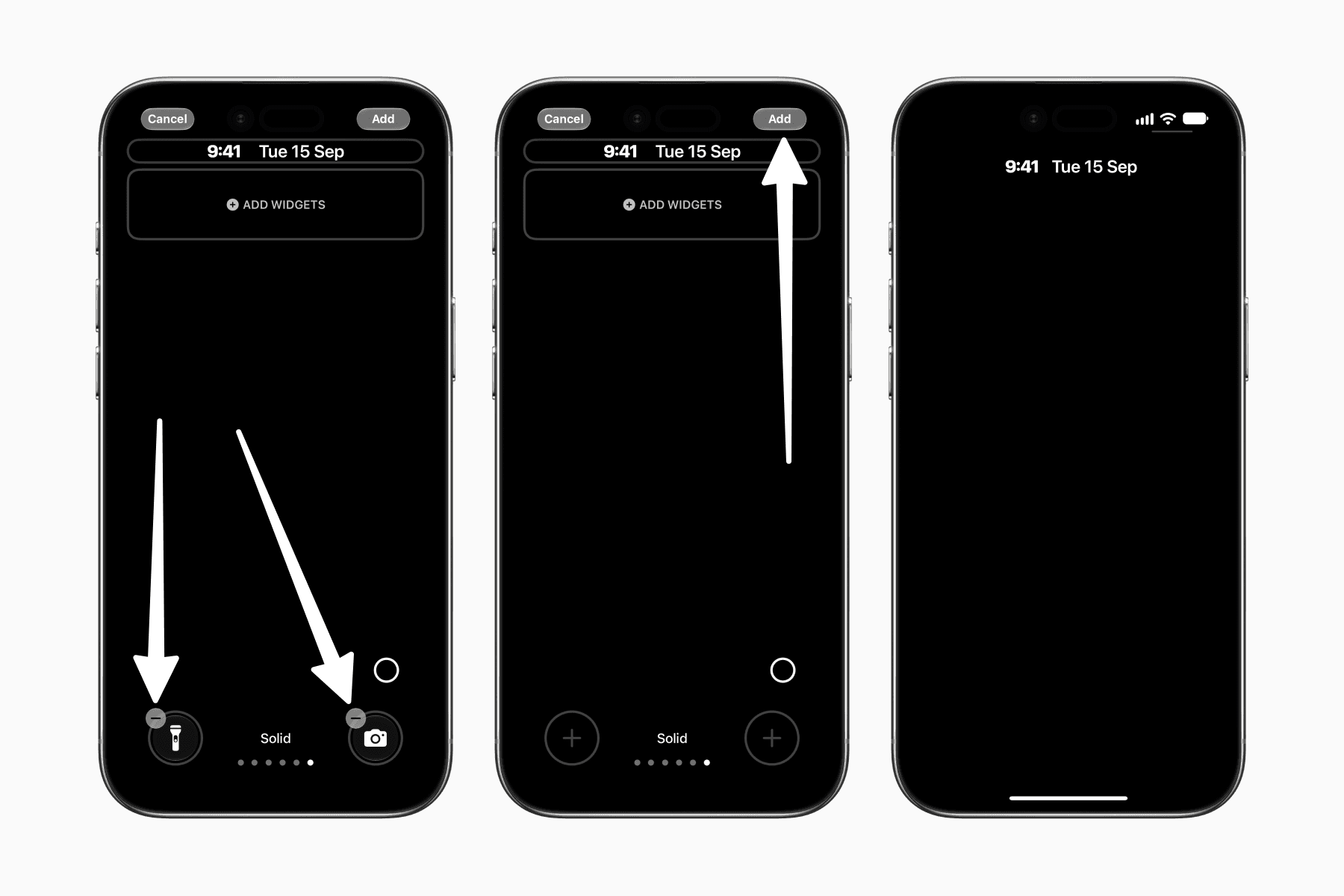
And that’s all it takes to create a simple, clean Lock Screen that doesn’t demand your attention.