A cleaner iPhone Lock Screen with iOS 27 compact clock
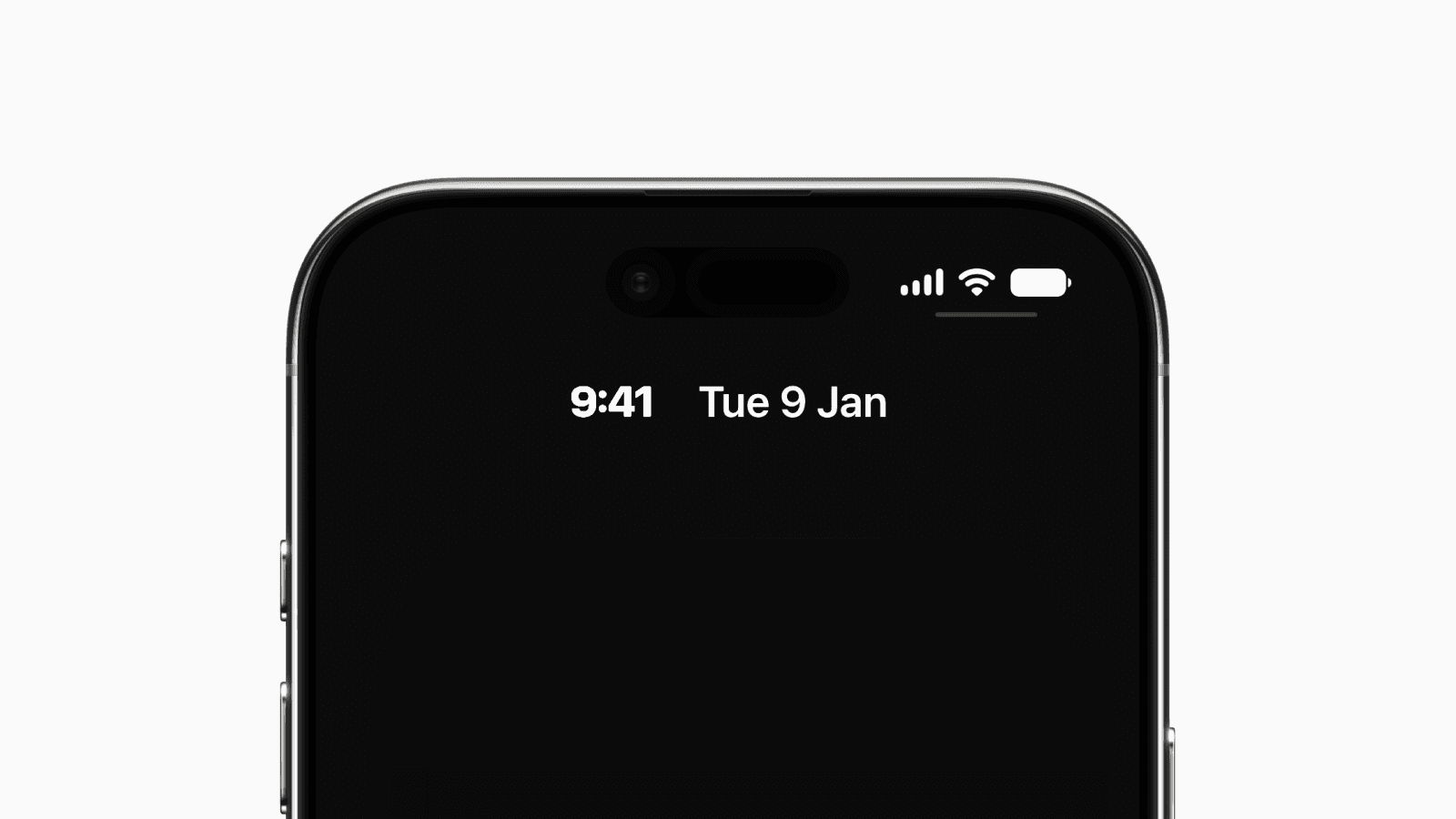
iOS 27 lets you minimize the Lock Screen clock and move it to the top inline widget area.
Note: At the time of writing, this feature appears in the iOS 27 Developer Beta 1 and may change before the public release.
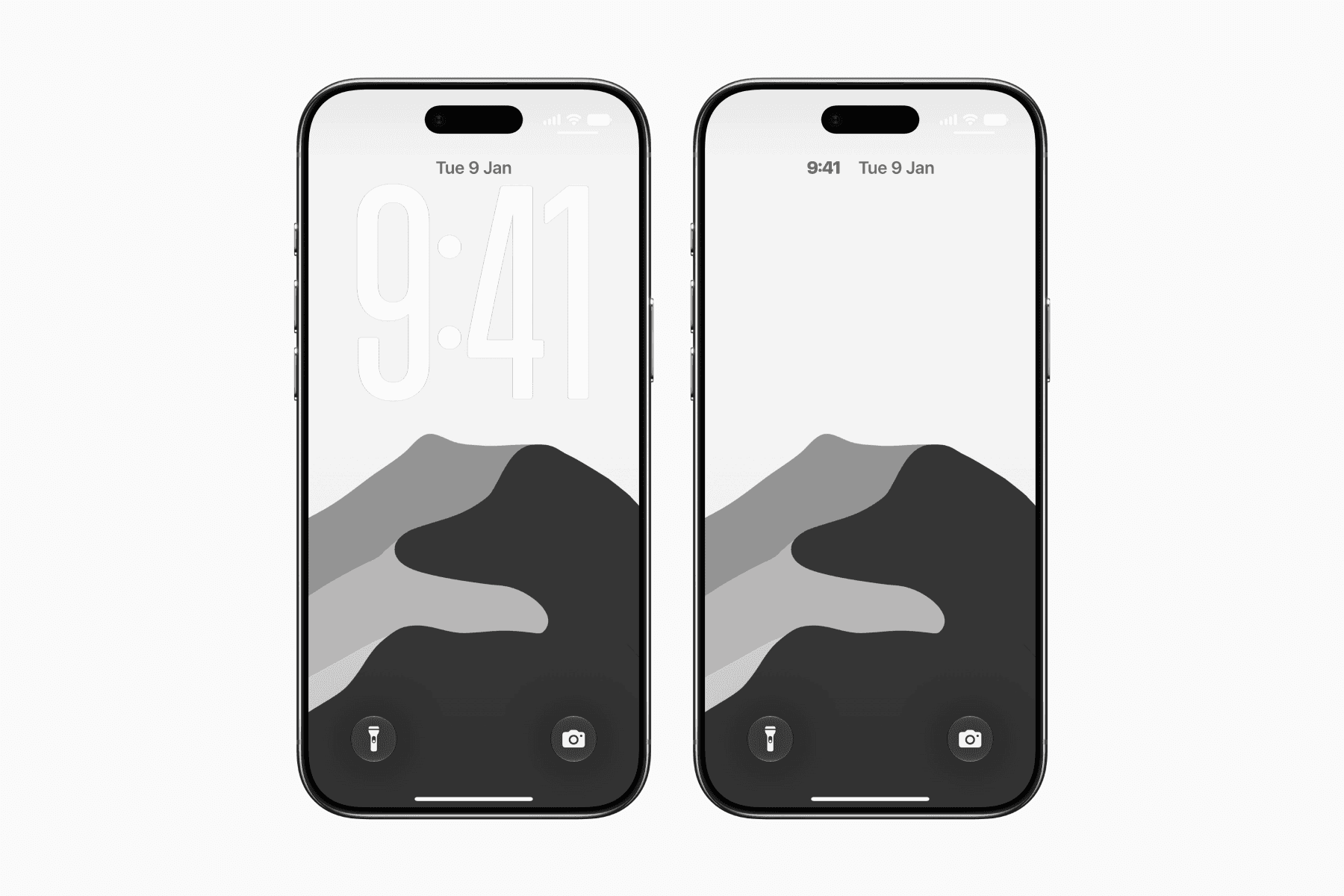
iOS 27 introduces a new compact clock style for the Lock Screen.
Instead of occupying its own dedicated row, the time can now be shrunk and moved into the inline widget area at the top of the screen.
Previously, the clock would automatically shrink to this setup when the album cover art was in full screen.
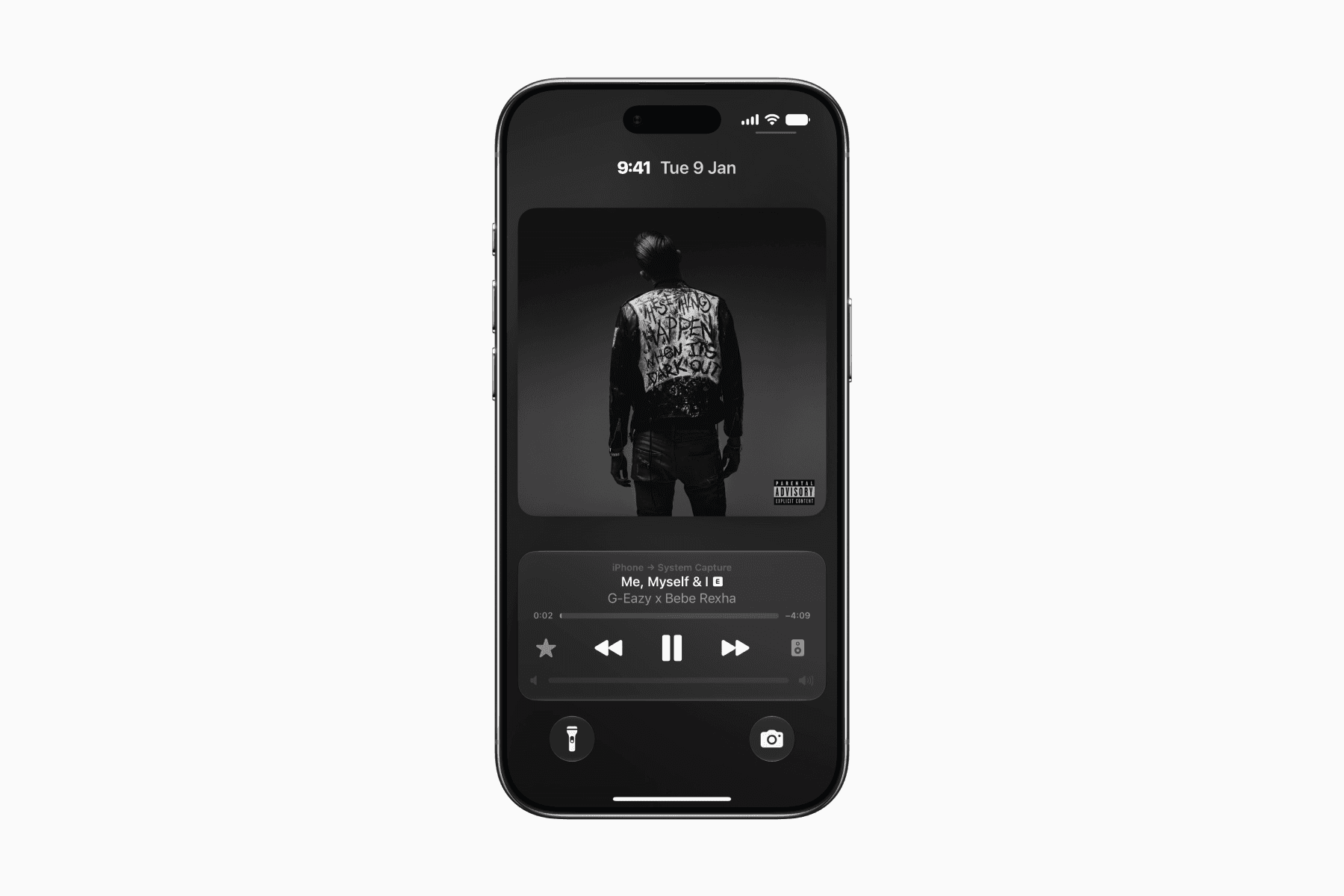
Now in iOS 27, you can have this compact clock all the time.
It's a small change, but one that can make the Lock Screen feel much cleaner and less cluttered.
How to turn on the compact clock on your Lock Screen
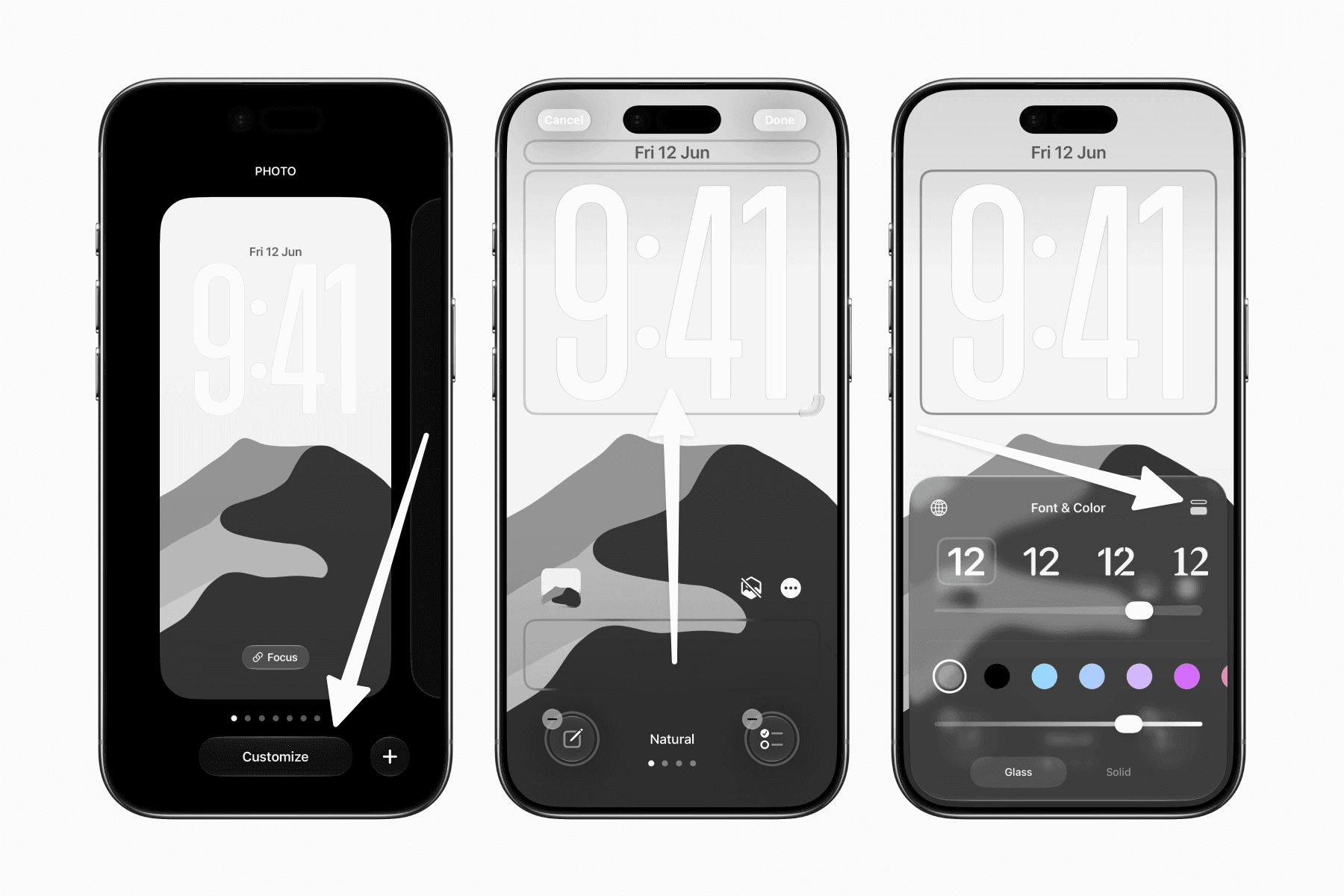
Hold anywhere on your Lock Screen to enter editing mode.
Swipe to the Lock Screen you want to customize.
Tap Customize.
Tap on the clock display to open the clock customization menu.
Tap the two-rectangle icon in the top-right corner to switch between the default and compact clock styles.
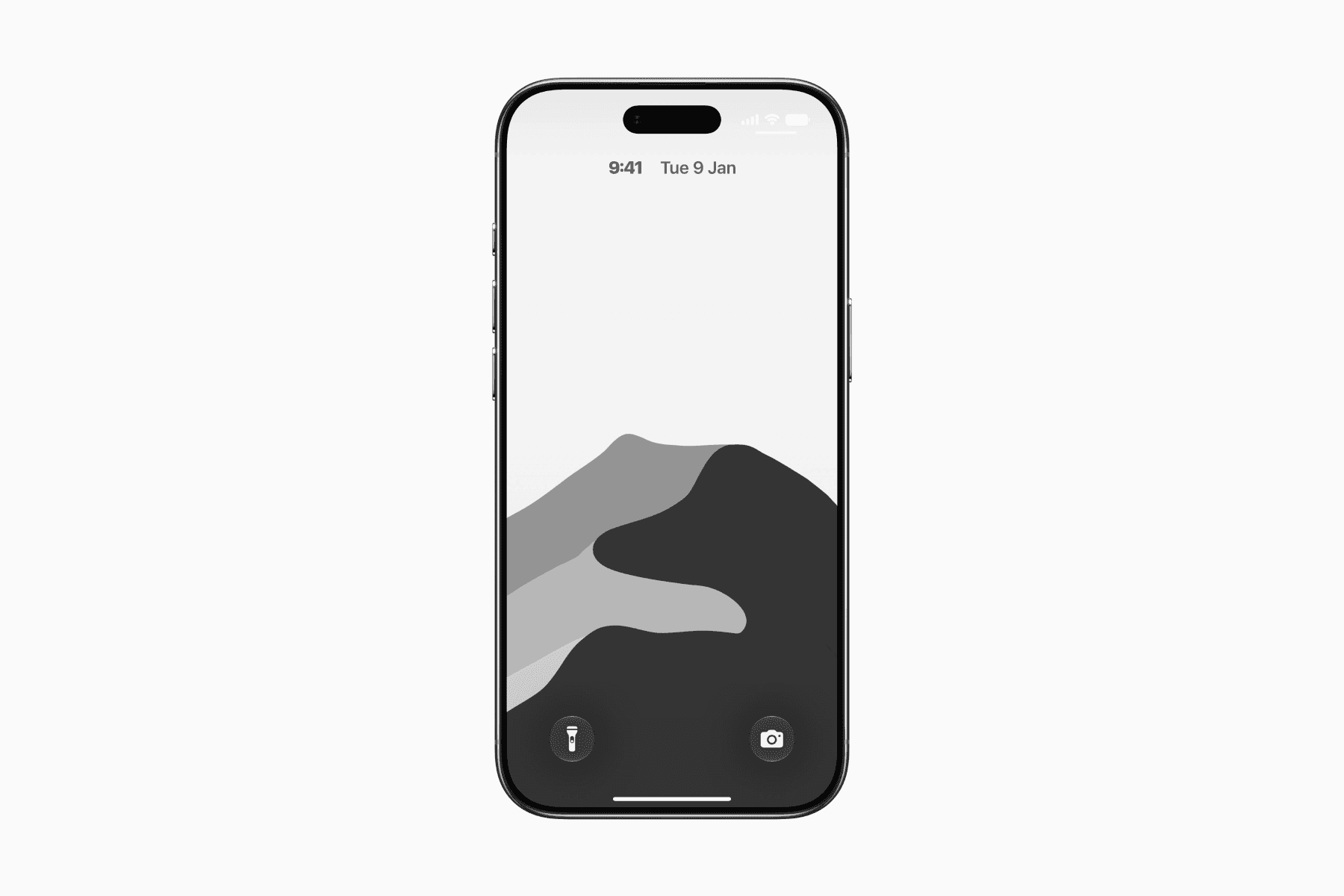
Once enabled, you'll immediately notice how much more space is available on your Lock Screen.
For those still on the fence, below are some ideas on when you might want to use it.
More room for your wallpaper
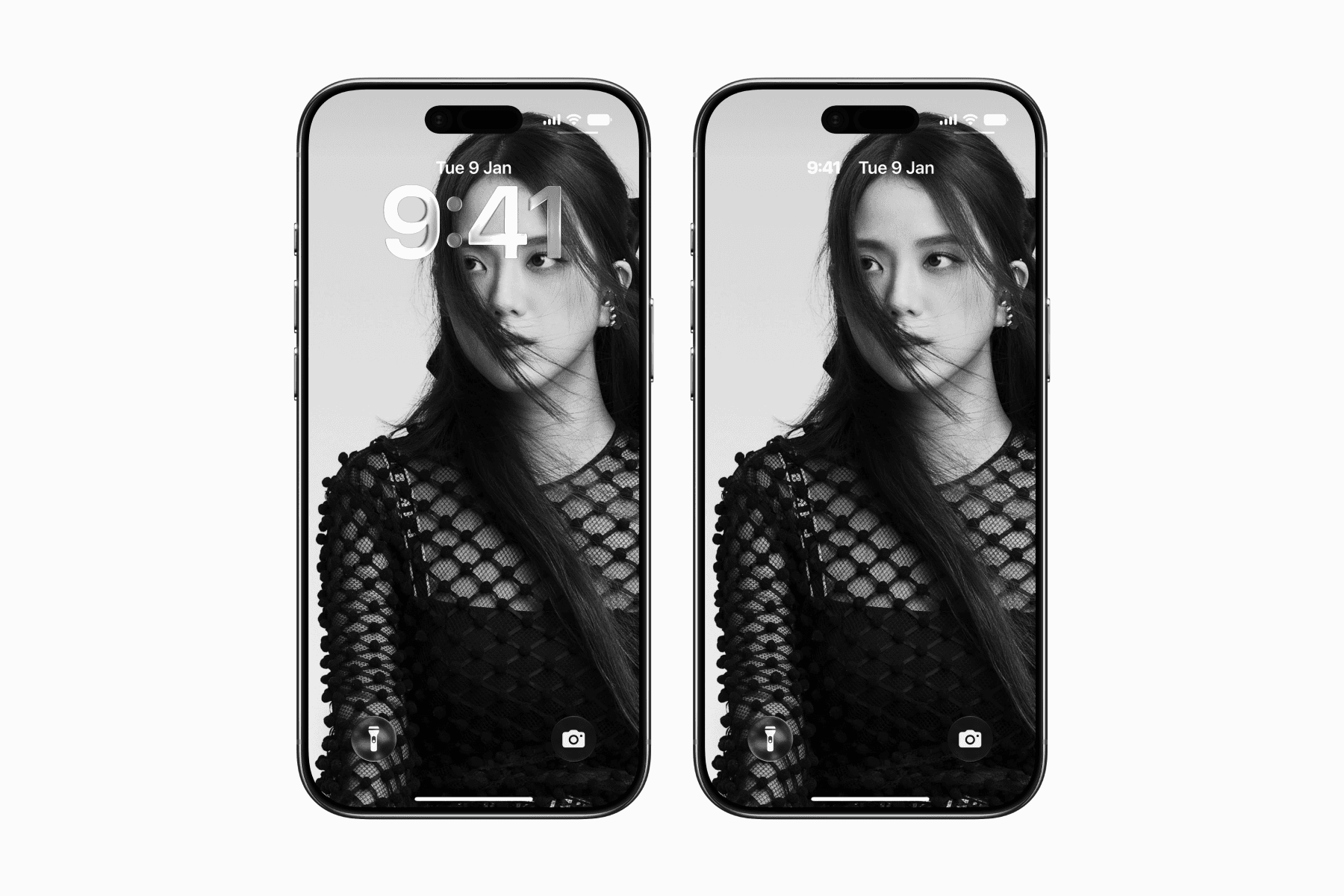
With the clock reduced in size and moved to the top of the screen, more of your wallpaper is now visible.
This is especially nice if you use a photo wallpaper, as more of the image gets to take center stage.
A simpler Always-On display
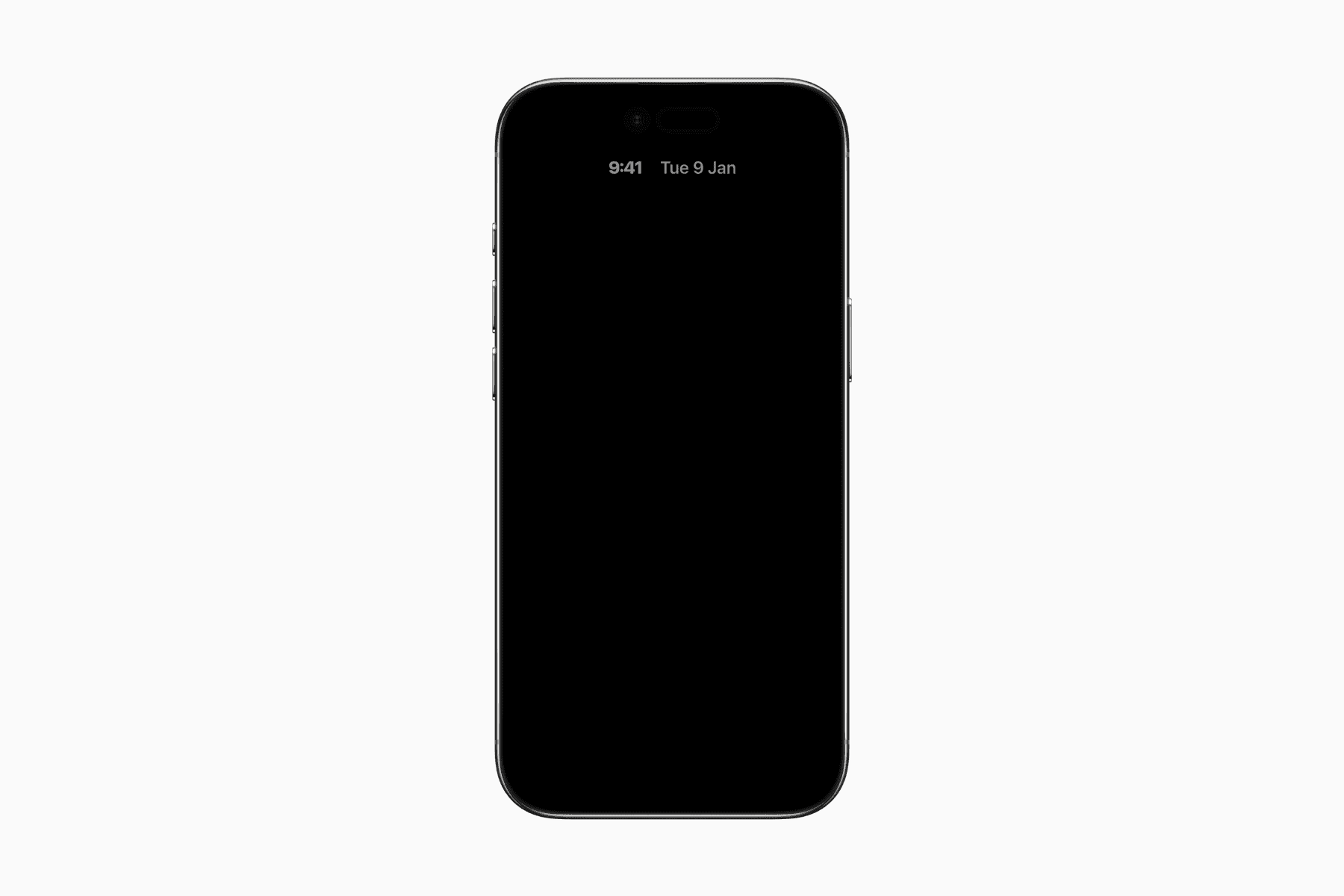
One suggestion we've seen from early users is pairing the compact clock with an iPhone that supports Always-On display.
With the more compact time display, the phone becomes less attention-seeking when sitting on your desk.
You can still glance over to check the time, but the display feels calmer and less demanding of your attention.
It's a subtle change, but one that helps technology stay in the background until you actually need it.
Pair it with the Life Calendar wallpaper
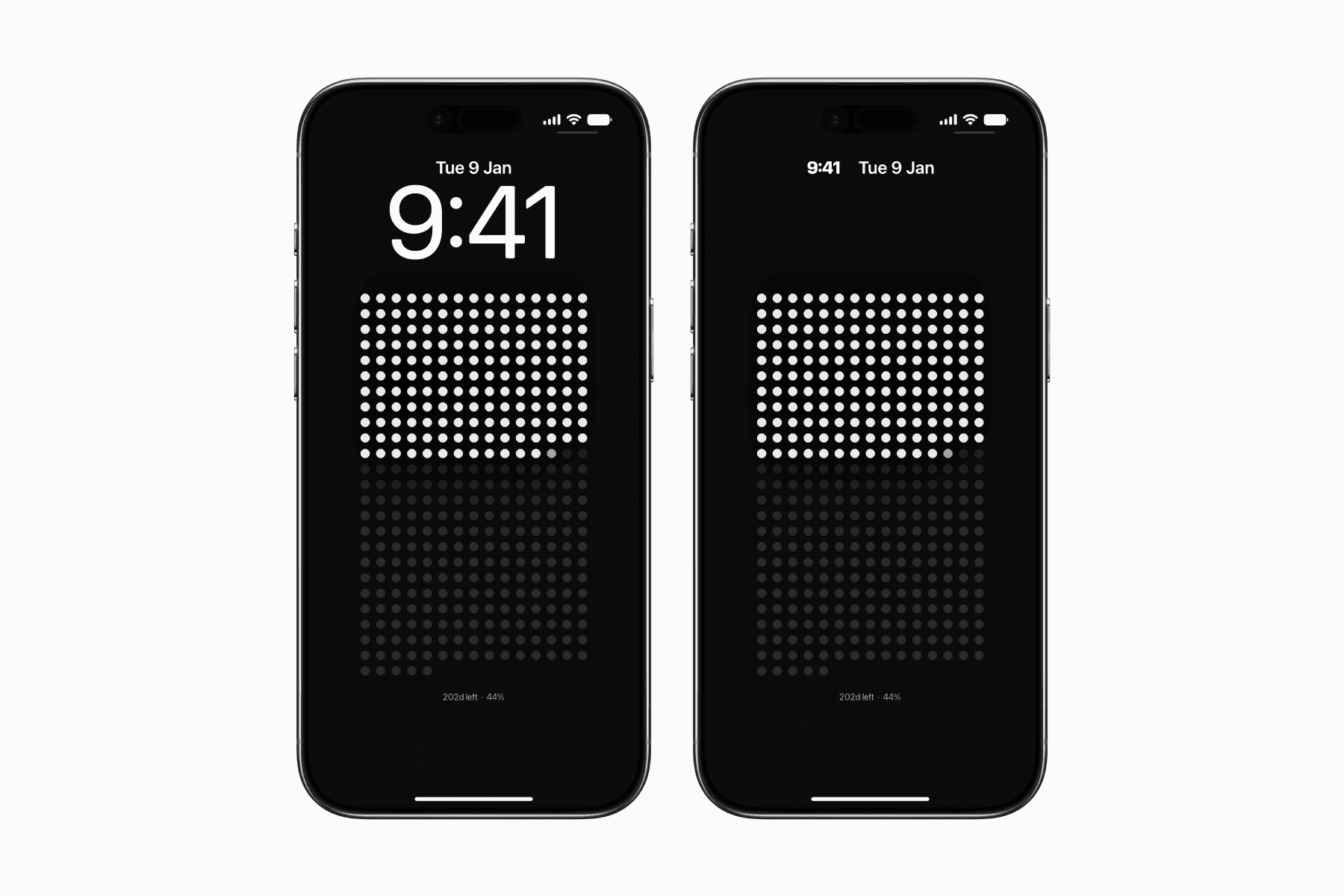
One interesting way to use this feature is with the Life Calendar wallpaper.
Whether you're tracking your life's progress or just the current year, the dots on the wallpaper serve as a visual reminder of the passage of time.
By moving the current time out of the spotlight, the Lock Screen becomes less about the exact time and more about the bigger picture.
To remind us that our time is finite and encourage us to spend it more intentionally.
If this idea resonates, check out our guide to set up an automatically updating Life Calendar wallpaper.
Final thoughts
The new compact clock isn't a headline feature, and many people may never use it.
But for those who prefer a cleaner, simpler iPhone setup, it may be one of the most appreciated additions in iOS 27.
Sometimes the best updates aren't the ones that add more features, but the ones that get out of the way.