How to achieve a minimalist iPhone with Blank Spaces
Replace colorful app icons with a simple text-based launcher for more intentional phone use.
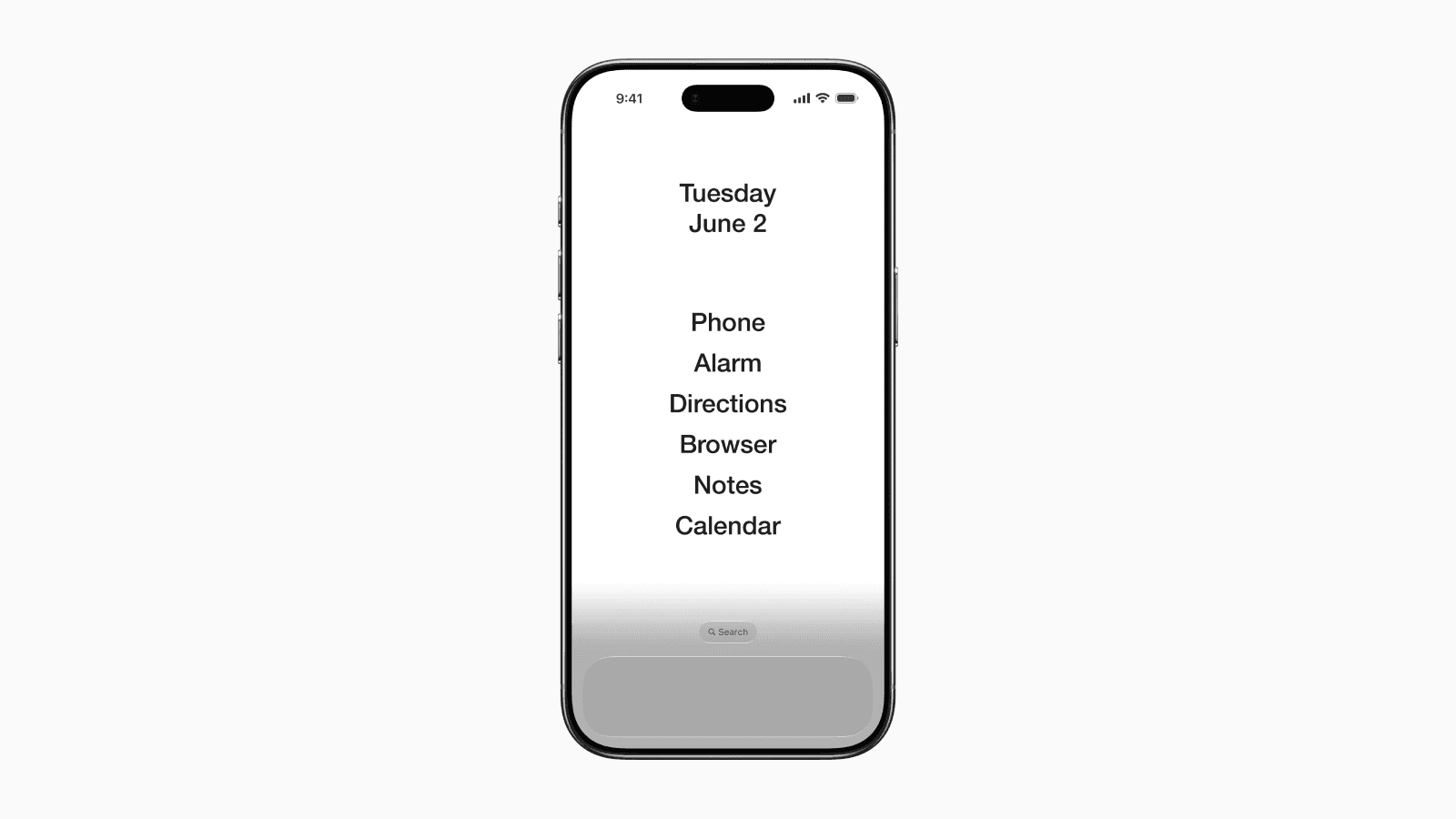
Getting distracted by our phones is easier than ever. Social media, shopping, and games are often just a tap away.
Over time, we become so familiar with our app icons and where they sit on the Home Screen that opening them becomes almost automatic.
This is where text-based app launchers like Blank Spaces come in.
Instead of filling your Home Screen with colorful app icons, a text-based launcher puts only your essential apps front and center using simple text labels.
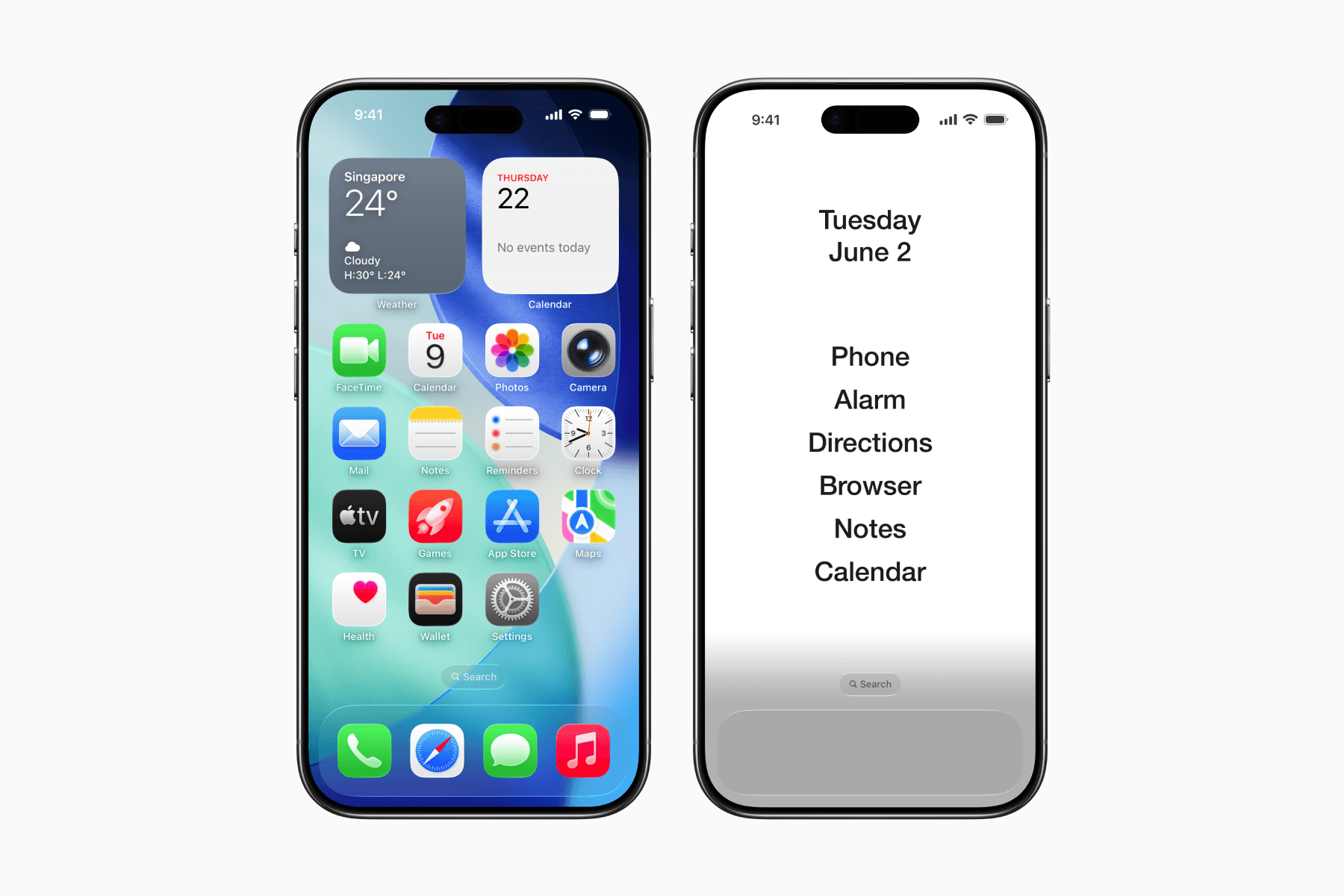
The result is a cleaner, more intentional Home Screen that can help reduce mindless phone use.
In this article, we'll show you how to create this setup using Blank Spaces .
1. Set the Wallpaper
First, download and open the Blank Spaces app.
During the app onboarding, you'll be prompted to choose between a light or dark theme.
After selecting a theme, the app will save the corresponding wallpaper to your Photos library.
Then, go to your Home Screen and press and hold anywhere until the Edit button appears in the top-left corner. Tap on Edit, then select Edit Wallpaper.
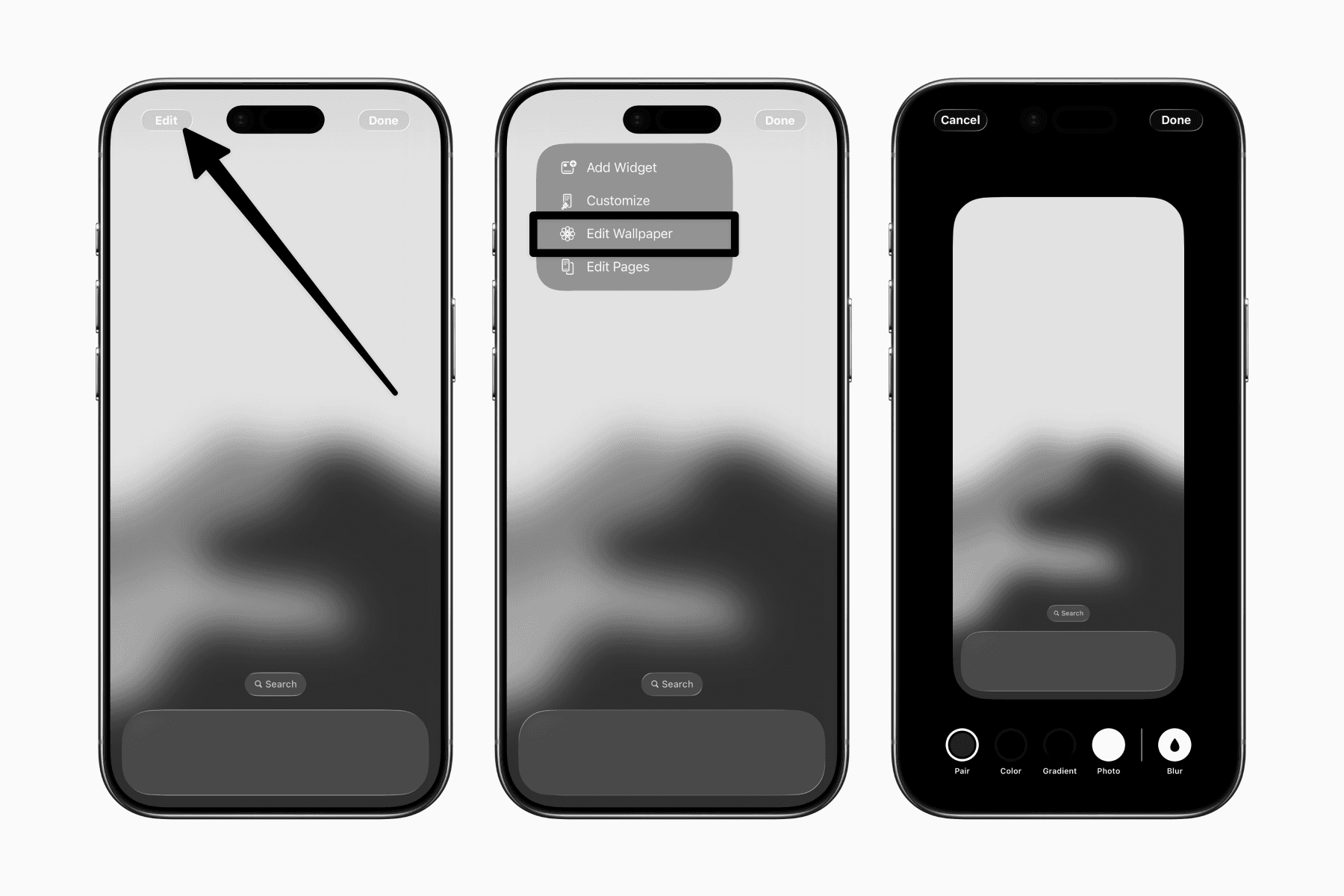
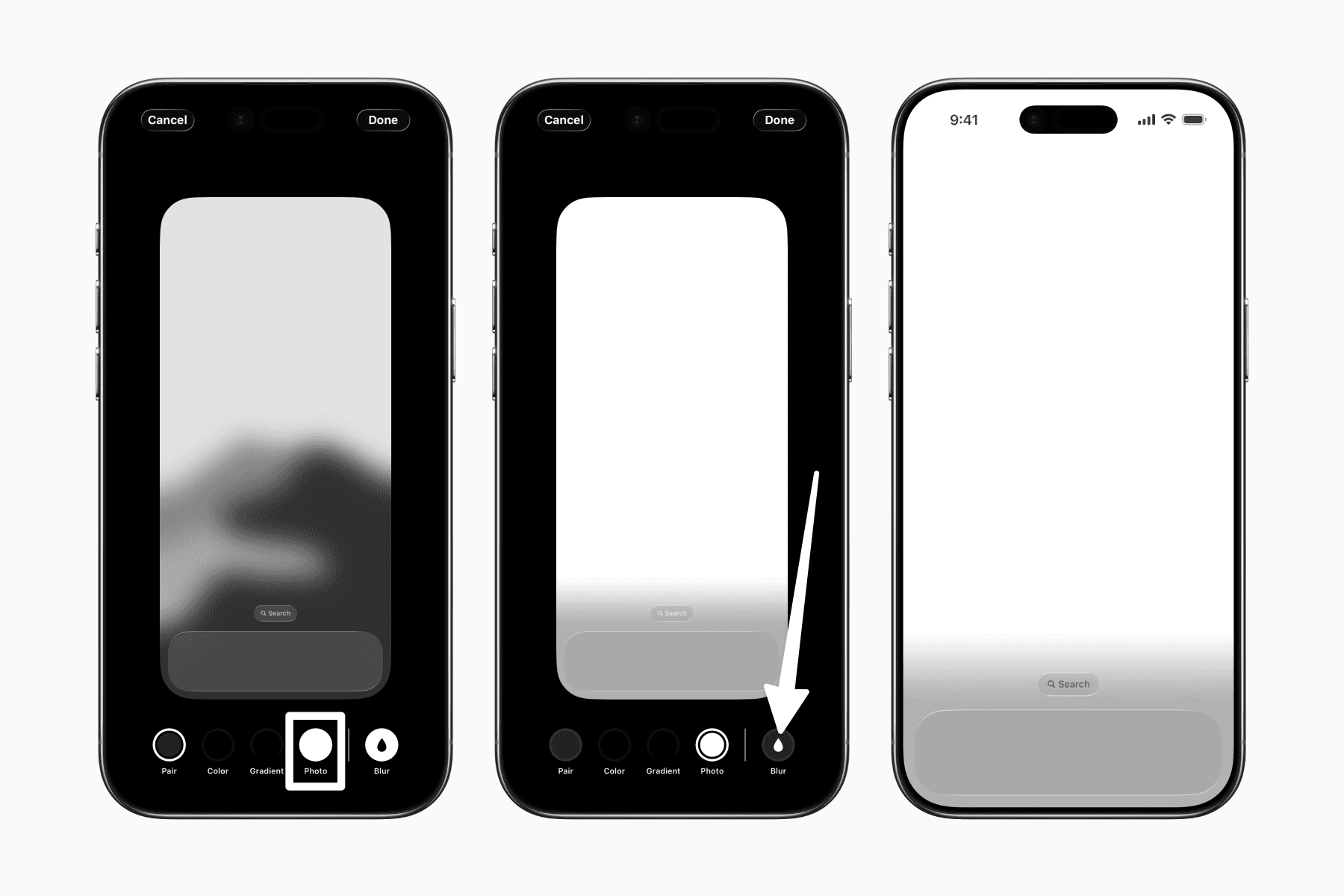
Choose the Photo option so you can use a different wallpaper for your Home Screen instead of reusing your Lock Screen wallpaper.
In the photo picker, select the wallpaper saved from Blank Spaces.
Then, ensure that Blur is turned off.
2. Customize the Home Screen
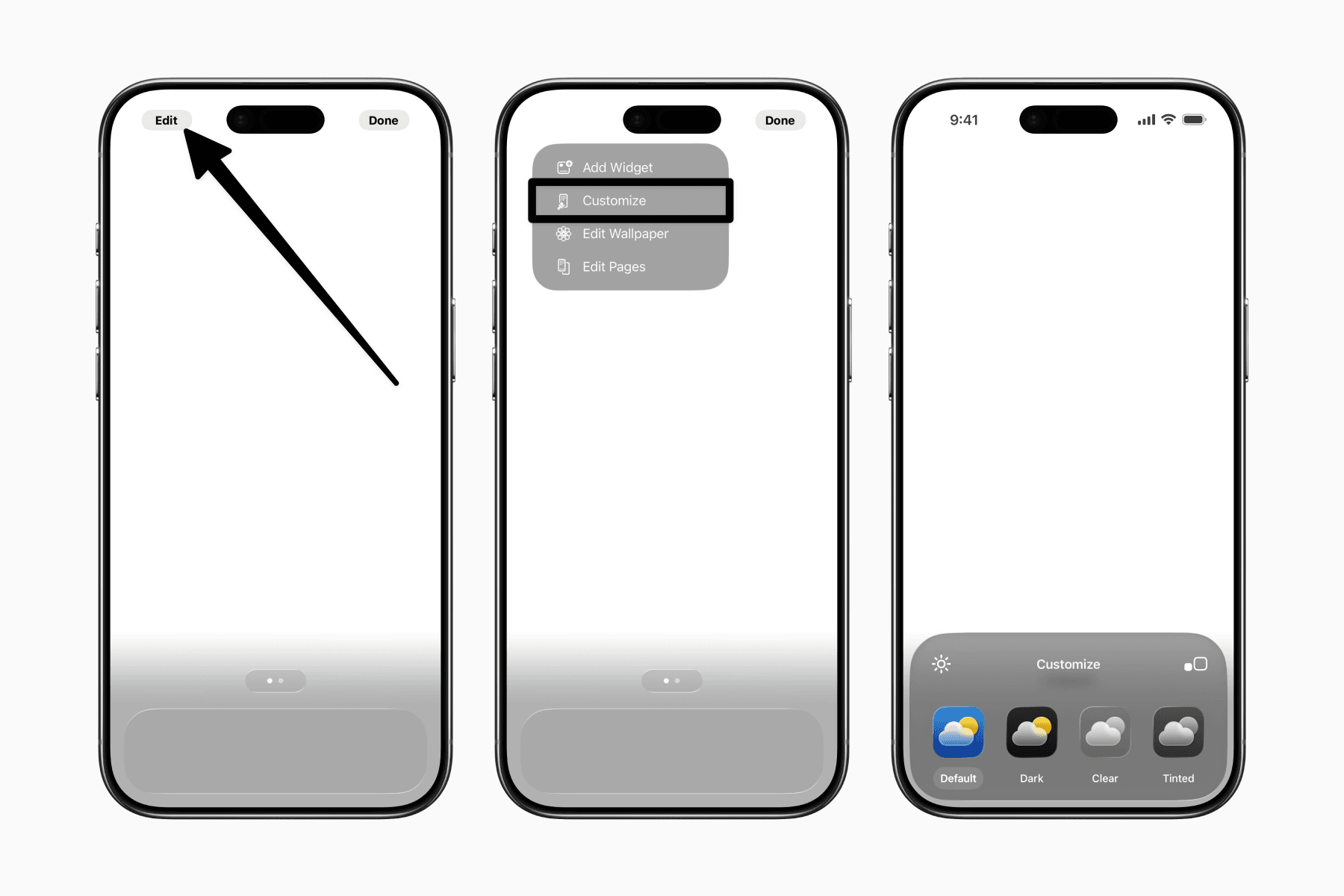
Enter editing mode on your Home Screen again. This time, click on Edit and then Customize.
If you selected the light theme, choose Default. If you selected the dark theme, choose Dark and set it to Always.
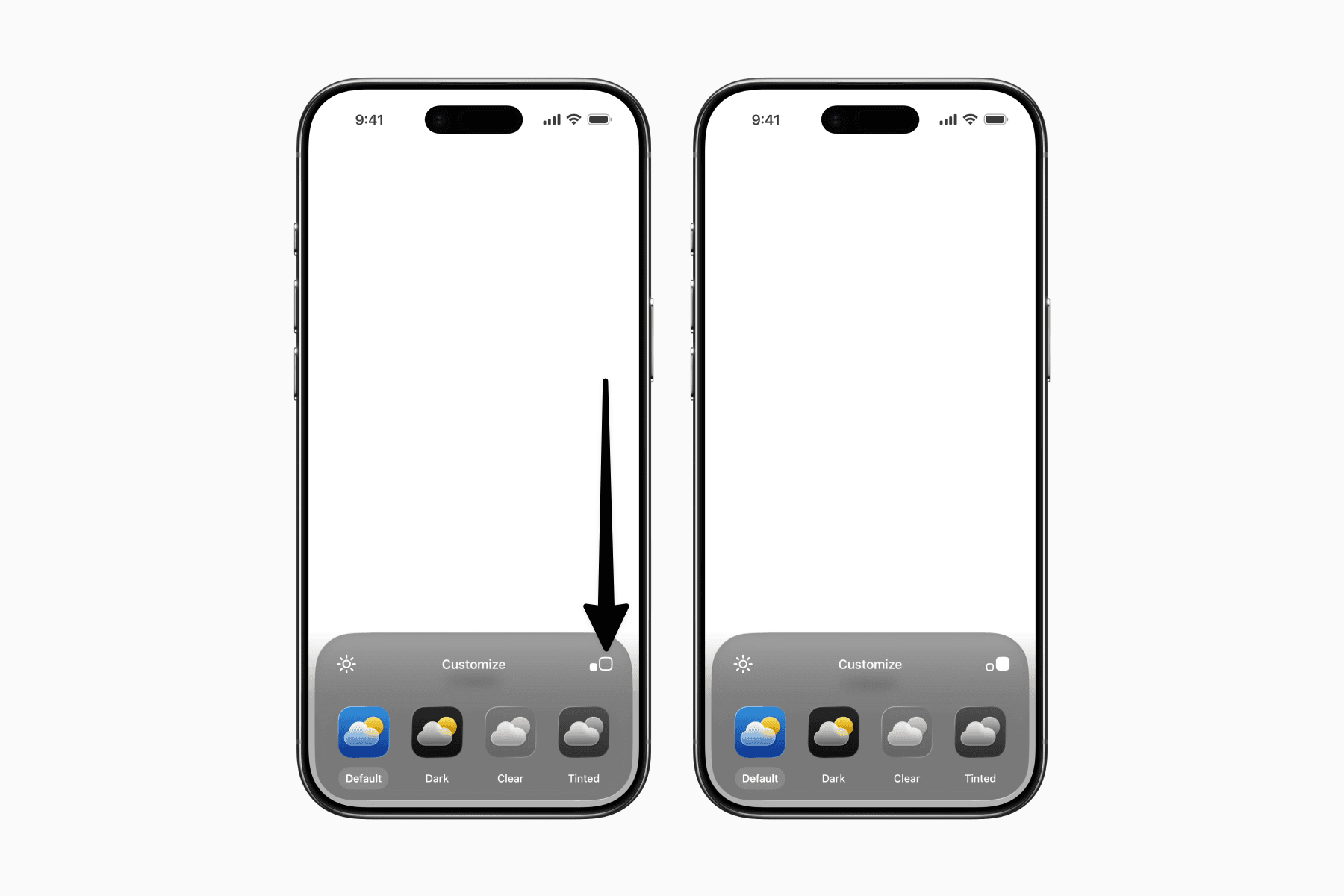
Next, check the two square icons to use larger icons. If you have selected the larger icon, the filled square will be the larger one.
This option hides app and widget labels, creating a cleaner look.
3. Add the Widgets
Next, enter Home Screen edit mode again, tap Edit, and then select Add Widget.
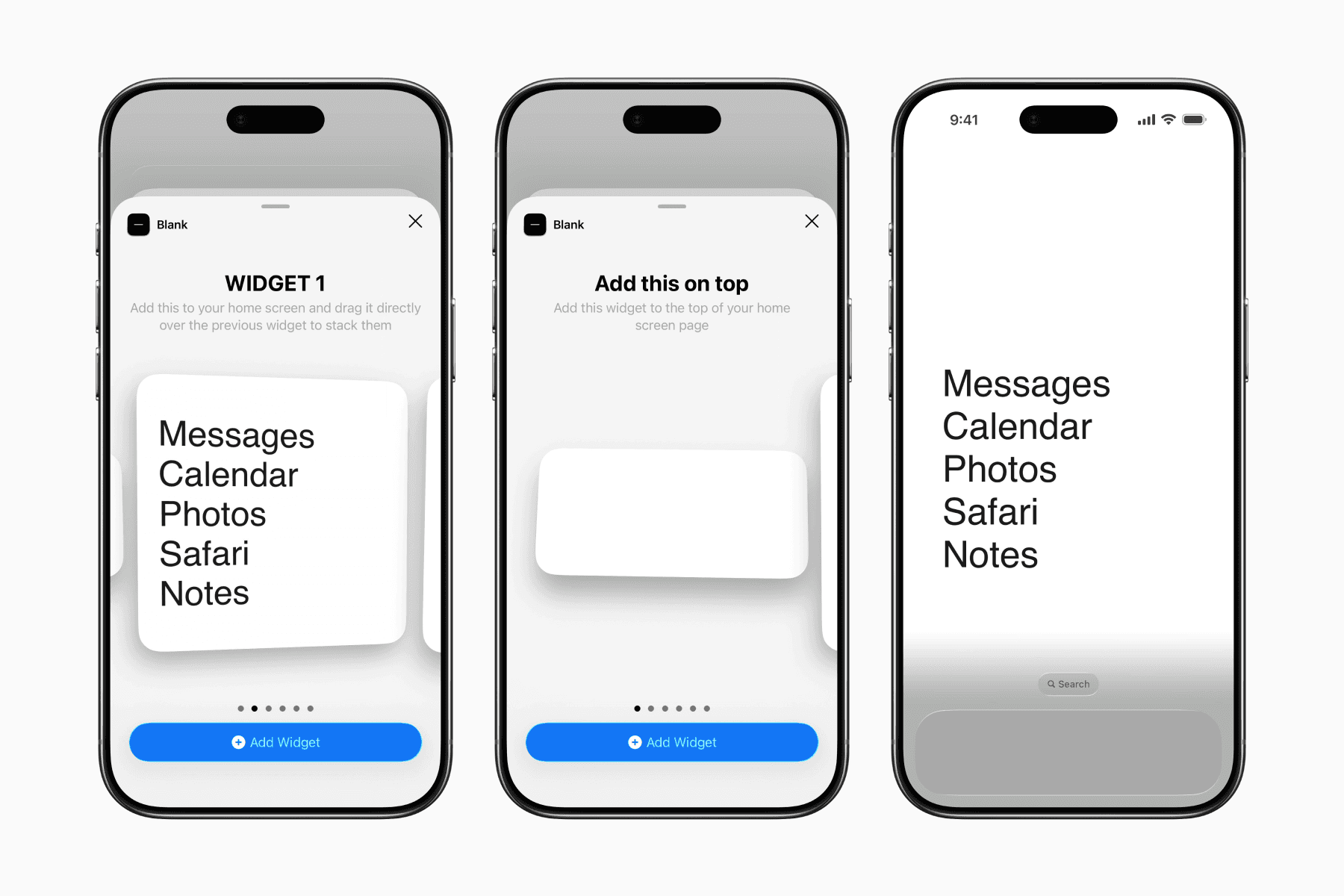
On the widget panel, search for "Blank" and add the second widget in the list named Widget 1.
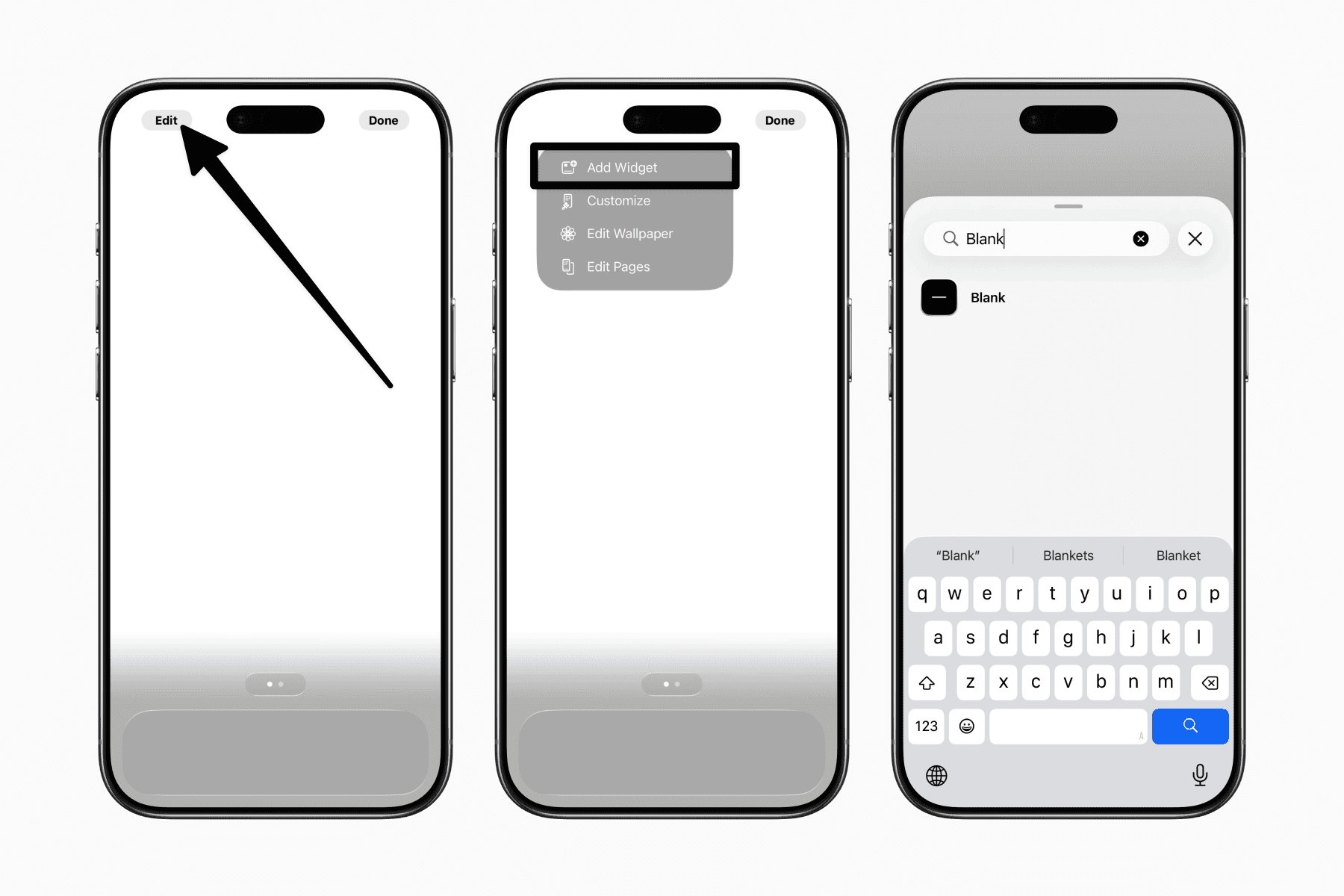
Then repeat the process and add the first widget in the list, which will be used as the top widget in the setup.
4. Declutter the Home Screen
Now that your new Home Screen page is ready, it's time to clean up the older pages you no longer need.
To remove individual apps, press and hold anywhere on the home screen until the app icons start jiggling.
Tap the minus icon on the apps you want to remove, then choose Remove from Home Screen. These apps will remain installed and can still be accessed through the App Library.
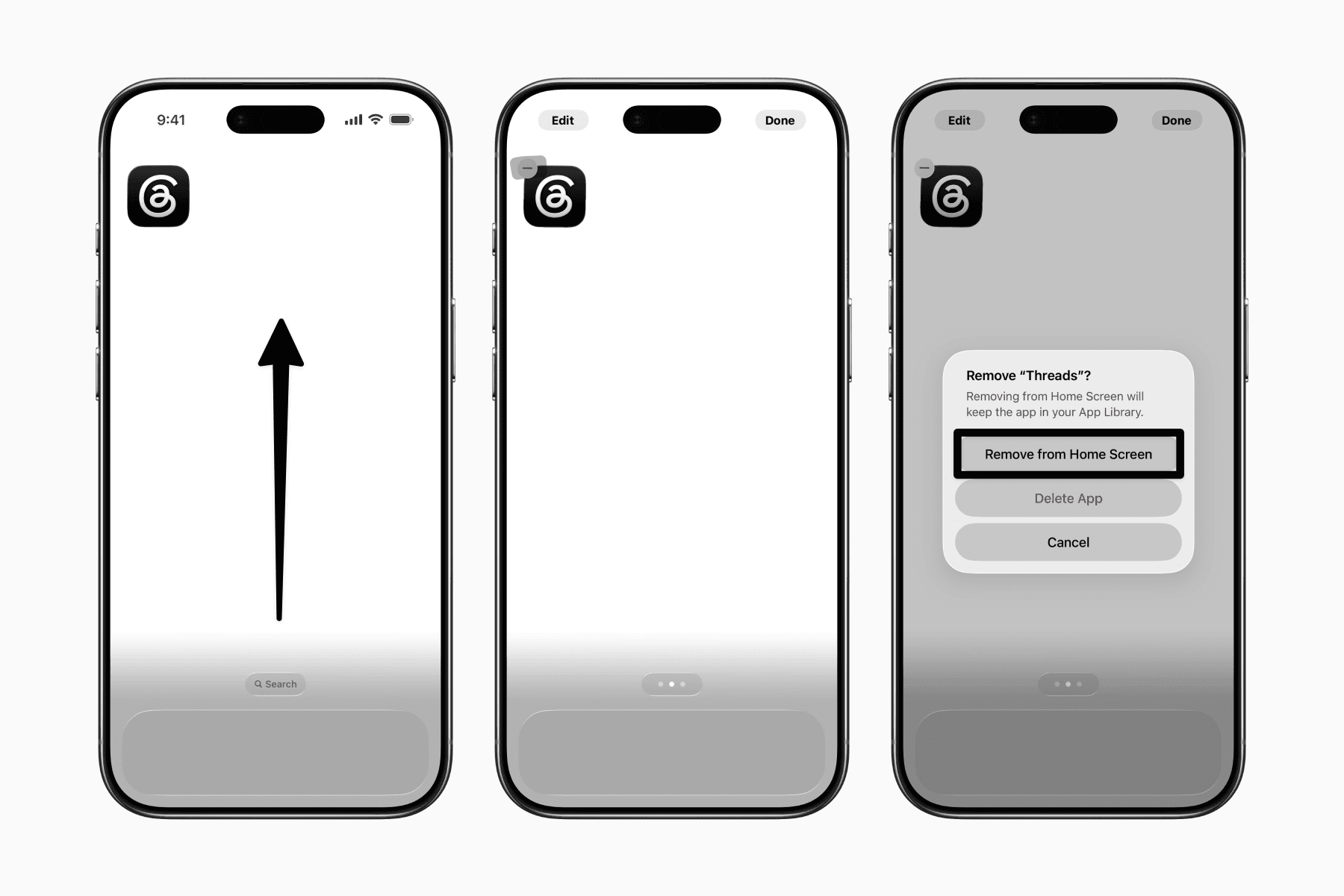
If you want to remove entire Home Screen pages, enter editing mode again and tap the page indicator dots above the dock.
You'll see an overview of all your Home Screen pages. First, uncheck any page you want to hide, then tap the minus icon on the unchecked pages to remove them entirely.
5. Choose Your Essential Apps
With your Home Screen in place, return to the Blank Spaces app and begin selecting your essential apps.
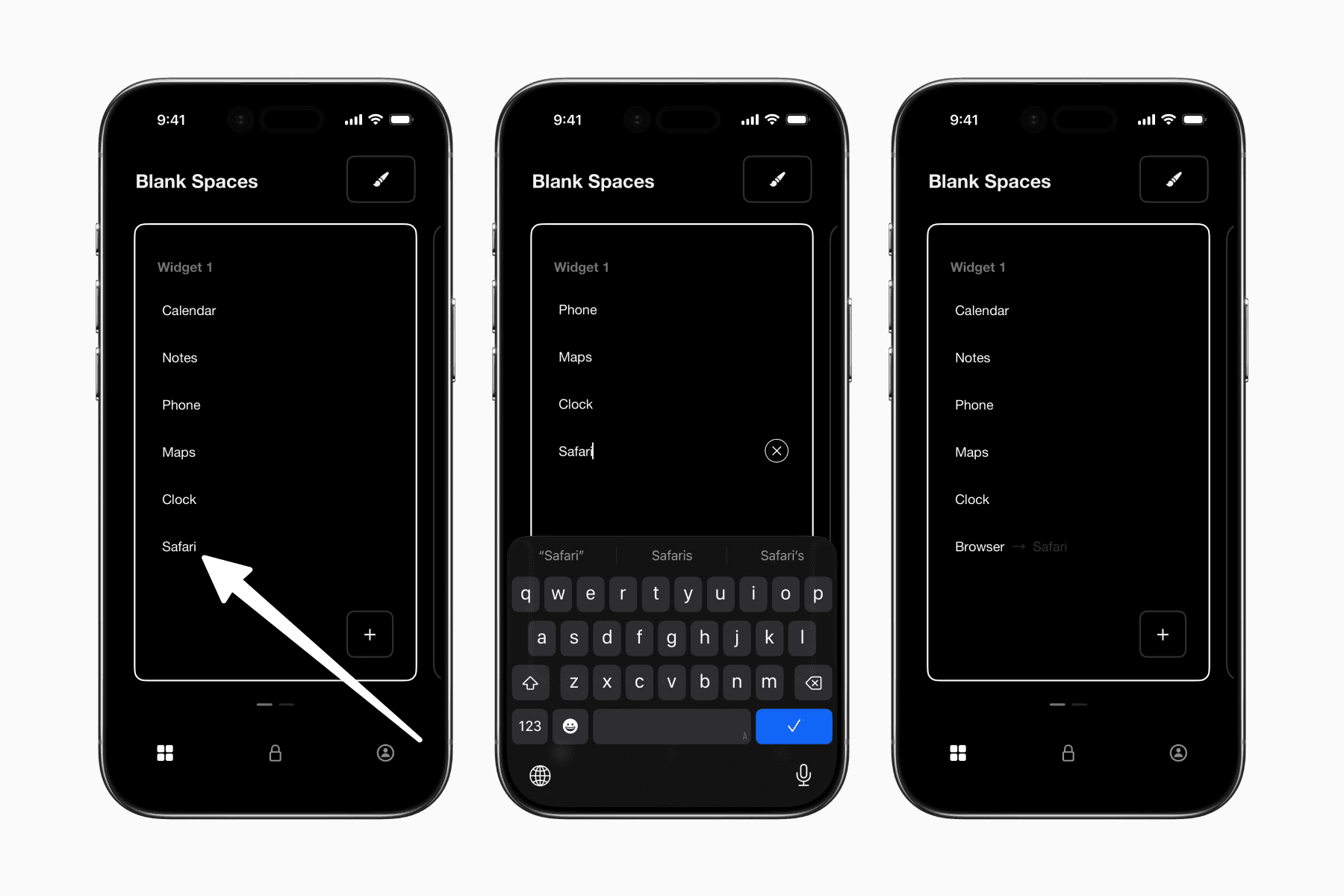
In Widget 1, tap the plus icon to browse or search for apps. Tap an app to add or remove it from the widget.
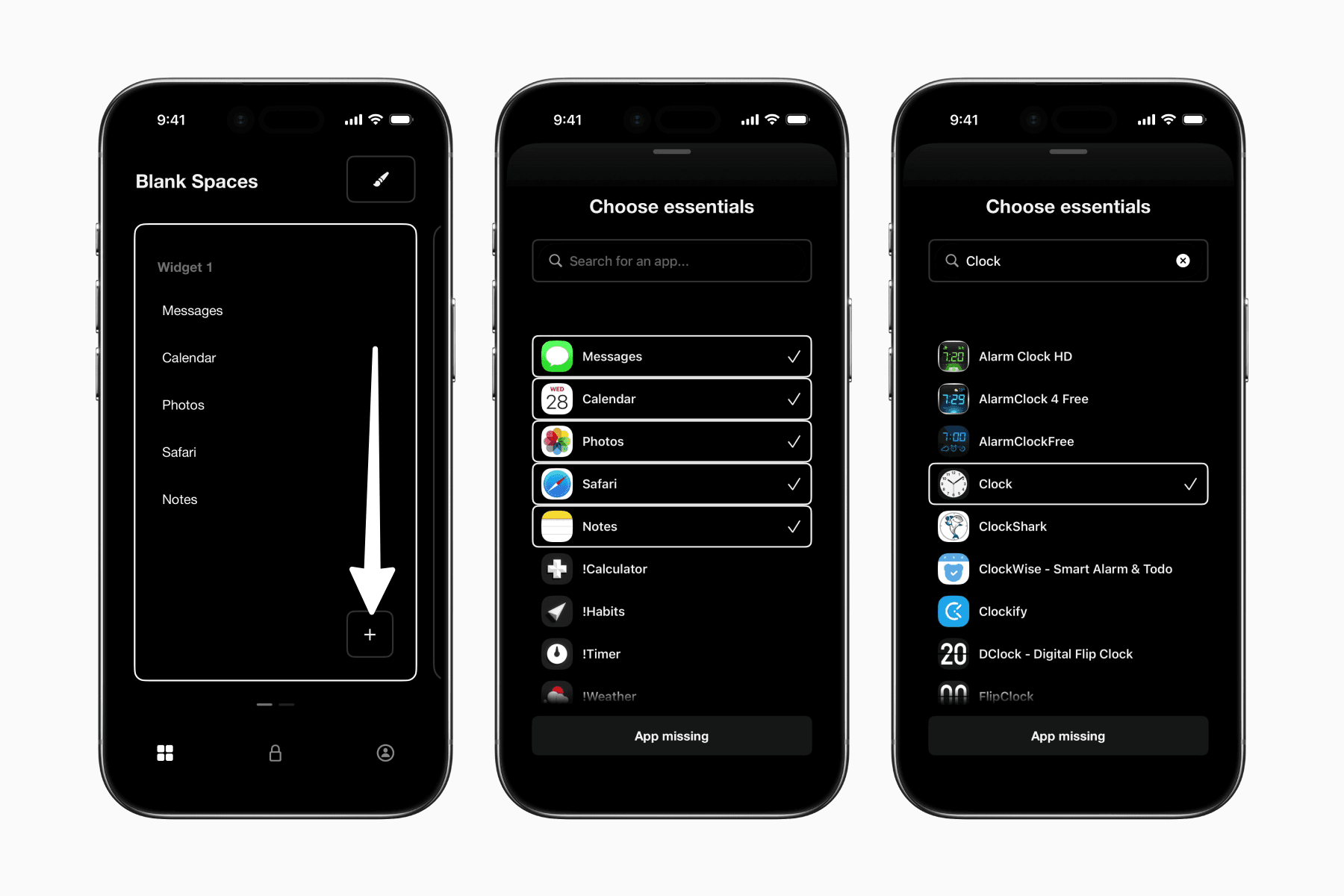
You can also rename apps to make them more generic or intentional. For example, you might rename "Safari" to "Browser" or "Clock" to "Alarm".
Simply tap the added app on the widget to edit its label.
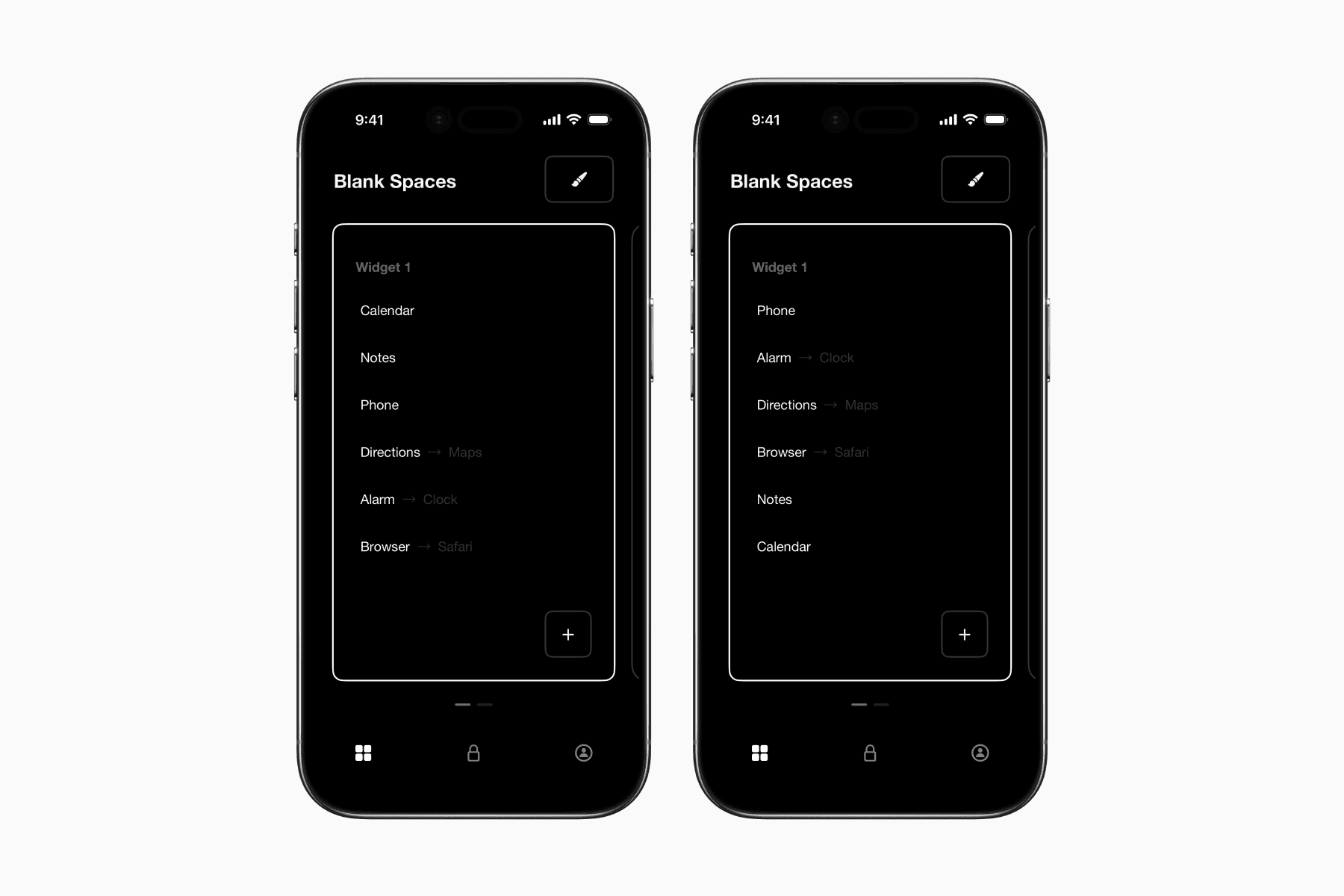
Apps can also be reordered by dragging and dropping them into your preferred arrangement.
6. Customize the Widgets
The setup is already usable at this point, but customization is where Blank Spaces becomes more personal.
To start customizing, tap the paintbrush icon in the top-right corner of the app.
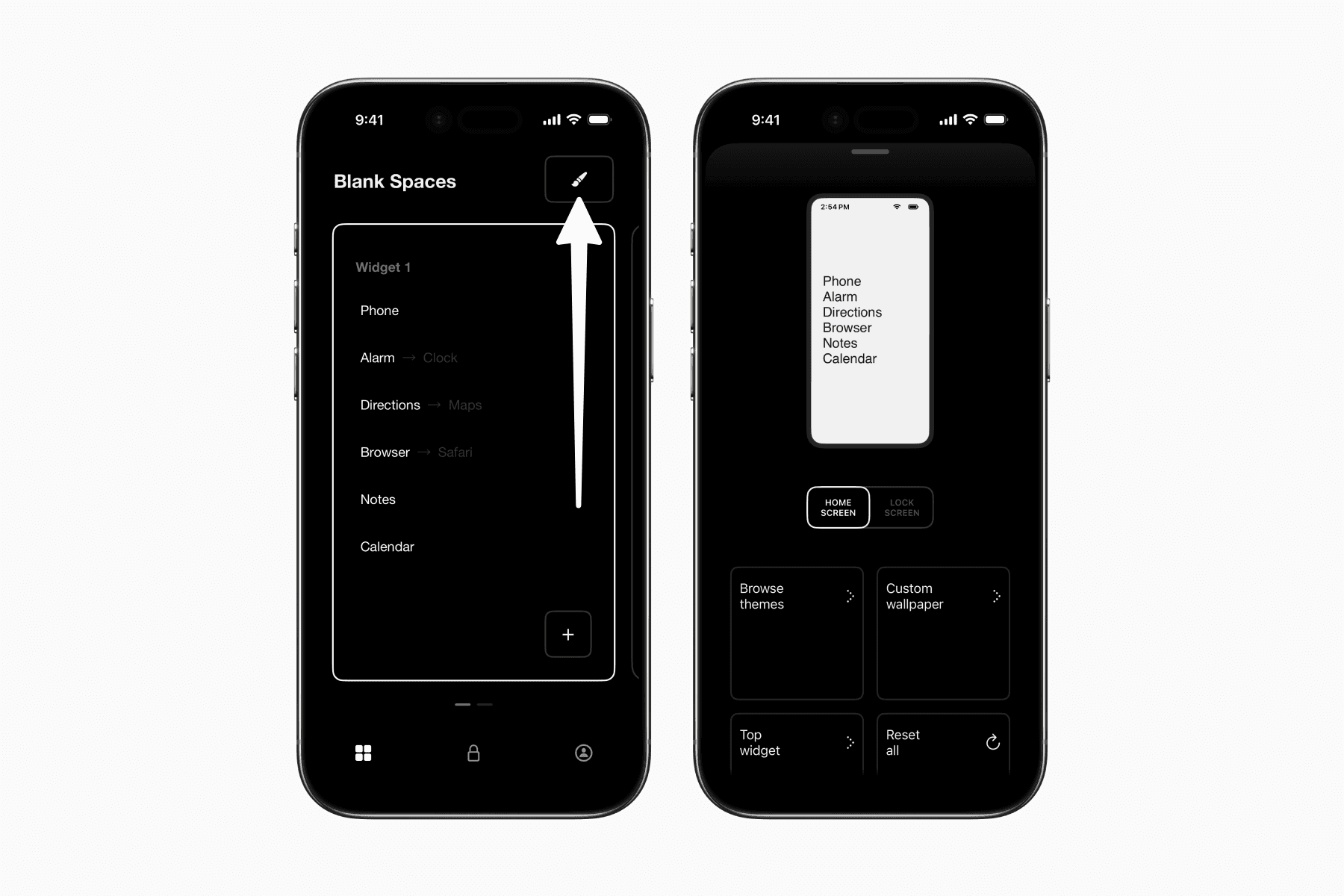
As you adjust settings, you'll see a live preview at the top, making it easy to experiment with different looks and styles.
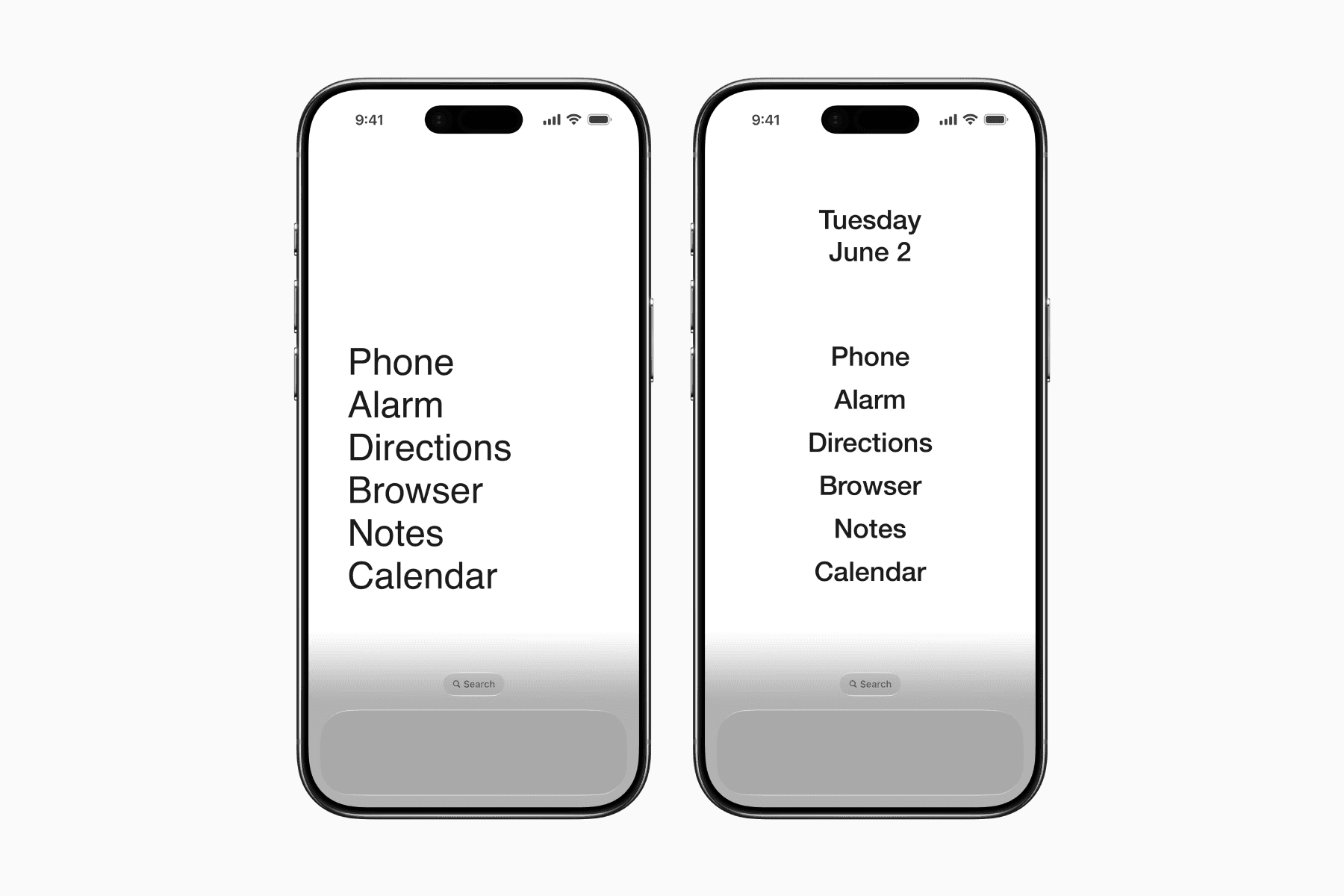
Below are a few settings we used for our setup:
Top Widget: Date
Font: Helvetica Neue Medium
Alignment: Center
Font Size: 34
Spacing: 14
We hope this setup helps you use your phone more intentionally.
If you haven't already, download Blank Spaces and give it a try.
The app makes the setup process surprisingly straightforward and offers enough customization to make the setup feel your own.
For those who want to take things a step further, Blank Spaces also includes Screen Time tools that can help reduce distractions beyond the home screen.