4 Tips to Protect Your Eyes from Screens
Try these tools and settings to reduce eye strain.

We spend a scary amount of time in front of screens.
Below are a few tools and settings that Apple users can use to build healthier digital habits.
Turn on screen break reminders

LookAway is a Mac app that reminds you to take regular breaks from your screen.
After a set duration at your computer, LookAway temporarily takes over your screen by blurring the content and prompting you to look away and rest your eyes.
There are many alternatives to such apps, but this one, in particular, is beautifully and thoughtfully designed.
LookAway recognizes when you are idle and away from your screen.
It also avoids interrupting you when it detects that you are recording your screen or participating in an online meeting.
Apply a dark theme to every site
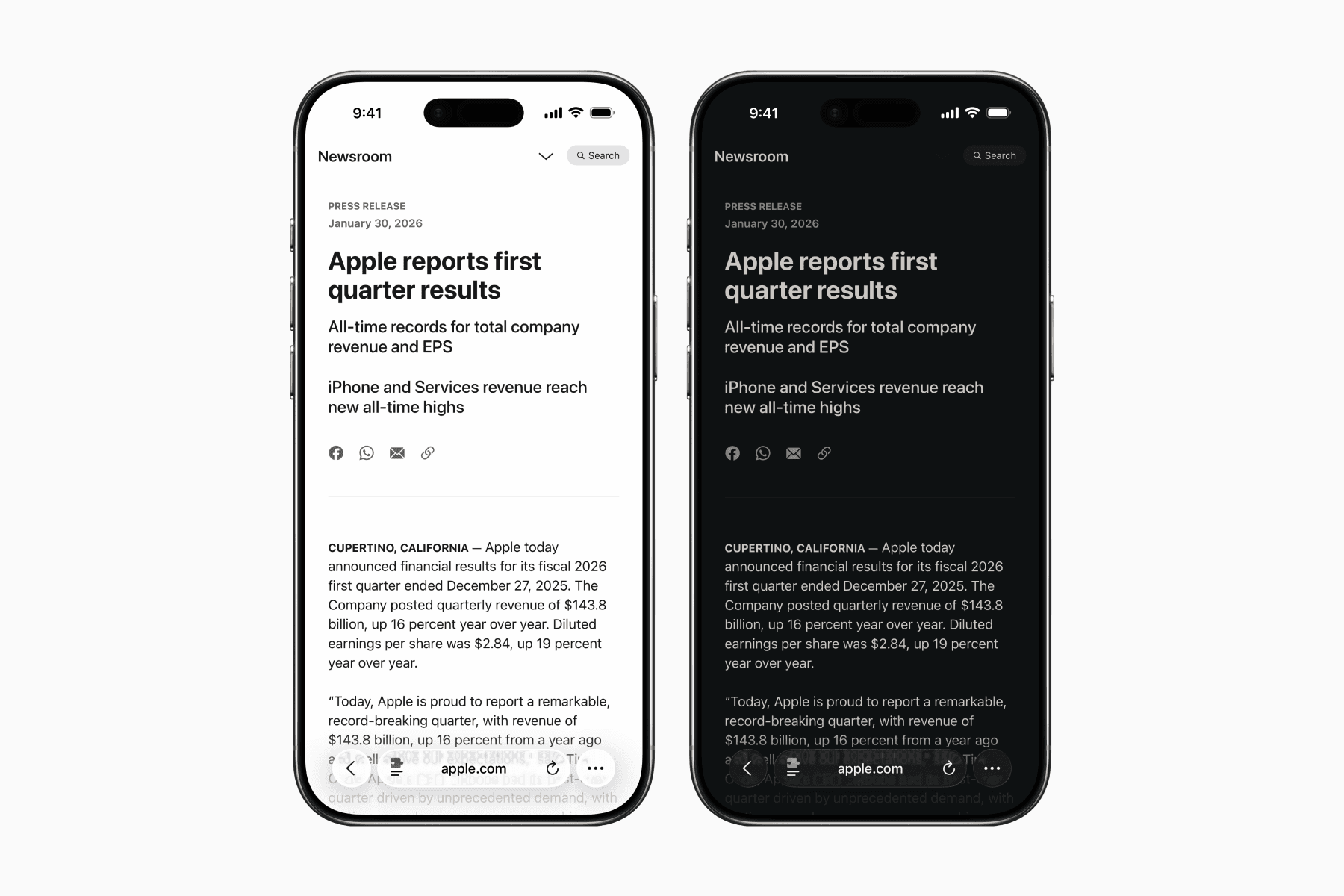
Noir is a Safari extension available for iPhone, iPad, and Mac.
You’ve probably come across websites that don’t offer a dark mode.
When browsing these sites at night, the bright white backgrounds can feel harsh on your eyes.
Noir automatically applies a dark theme to every website you visit, making it much more comfortable to read content in low-light environments.
Shift your display colors to warmer tones

Apple devices come with a built-in feature called Night Shift.
Night Shift automatically shifts your display colors toward the warmer end of the spectrum, which can be easier on the eyes, especially at night.
You can schedule Night Shift to activate from sunset to sunrise, or set a custom schedule.
On a Mac, open Settings, then go to Displays > Night Shift.
On an iPhone or iPad, open Settings, then go to Display & Brightness > Night Shift.
Make the text larger on your device

Another simple way to reduce eye strain is to increase the text size on your device.
Larger text makes content easier to read and helps prevent squinting, which can tire your eyes.
On a Mac, open Settings, then go to Accessibility > Display > Text Size.
On an iPhone or iPad, open Settings, then go to Display & Text Size > Larger Text.
Closing remarks
With all that said, the most important and simplest rule is to take breaks from screens.
Therefore, consider incorporating offline activities during your work breaks or while winding down before bed.